
Foundations · Track 2 · Tutorial 6 of 7
Review everything before you report
Before the figures go to anyone, check that every step of the close is done, read through what was posted, explain what moved, and lock the month so nothing changes after you sign off.
1Confirm every step is done
- Select your group, and open Review → Month End Status for Oct-2026.
- Read the five cards and the Overall column.
| Card | Done when | If not, see |
|---|---|---|
| Entities, Data loaded | Every company is Ready and all GL is loaded. | Load the month |
| Eliminations | Posted. | Clear intercompany balances |
| CTA | Posted, if you have foreign companies. | Handle foreign currency companies |
| NCI / JV | Posted, if you have part-owned companies. | Account for minority shareholders |
Also check Intercompany → Elimination Review, if it is in your menu: nothing for October should still be waiting for Review.
2Read through the month’s adjustments
- Open Review → Elim. & Journals Report, with Actual and Oct-2026.
- Read down the list. Every entry should be one you expect.
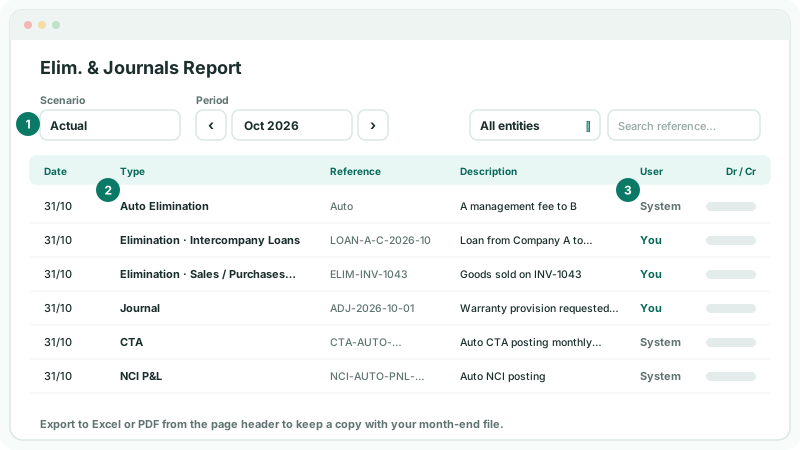
It lists everything posted at group level for the month in one place — eliminations, journals, CTA and NCI. Entries the system posts show System as the user; the rest show who posted them. Look for:
| Something missing | The recurring audit fee journal, say, or a month’s elimination that should be there. |
|---|---|
| Something unexpected | An entry nobody can explain, or one posted twice. |
| A vague description | Your reviewer and auditor will read these. Edit the entry if the description does not say why it exists. |
Use Filter by entity to see one company’s entries, and Export to PDF to keep a copy with your month-end file.
3Check the statements
- Open Reports → Balance Sheet: NET ASSET equals EQUITY, with no CTA is not configured. message.
- Open Reports → Profit & Loss, and compare Actual with Actual-LY. Read the Variance column for anything larger than you expect.
- Open Reports → Cashflow: Closing Bank equals the bank total on the balance sheet.
For a movement you cannot explain, turn on Show Entities to see which company it comes from, then click the figure to drill into the postings behind it. Most surprises turn out to be a missing month, a wrong mapping, or an elimination that did not post.
4Explain what moved
Once you know why a figure moved, write it down where the reader will see it.
- Right-click the figure, and choose Add Comment.
- Write the explanation. Type @ and a name to mention a teammate.
- Click Add comment.
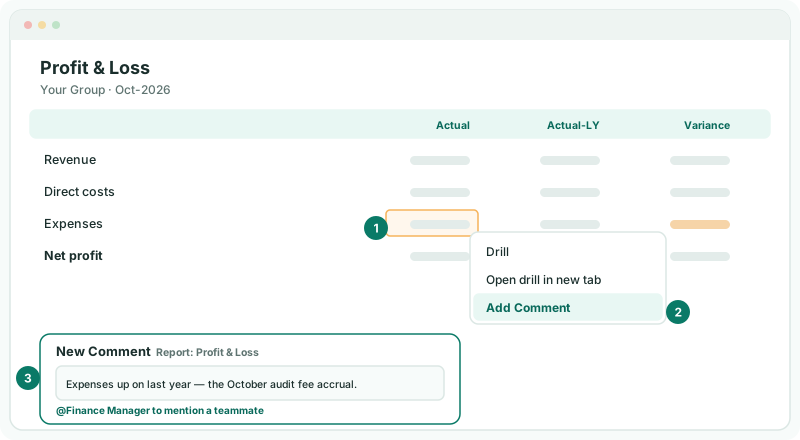
A teammate you mention gets a New Comment notification. Every comment for the month — on reports, dashboards and Pulse — is listed on Review → Comments, which makes a good final checklist: has each question been answered?
5Lock the month
When the figures are signed off, lock October so that nothing at group level changes underneath the report.
- Open Review → Month End Status for Oct-2026.
- Click Lock next to the period. The padlock turns red.
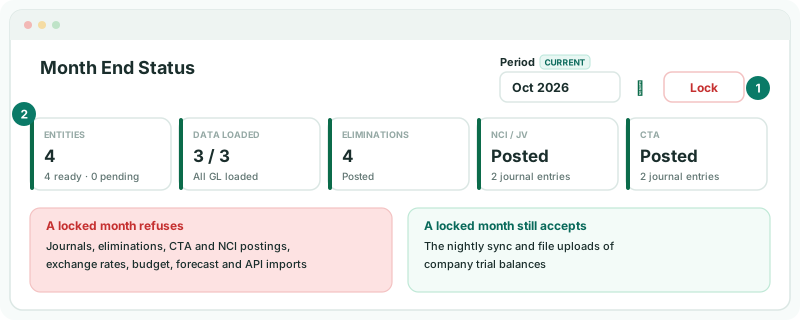
The lock applies to the whole group for that month. Only Administrators see the button.
A lock does not freeze company figures. The nightly sync and file uploads still update October’s trial balances. If a company’s books change after sign-off, its figures — and so the group’s — change too. Close each period in the companies’ own accounting systems as well.
If you need to correct something later, click Unlock, make the change, and lock the month again. Every lock and unlock is recorded in Settings → Global Settings → System Audit Trail, with who did it and when.
Check
On Month End Status, October shows a red padlock and an Unlock button.
6If something does not look right
| What you see | What to do |
|---|---|
| The Elim. & Journals Report is not in the Review menu | It needs Administrator or Journals & Eliminations Admin access. |
| There is no Lock button | Only Administrators can lock and unlock. |
| One or more selected periods are locked. when posting | The month is locked. Unlock it on Month End Status, or post to an open month. |
| Group figures changed after the month was locked | A company’s books changed and were synced or uploaded again. Check its Data Loading page for when the month was last loaded. |
| Add Comment is not in the menu | Right-click a figure in the body of the report, not a heading or account name. |
Want more detail? See the documentation