
Foundations · Track 2 · Tutorial 2 of 7
Clear intercompany balances
Charges and balances between your own companies are not group revenue, expenses or assets. Set up rules once to remove them every month, then check nothing is left.
1Understand why intercompany items must go
When your companies trade with each other, each one books its side correctly. Added together, though, both sides land in the group figures.
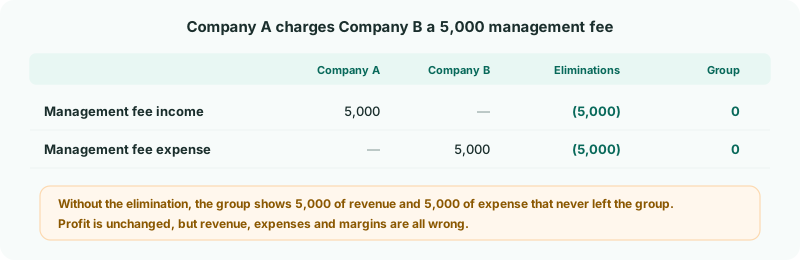
The same applies to the balance sheet: if Company B has not paid the fee yet, Company A shows a receivable and Company B a payable — the group owes the money to itself. Both must go.
2List your intercompany items
Before setting anything up, write down each item your companies book between themselves, and the account each side uses. In the running example:
| Item | From side | To side |
|---|---|---|
| Monthly management fee | Company A — 4900 Management fee income | Company B — 6420 Management fees |
| Unpaid fees | Company A — 1250 Due from Company B | Company B — 2150 Due to Company A |
| A loan made in October | Company A — 1300 Loan to Company C | Company C — 2400 Loan from Company A |
| Goods sold in October | Company A — 4000 Sales, invoice INV-1043 | Company B — 5000 Purchases, bill BILL-778 |
The first two recur on the same accounts every month, so a rule handles them (steps 3–6). The loan and the sale are entered by hand (steps 7–9). Rules are easiest when intercompany accounts are kept apart from outside customers and suppliers — see Intercompany Account Naming Conventions.
3Let BrizoElim suggest rules
- Select your group, and open Intercompany → Elimination Rules.
- Click Suggest Rules, then Get Suggestions.
- Read down the suggested rules. Untick any that pair the wrong accounts.
- Click Confirm & Add.
BrizoElim reads your companies’ charts of accounts and suggests pairs that look intercompany, leaving out pairs that already have a rule. Check each suggestion against your list from step 2 — it only sees account names, not how your companies actually use them.
Suggest Rules is not included in the Standard edition. Add the rules by hand instead, as in the next step.
4Add a rule by hand
- Click Add an Auto Elimination Rule.
- Enter a Description and choose the Intercompany Type — for the fee, Management Charges.
- Choose the Method (see step 5).
- Under Leg Scope, choose Company A and its income account as the From side, and Company B and its expense account as the To side.
- Leave Tolerance at 0.5% and click Confirm.
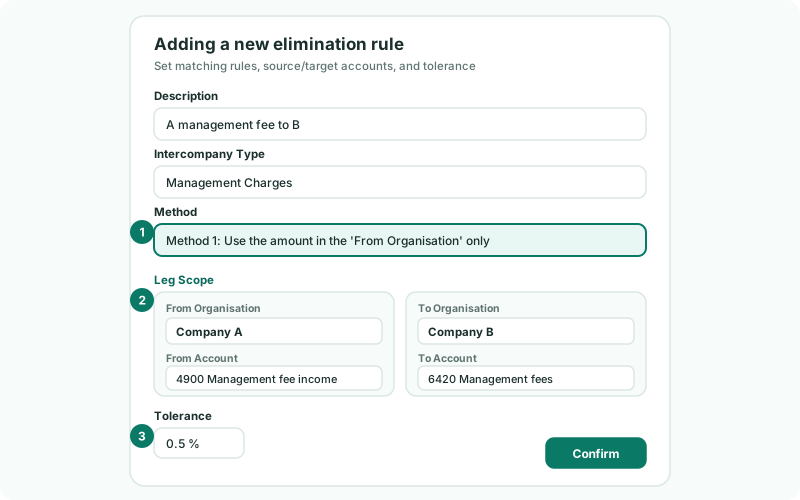
Saving a rule recalculates the group. From then on the rule runs on every consolidation, for every month — next month, the fee is cleared without you doing anything.
5Choose the right method
The method decides what happens when the two sides do not agree exactly.
| Method | What it does | Use it for |
|---|---|---|
| 1 · From Organisation only | Clears both sides at the From side’s amount. If the other side differs by more than the tolerance, the month is held back for review. | The management fee — Company A’s invoice is the reliable figure. |
| 2 · Both Organisations | Clears each side at its own amount, and sends any difference to the treatment you choose: FX, Timing or Write off. | The unpaid fees. Company A holds the receivable in SGD and Company B the payable in AUD, so they differ after translation — choose FX. |
| 3 · Lowest amount | Clears the amount both sides agree on, and leaves any excess visible on the larger side. | Items where a difference should stay in the figures until someone investigates. |
| 4 · Review and approve | Prepares the entry but never posts it until someone approves it. | Items that need sign-off every month. |
6Deal with anything held back
When a rule cannot post on its own — a Method 4 proposal, a Method 1 difference beyond the tolerance, or a Timing difference set to review — Elimination Review appears in the Intercompany menu.
- Open Intercompany → Elimination Review, and choose the month.
- On each row, read the Difference and Warning, then click Review.
- Adjust the entry if needed, and click Approve & Post — or Confirm & Replace for a Method 2 difference.
- If the rule itself is wrong, click Reject instead and correct the rule.
A difference usually means one company has booked something the other has not — for example Company B has not recorded October’s fee yet. Fix it in that company’s books, reload the month, and the rule posts on its own.
7Know when to enter an elimination by hand
A rule reads whole accounts, month after month. Enter an elimination yourself when that does not fit:
| Use | When | In the example |
|---|---|---|
| A rule | The same accounts carry only intercompany amounts every month. | The management fee and the unpaid fees. |
| A GL entry | A one-off item, or one the rules do not cover. You name the companies, accounts and amounts. | The October loan from Company A to Company C. |
| A document entry | You want to eliminate specific invoices and bills — for example when an account also holds sales to outside customers. The entry keeps the documents it was built from. | Invoice INV-1043 from Company A and Company B’s bill for it. |
Both kinds of manual entry are made from the same place:
- Open Intercompany and choose the type — Intercompany Loans for the loan, Sales / Purchases / Services for the sale.
- Keep the scenario on Actual, choose Oct-2026, and click Add Elimination Entry.
This tutorial records entries at subsidiary level, as each group does unless it changes it. The other option, Input at Group level, records entries on group accounts instead; it is set under Manual elimination configuration on the group’s Organisation Details page.
8Post a GL entry
For the loan, keep GL entry selected at the top of the dialog.
- Enter an Elimination ID, the Date and a Description.
- Under Debit Lines, choose Company C, its account 2400 Loan from Company A, the currency and the amount. Enter the Exch. Rate that translates it into the group currency — it starts at 1.0000.
- Under Credit Lines, do the same for Company A and 1300 Loan to Company C.
- If the two sides balance, click Confirm. If they do not, click Next.
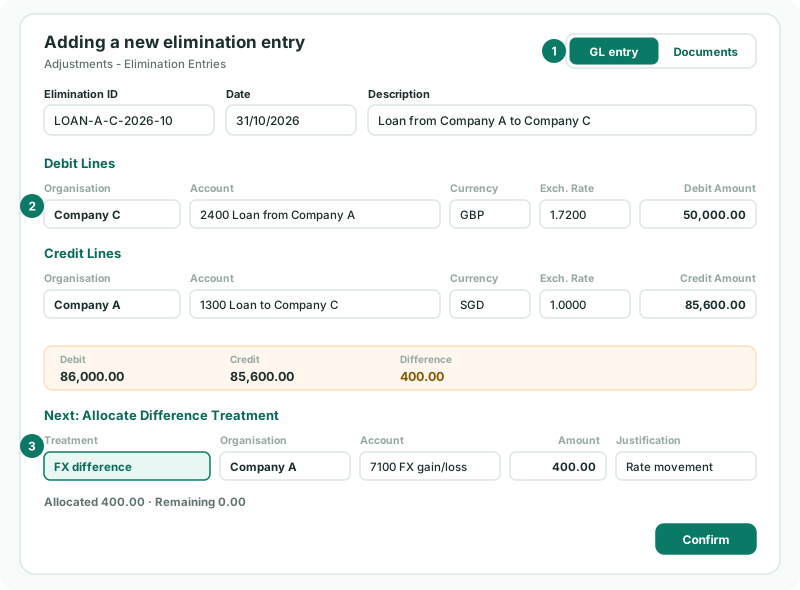
Each line is a company’s own account in its own currency, so the two sides often differ once translated into the group currency — here Company C’s GBP balance translates to 400 more than Company A’s SGD one. Next opens Allocate Difference Treatment, where you say what the difference is:
| FX difference | Exchange-rate movement, as in the example. Posted to the account you choose. |
|---|---|
| Timing difference | One company has recorded something the other has not yet. |
| Write off | A small difference nobody will chase. |
Choose the treatment, the company and account it posts to, the amount and a justification, until Remaining is 0.00. Then click Confirm.
9Post a document entry
For the October sale, click Documents at the top of the dialog instead.
- On the From side, choose Company A and the account the sale is in. Its invoices for the month are listed.
- On the To side, choose Company B and its purchases account. Its bills are listed.
- Tick INV-1043 and BILL-778 — or click the match button between the lists to have BrizoConsol pair the documents for you.
- Check the lines under Review the entry, and click Confirm.
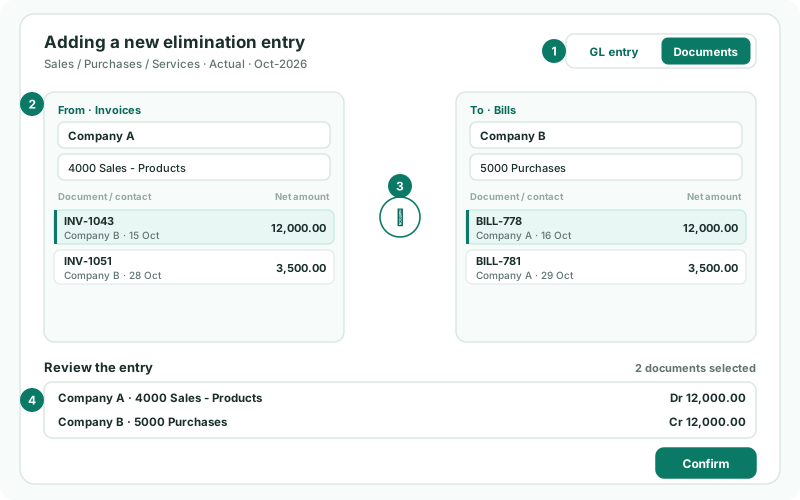
BrizoConsol builds the lines from the documents you chose, at the group’s rates. A difference between the two sides goes through the same treatment step as a GL entry. Because the entry remembers its documents, anyone drilling into the elimination later can see exactly which invoice and bill it removed.
| Types | Trade receivables / payables, Management Charges, Inventory Transfers and Sales / Purchases / Services. |
|---|---|
| Scenario | Actual only. |
| Plan | Not included in the Standard edition. |
| Which documents | Posted documents dated in the month. For Trade receivables / payables, documents from the 90 days up to the entry date, so older unpaid invoices can be picked. |
| Data | Both companies’ invoices and bills must be loaded — check on Month End Status. |
10Import entries from a file
For many entries at once, click Import from file on the same page and use the downloadable template. One row is one line, rows sharing an Elimination ID form one entry, and the whole file is refused unless every entry is valid.
11Check nothing is left
- Open Reports → Profit & Loss for the group, and turn on Show Entities.
- On each intercompany line, the Eliminations column should cancel the companies’ amounts, leaving zero for the group.
- Do the same on the Balance Sheet for the intercompany receivable and payable.
Check
Every intercompany line is zero in the group column, and every row in Elimination Review for the month has been approved, confirmed or rejected. On Month End Status, the Eliminations card shows Posted.
12If something does not look right
| What you see | What to do |
|---|---|
| Add an Auto Elimination Rule is disabled | Rules need a Common COA with your companies mapped to it — see Map every company to one group chart of accounts. |
| A rule exists but nothing is eliminated for the month | The From account did not move that month, or one of its accounts is not mapped. Check both in Account Mapping. |
| The rule says both sides post to the same group account | The two accounts are mapped to the same group account, so there is nothing to eliminate between them. Map them to separate group accounts. |
| An intercompany line is still not zero | Part of the balance is on an account no rule covers. Drill into the figure to find it, then add it to a rule or post a one-off entry. |
| The same rule lands in Elimination Review every month | Its accounts, method or tolerance need adjusting. Edit it on Elimination Rules. |
| Documents is not offered in the entry dialog | The type does not support documents, the scenario is not Actual, or your plan is Standard. Use a GL entry. |
| No documents are listed | The month’s invoices or bills are not loaded for that company, or the account chosen is not mapped. Check Month End Status and Account Mapping. |
| An entry cannot be edited | Its month is locked. Ask an administrator to unlock it on Month End Status. |
Want more detail? See the documentation