
Foundations · Track 2 · Tutorial 1 of 7
Load the month and see what is missing
Every close starts the same way: get each company’s final figures for the month into BrizoConsol, then confirm nothing is missing before you work on the group.
1Know where this fits
The close follows the same order every month. This track has a tutorial for each step; this one is the first.
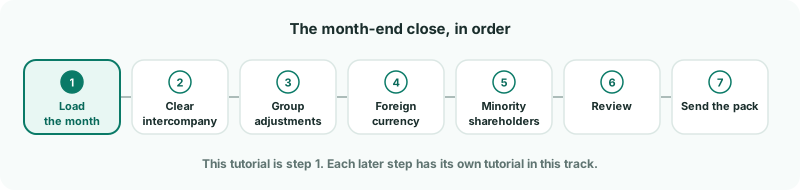
In the running example you are closing October 2026: Company A (Singapore, Xero), Company B (Australia, QuickBooks Online) and Company C (UK, uploaded from a file).
Close each company’s own books first. BrizoConsol reads whatever is in the accounting system when it loads. If Company B’s accountant is still posting October journals, the group figures will change under you.
2Set the reporting month
- Select your group in the entity selector.
- In the reporting month control in the header, choose Oct-2026.
The reporting month is shared by the whole group. Reports and Month End Status open on it, so everyone in your team works on the same month.
3Bring in the final figures for connected companies
Companies A and B sync every night, and each sync re-reads recent months — so a journal posted in Xero for October today is in BrizoConsol tomorrow morning. To bring it in now:
- Select Company A in the entity selector.
- Open Settings → Organisation Settings → Data Loading.
- On the Oct-2026 row, click Reload — or Load missing if something has not been loaded yet.
- Keep the data types ticked, and click Start Load.
Repeat for Company B. If late entries went into several months, click Sync now at the top of the page instead and choose the range.
Use Incomplete in the period filter to list only the months with something missing.
4Upload the month for file-based companies
Company C has no connection, so nothing arrives until you upload it.
- Export Company C’s year-to-date trial balance at 31 October 2026 from its accounting system.
- Select Company C, open Data Loading, and click Import Actual CSV — or BrizoFileBot if you use it.
- Choose Oct-2026 for the file, and upload.
Uploading a month again replaces it, so if Company C’s figures change after you upload, simply upload the corrected file. The file format is covered in Bring in each company’s numbers.
5Open Month End Status
- Select your group in the entity selector.
- Open Review → Month End Status.
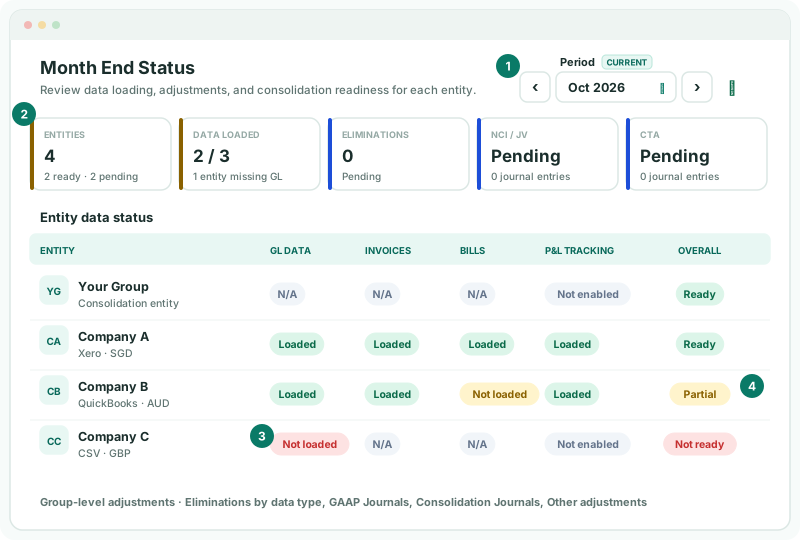
| 1 · Period | Opens on the reporting month, marked Current. Use the arrows to step to another month. The padlock shows whether the month is open or locked. |
|---|---|
| 2 · Summary cards | Entities counts how many are ready; Data loaded how many companies have their GL for the month. Eliminations, NCI / JV and CTA show the group entries the later tutorials cover. |
| 3 · Data status | For each company: GL data (its trial balance), Invoices, Bills and P&L tracking. |
| 4 · Overall | The company’s readiness for the month. |
6Fix what is missing
Read the Overall column:
| Ready | Everything that applies to the company is loaded. |
|---|---|
| Partial | The GL is loaded, but invoices, bills or tracking are not. The statements are complete; load the rest if you drill down to invoices and bills or report by tracking category. In the example, Company B’s bills are missing. |
| Not ready | The GL for the month is missing, so the company is missing from the group figures. In the example, Company C’s October file has not been uploaded. |
Click a Not loaded pill to go straight to that company’s Data Loading page, load or upload the month, then come back. N/A and Not enabled need nothing — the group itself never loads data, and an uploaded company has no invoices or bills unless you load them.
Check
The Data loaded card shows every company, and no company is Not ready.
7Check each company against its own books
Loaded is not the same as right. Before working on the group, compare each company with the trial balance in its own system:
- Select Company A, and open Reports → All Reports → Trial Balance for Oct-2026.
- Compare total assets, total liabilities and net profit with Company A’s own trial balance at 31 October.
- Repeat for Companies B and C.
A difference almost always means the books changed after the last load. Reload the month (or upload the file again) and compare again.
8If something does not look right
| What you see | What to do |
|---|---|
| A connected company stays Not loaded after a reload | Check its connection on Data Loading — a Reconnect button means the access has expired. Reconnect, then load the month. |
| A company’s figures differ from its own trial balance | Entries were posted after the last load. Reload the month, or upload the corrected file. |
| The month you need is not in the period list | Change the reporting month in the header, or load the month first. |
| A company is missing from Month End Status | It is not in this group. Check Organisation Hierarchy. |
| New accounts appeared in this month’s load | The notification bell shows Unmapped Accounts. Map them before moving on, or their balances are left out of the group. |
Want more detail? See the documentation