
Foundations · Track 2 · Tutorial 7 of 7
Send the monthly pack
With October reviewed and locked, put the statements and your commentary into one PDF, keep a fixed copy, and send it to the people who need it — by hand or on a schedule.
1Know what an Insight Package is
An Insight Package bundles reports, dashboards, Pulse views and your own text into one PDF, with a cover and a contents page. You build it once; every month it fills with that month’s figures.
| The live package | Shows the group’s current reporting month. A schedule sends it for the current or the previous reporting month. |
|---|---|
| A published copy | A frozen snapshot for one month that never changes — the record of what you reported. |
2Start from a template
- Open Insight Packages → Custom, and click Template Start.
- Choose Monthly Pack or Board Pack Example, and click Use This Template.
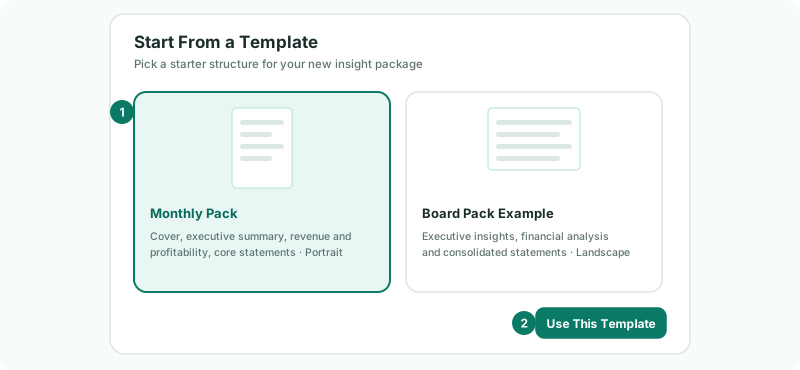
The new package opens in the editor, already filled with a cover, a summary and the core statements. To copy a package you already have instead, use Duplicate Existing.
3Shape the contents
In the editor, each section becomes a page or panel of the PDF. For a board pack, a typical set is:
| Cover | Your logo, a title and the organisation name — click Cover in the section list to set them. |
|---|---|
| Commentary | A Text section for the month’s story (step 4). |
| Statements | Report sections for the Profit & Loss, Balance Sheet and Cashflow. |
| Key measures | A Dashboard or Pulse section, if your readers follow KPIs. |
Remove what you do not need, reorder the rest, give the package a name such as Board Pack, and click Save changes. You can also add a report straight from its own page with the Add to Insight Package icon in the header.
4Write the month’s commentary
Readers want to know why the figures moved, not just what they are. Open the Text section and write a few lines for October, drawing on the comments you left in Review everything before you report — Review → Comments lists them all for the month.
Keep it to what changed and why: “Expenses rose 8% on last year, mainly the group audit fee now accrued monthly. Company B’s revenue fell after a large one-off order in October last year.”
5Preview the pack
- Open the package from the Insight Packages menu.
- Check that it shows October 2026, and read it through as your reader will.
- Use Export to PDF to see the finished file.
Look for tables that are cut off — switch a wide report to Landscape in its section settings — and for anything you would not want a board member to see.
6Publish October’s copy
- In the package editor, click Publish. (Save any changes first — the button waits until you do.)
- Enter a Publish title that names the month, such as October 2026 Board Pack.
- Choose Oct-2026 as the Reporting month, and click Publish.
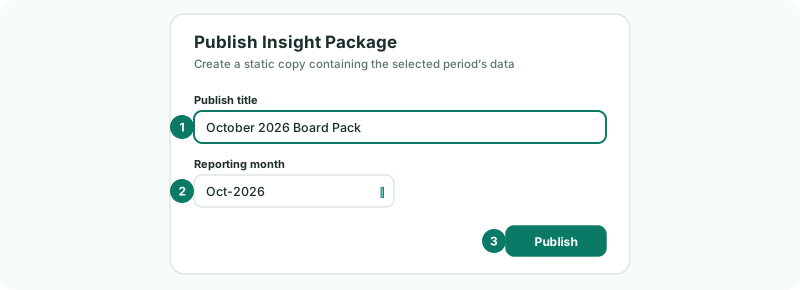
The published copy appears in the Insight Packages menu beside the live package. Its figures are frozen: if a company’s October books change later, the copy still shows what you reported. Download its PDF to send it yourself, or keep it as the record for your auditor.
7Schedule it to go out every month
- Open Insight Packages → Schedule, and click Add schedule.
- Enter a Description, and choose the live package.
- Choose the Reporting period — see below.
- Choose the Frequency, the day and the Time.
- Add each Recipient — press Enter after each address.
- Click Create Schedule.
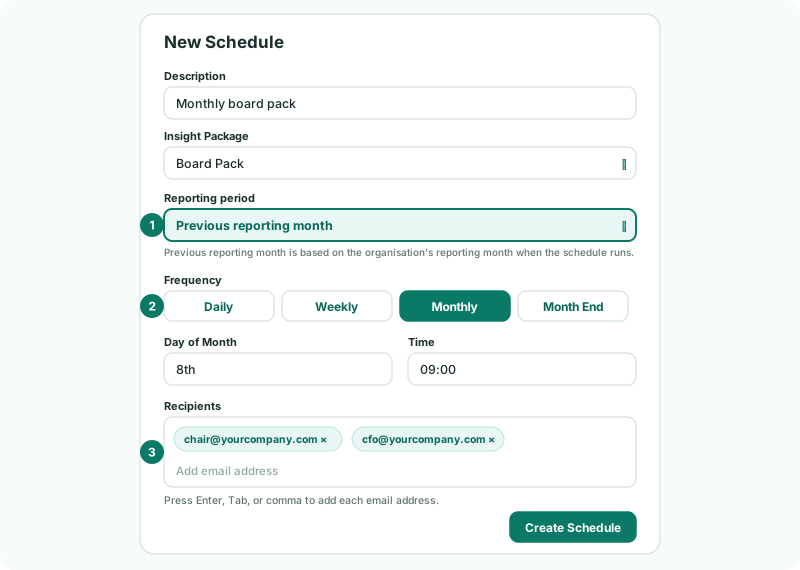
Reporting period decides which month the pack shows. Both options count from the group’s reporting month on the day the schedule runs:
| Current reporting month | The reporting month itself. Use it if the reporting month stays on the month you closed until the pack has gone. |
|---|---|
| Previous reporting month | The month before it. Use it if you move the reporting month on as soon as a new month starts — on 8 November, with the reporting month already on November, the pack shows October. |
| Monthly | On a chosen day of the month — for example the 8th, once your close is usually done. |
|---|---|
| Month End | On the last day of the month, or the 2nd to 5th last day. |
| Daily, Weekly | For packs that track the month as it goes, not for the closed month. |
Each recipient receives an email titled Your Board Pack is ready, with the PDF attached. They do not need a BrizoConsol login.
8If something does not look right
| What you see | What to do |
|---|---|
| The scheduled pack showed the wrong month | Check when your group moves its reporting month on, and edit the schedule’s Reporting period to match. To resend a month, download its published copy. |
| Publish is greyed out | Save your changes first. |
| A wide report is cut off in the PDF | Set that section to Landscape, or change the package’s scale mode in its print settings. |
| A recipient did not receive the pack | Check the address in the schedule, and ask them to check their spam folder. |
| A schedule should stop | Delete it on Insight Packages → Schedule. Schedules cannot be paused; the package itself is not affected. |
Want more detail? See the documentation