
Hospitality Groups · Track 2 · Tutorial 2 of 2
Report revenue by operating model
Owned, leased, managed and franchised hotels earn revenue in different ways, and readers of the accounts want to see each. In BrizoConsol that split comes from how each company’s revenue is mapped to the group chart.
1Know where each model’s revenue is
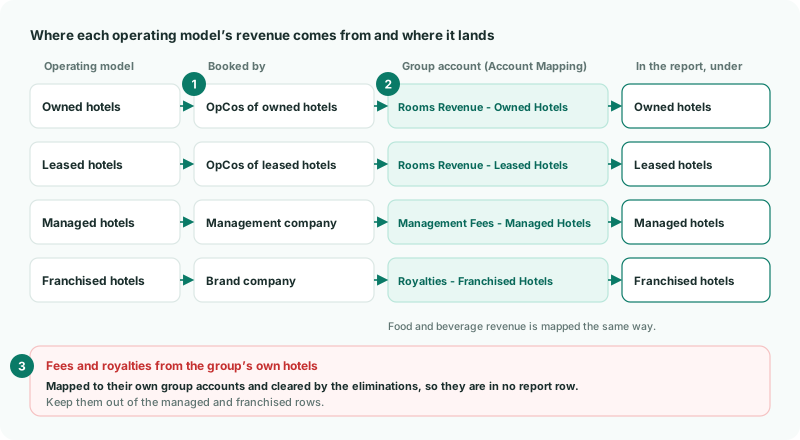
A hotel group earns its revenue in different ways, and readers want it shown by operating model. Under IFRS 15.114 revenue is disaggregated into categories that show how its nature, amount, timing and uncertainty differ, and the operating model is usually such a category. In the group’s companies it sits here:
| Operating model | Revenue | Booked by |
|---|---|---|
| Owned hotels | Rooms, food and beverage | The OpCos of hotels the group owns |
| Leased hotels | Rooms, food and beverage | The OpCos of hotels leased from outside landlords |
| Managed hotels | Management fees from outside owners | The management company |
| Franchised hotels | Royalties from outside franchisees | The brand company |
Fees and royalties from the group’s own hotels are not group revenue: they are eliminated, as in Clear intercompany items in a hotel group. So the management and brand companies need separate accounts for fees from outside owners and fees from group hotels. With those, every model can be read from group accounts after the eliminations.
2Give each model its own group accounts
- Select the group, and open Settings → Global Settings → Account Mapping.
- Choose an owned hotel’s OpCo. For its rooms revenue account, click the Create common account and map icon on the row, and create Rooms Revenue - Owned Hotels.
- Choose a leased hotel’s OpCo, and map its rooms revenue account the same way to a new Rooms Revenue - Leased Hotels.
- Do the same for food and beverage revenue, and map every other OpCo’s accounts to the group account for its model.
- Choose the management company, and map its fees from outside owners to Management Fees - Managed Hotels. Choose the brand company, and map its royalties from outside franchisees to Royalties - Franchised Hotels. Click Save for each company.
Mapping is set for each company’s account, so two OpCos with the same chart can feed different group accounts. The fee and royalty accounts for the group’s own hotels keep their own group accounts, where the eliminations clear them. See Map every company to one group chart of accounts.
3Build the report
- Open Reports → Custom Reports, click Add a new report, and choose Row/column report.
- Name it Revenue by Operating Model, and choose the period and the Data Type Movement.
- Click the first blank row — click to configure — and choose Label, with Owned hotels as its text.
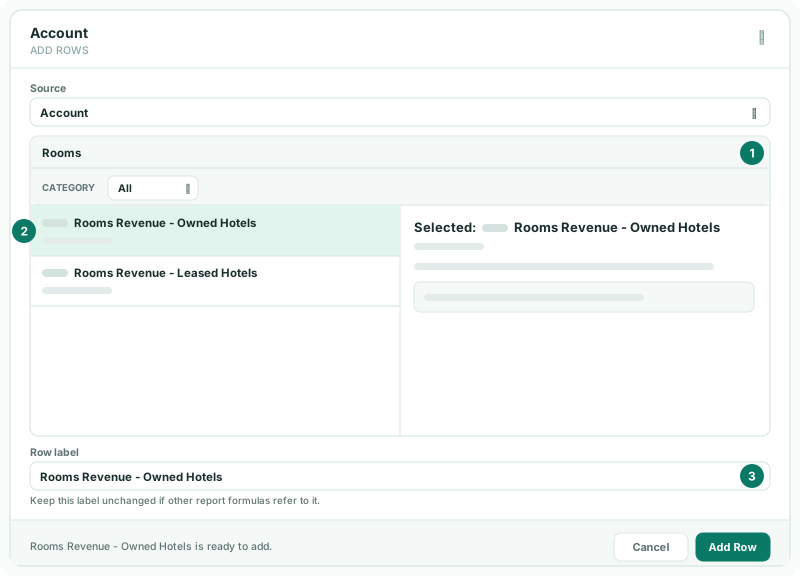
- Add an Account row for each owned-hotel account, such as Rooms Revenue - Owned Hotels, with a Row label, and click Add Row.
- Add the leased, managed and franchised models the same way, then click Save and View.
Add a Formula row for each model’s total, as in Build formula rows for margins and ratios. The report reads the group’s consolidated figures, so fees and royalties from your own hotels are not in it.
A virtual group of the owned hotels’ OpCos also shows their revenue side by side, but a virtual group isn’t eliminated — see Report a subgroup with a virtual group. Use it for the hotel companies, never for the management or brand company, whose revenue includes fees from group hotels.
Check
For each month, the models add up to the revenue on the group’s Profit & Loss, and the managed and franchised rows hold no fees or royalties from the group’s own hotels.
4If something goes wrong
| The models add up to more than group revenue | A fee or royalty account for the group’s own hotels is in a model row. Take it out: its income is eliminated. |
|---|---|
| The models add up to less than group revenue | A company’s revenue account is mapped to a group account that isn’t in the report. Check it on Account Mapping. |
| An owned hotel’s revenue is under leased hotels | Its OpCo’s account is mapped to the leased account. Change the mapping. |
| Choose an account or tag and enter a row label. | Pick the account and type a Row label. |
Want more detail? See the documentation