
Foundations · Track 1 · Tutorial 4 of 6
Map every company to one group chart of accounts
Your companies each keep their own accounts, with their own codes and names. Here you set up one group list of accounts and point every company account at it, so their figures can be added together.
1Understand what mapping does
Company A calls its sales account 4000 Sales – Products; Company B calls it 200 Revenue. To add them together, BrizoConsol needs one shared list of accounts for the group — the Common COA (common chart of accounts) — and a record of which group account each company account belongs to. That record is the mapping.
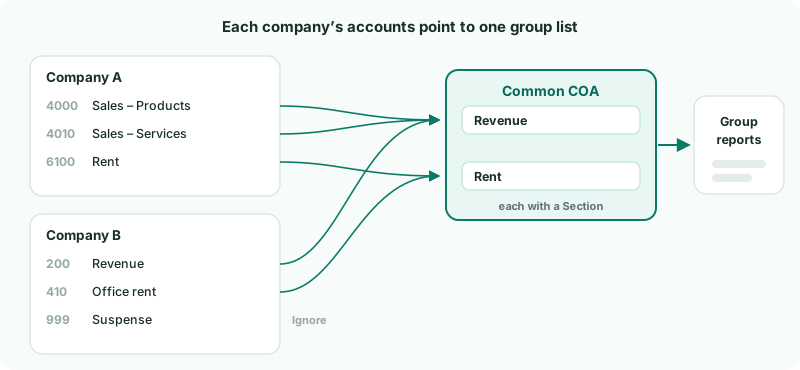
| Mapped | The account’s balance is added into the group account it points to. |
|---|---|
| Ignored | The account is deliberately left out of group reports. |
| Pending | Not decided yet. Its balance is missing from group reports until you map or ignore it. |
You do this once. After that, only new accounts need mapping — BrizoConsol tells you when one appears (step 8).
2Choose how to build the Common COA
- Select your group in the entity selector.
- Open Settings → Global Settings → Common COA.
While it is empty, the page offers six ways to fill it:
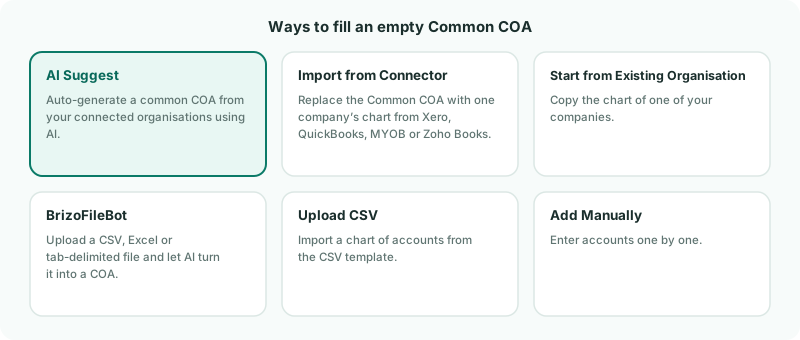
| No group chart yet | AI Suggest proposes one from your companies’ accounts. The usual choice — see step 3. |
|---|---|
| One company’s chart should be the group’s | For example a holding company’s. Import from Connector loads it from its accounting system; Start from Existing Organisation copies it from a company already in BrizoConsol. |
| The list is in a file | BrizoFileBot reads a CSV, Excel or tab-delimited file. On the Standard plan you get Upload CSV instead, which takes the CSV template. |
| A short list | Add Manually, one account at a time. |
Import from Connector replaces the whole Common COA. Use it to start, not to add to a list you have already built.
3Let AI Suggest draft it
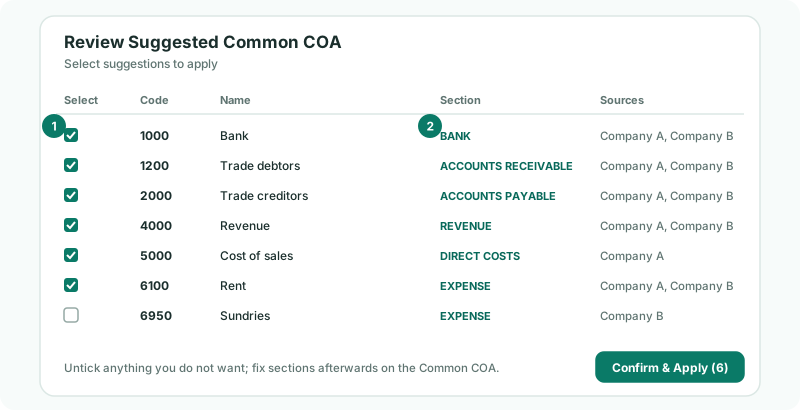
- Click AI Suggest, then Get Suggestions.
- In Review Suggested Common COA, read down the list. Each suggested account has a code, a name, a section, and the companies whose accounts it was drawn from.
- Untick anything you do not want, and click Confirm & Apply.
AI Suggest does more than build the list: it also maps your companies’ accounts to it. After applying, most accounts are already mapped — the next steps check them and finish the rest.
Keep the list as short as your group reporting needs. Fewer, broader group accounts are easier to map and to read than one for every company account.
4Check each group account’s section
Every group account has a Section. The section decides where the account appears in the statements, and which KPIs it feeds:
| Profit & Loss | REVENUE, DIRECT COSTS, EXPENSE, DEPRECIATION, OTHER INCOME, INTEREST INCOME, OTHER EXPENSE, TAXES EXPENSE, INTEREST EXPENSE |
|---|---|
| Balance Sheet | BANK, ACCOUNTS RECEIVABLE, INVENTORY, CURRENT ASSET, FIXED ASSET, NON CURRENT ASSET, ACCOUNTS PAYABLE, PAYROLL PAYABLE, TAXES PAYABLE, CURRENT LIABILITY, NON CURRENT LIABILITY, EQUITY |
For example, receivable days is worked out from the ACCOUNTS RECEIVABLE and REVENUE sections. If trade debtors sit in CURRENT ASSET instead, the balance sheet still totals correctly, but receivable days will be wrong.
Read down the list and fix any section with the edit icon on its row. Add a missing account with the + button. See Account Sections / Class for what belongs where.
5Open Account Mapping
- Open Settings → Global Settings → Account Mapping.
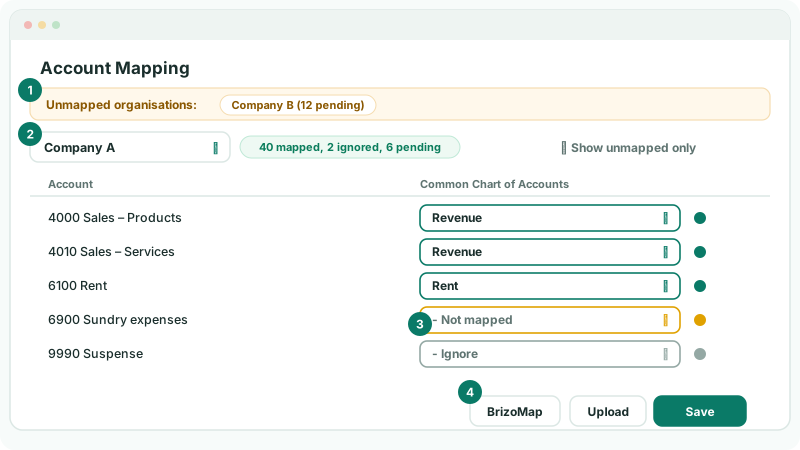
| 1 · Unmapped organisations | Every company with accounts still pending, and how many. Click one to open it. |
|---|---|
| 2 · Company and status | The company you are mapping, and how many of its accounts are mapped, ignored and pending. |
| 3 · Common Chart of Accounts | The group account each company account is mapped to. The dot beside it shows mapped, pending or ignored. |
| 4 · BrizoMap and Save | BrizoMap suggests mappings; Save keeps the ones you set by hand. |
6Let BrizoMap suggest the mappings
- Choose Company A. If accounts are still pending, click BrizoMap, then Get Suggestions.
- Read down the suggested mappings. Each is rated High, Medium or Low, depending on how closely the account name, code and section match.
- Untick any that are wrong, and click Confirm & Map.
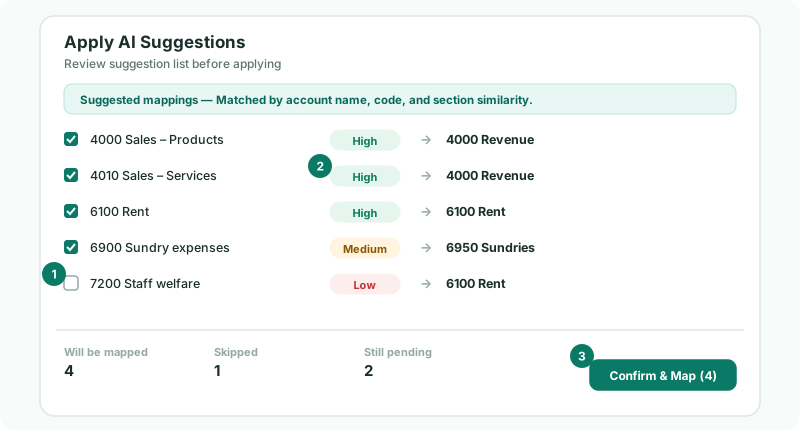
Confirm & Map saves straight away. BrizoMap only suggests for accounts that are not mapped yet, so it never changes a mapping you have already made. Accounts it could not match stay pending — the summary shows how many.
BrizoMap isn’t on the Standard edition. There, map each account from its dropdown, as in step 7.
A wrong mapping is quiet. The group totals still add up, but the figure lands on the wrong line. A Low suggestion — like Staff welfare matched to Rent above — is a guess: untick it and map it yourself.
7Finish the rest by hand
- Tick Show unmapped only to see what is left.
- For each account, choose its group account from the dropdown — or - Ignore if it should stay out of group reports.
- If the right group account does not exist yet, click the Create common account and map icon on the row to add it and map to it in one go.
- Click Save.
| Fine to ignore | Memo or statistical accounts with no real balance. |
|---|---|
| Do not ignore | Revenue, expense and balance sheet accounts. An ignored balance is left out of the group figures, and the balance sheet will not balance. |
If an account is mapped to a group account of a different type, a warning lists it above the table, and the status shows the number of mismatches. Check each one before moving on.
8Repeat for every company, and keep it up to date
Choose Company B, then Company C, from Unmapped organisations, and repeat steps 6 and 7. Saving a company’s mapping recalculates the group figures in the background.
Later, when a company adds an account in its accounting system, it arrives unmapped. The notification bell then shows Unmapped Accounts with a link straight to Account Mapping.
Check
Unmapped organisations shows All mapped, and no account-type warning is shown.
Want more detail? See the documentation