
Zoho Books Groups · Track 1 · Tutorial 2 of 3
Enable additional access
The first connection reads balances, invoices and bills. Approve one more set of read permissions, and BrizoConsol can also read the payments, credits and expenses behind them — what drill-down, reporting tags and settlements are built on.
1Understand what the extra access adds
When you connect a Zoho Books organisation, Zoho asks you to approve seven read permissions. Five more are asked for separately, because not every group needs them.
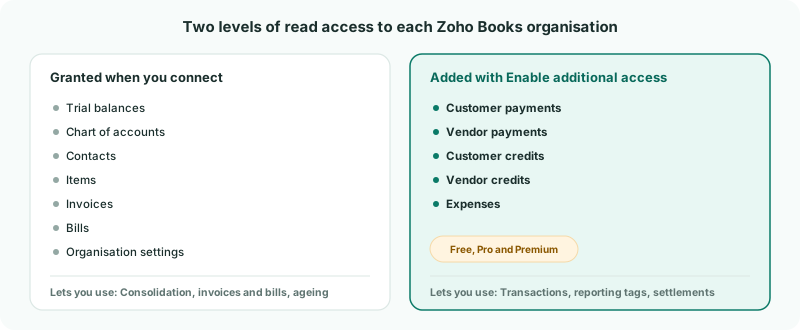
| Transactions | Each month’s journals, expenses, payments, credits and refunds — so a figure can be followed down to the Zoho posting behind it. |
|---|---|
| Reporting tags | The profit and loss by reporting tag needs this access too. |
| Settlements | How each invoice and bill was paid or credited, on the Documents page. |
It is set up on each company. In the running example, do it for East Sdn Bhd first, then for the others.
2See what is not included yet
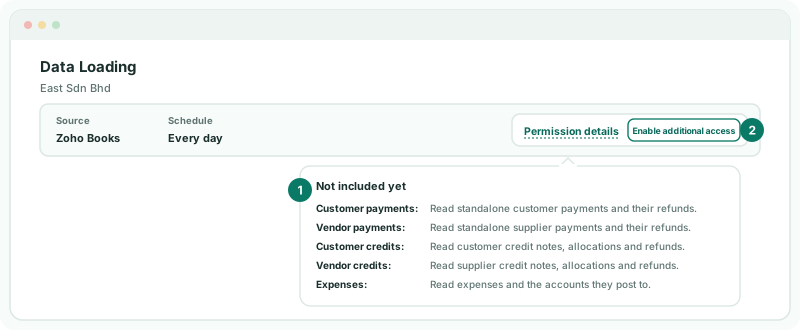
- Select East Sdn Bhd, and open Data Loading.
- On the Zoho permissions card in the bar at the top, open Permission details.
3Approve the access
- Click Enable additional access.
- Sign in to Zoho if asked, and accept the permissions it lists.
- Back on Data Loading, wait while the card says Connecting to Zoho. Your existing connection stays active until setup completes.
BrizoConsol checks the new approval belongs to the same Zoho organisation, checks it can read payments, credits and expenses, and only then saves it. Nightly loads carry on with the old approval meanwhile, so nothing stops while you wait.
Check
The card says Permissions up to date, and Permission details now lists all twelve permissions under What this connection may read.
4Load the transactions
Approving the access doesn’t load anything straight away. From the next daily refresh, BrizoConsol reads the Transactions for every month your plan covers, and keeps them up to date each day. To have them now:
- On Data Loading, tick the months you report on — for example, this financial year — and click Load selected.
- Under Data Types, tick Transactions, and click Start Load.
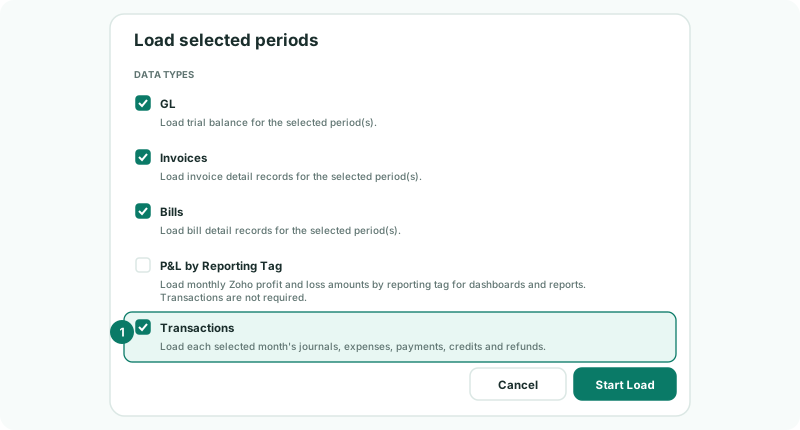
The period table gains a Transactions column showing which months are loaded. BrizoConsol also re-reads the company’s contacts and items, so its documents show the right customers, suppliers and products.
5Do the same for the other companies
Repeat steps 2 to 4 for North Pte Ltd and South Pte Ltd. Each company’s approval is separate, so a Zoho login that can see only one organisation is enough for that company.
If the card ever shows Upgrade Zoho permissions, BrizoConsol needs a read permission it did not ask for when you connected. Click it and approve in the same way.
6If something does not look right
| What you see | What to do |
|---|---|
| Reauth required next to Transactions or P&L by Reporting Tag | The additional access is not approved for this company yet. Follow step 3. |
| Pro only, and Additional Zoho accounting detail is available on Free, Pro and Premium. | The group is on Standard. Upgrade to use transactions, reporting tags and settlements. |
| A data administrator must approve the additional access on a working connection. | Ask a user with data administrator access to click Enable additional access. If the company shows Token expired, reconnect it first. |
| This connection changed during the upgrade. Review its permissions and start again. | The company was reconnected while the approval was being saved. Open Permission details and approve again. |
| An error under the card after approving | The approval could not be checked — for example, it was for a different Zoho organisation. Click Enable additional access again and sign in with the login that owns this organisation. |
Want more detail? See the documentation