
Retail Chains · Track 1 · Tutorial 1 of 2
Set up intercompany types for a retail chain
Before you clear anything, give each item that moves between your companies a type of its own, so it is filed and checked where your team expects it. This is the set-up that suits a retail chain.
1Know what moves between your companies
A retail chain usually has a holding company that owns the brand, a central warehouse or buying company, store companies, and a property company that holds the shops. These are the items that move between them:
| From | To | What |
|---|---|---|
| Warehouse company | Store companies | Stock at a transfer price |
| Holding company | Store companies | Management fees and brand royalties |
| Store companies | Property company | Rent for the shops |
| Holding company | Store companies | Loans; dividends upward |
Each item should have a type of its own, so it is filed, listed and checked where your team expects it. Your group may not have all of them, or may have others: adjust the steps below to what your companies actually book.
2Switch types on and off
- Select the group, and open Settings → Global Settings → Intercompany Types.
- Click the switch on each type below that needs changing. Each switch is saved the moment you click it.
| Type | Change | For |
|---|---|---|
| Inventory Transfers | Keep on | Stock from the warehouse. |
| Unrealised Profit | Switch on | The warehouse’s margin in store stock. |
| Management Charges | Keep on | Management fees, and the base for Brand Royalties. |
| Rental / Lease Adjustments | Switch on | Shop leases with the property company. |
| Trade Receivables / Payables | Keep on | Unpaid invoices. |
| Intercompany Loans | Switch on | Loans to store companies. |
| Dividends | Switch on | Dividends to the holding company. |
| Sales / Purchases / Services | Switch off | Groups whose stock is under Inventory Transfers leave it empty. |
A new group starts with Trade Receivables / Payables, Sales / Purchases / Services, Inventory Transfers and Management Charges switched on. Other Eliminations is always on. See Switch on and add intercompany types.
3Add types of your own
- Click Add type.
- In Type name, enter Brand Royalties.
- In Accounting treatment, choose Management Charges, and click Save type.
- Add the others the same way.
| Type name | Accounting treatment | For |
|---|---|---|
| Brand Royalties | Management Charges | Royalties for the brand, kept apart from the management fee. |
The accounting treatment decides how the type behaves and which accounts its entries accept. A type of your own is in the menu only while the built-in type it works like is switched on.
4Arrange the menu
- Click Manage menu.
- For each group below, enter its Group name and click Add group.
- Drag each type onto its group, and click Save menu.
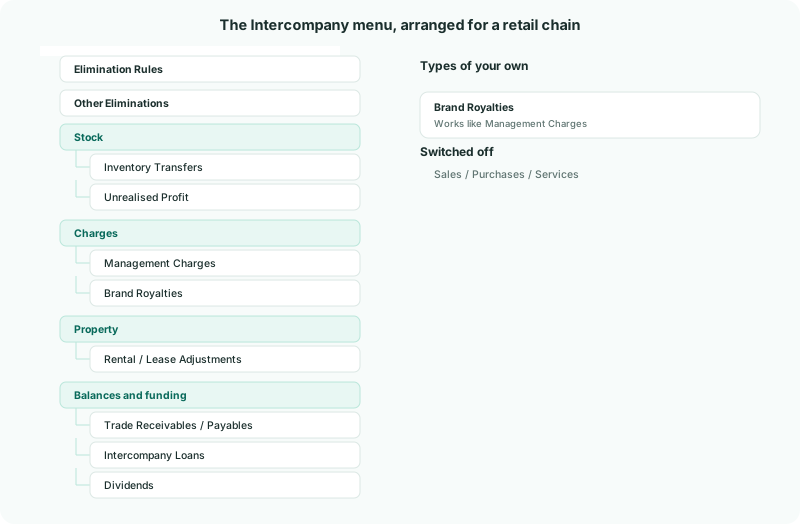
| Group | Types in it |
|---|---|
| Stock | Inventory Transfers, Unrealised Profit |
| Charges | Management Charges, Brand Royalties |
| Property | Rental / Lease Adjustments |
| Balances and funding | Trade Receivables / Payables, Intercompany Loans, Dividends |
See Arrange the Intercompany menu for moving, renaming and removing groups.
Check
Intercompany in the sidebar shows the groups above, and each type of your own is listed on Intercompany Types with Kind Custom and status Active.
5If something goes wrong
| A type of your own isn’t in the menu | The built-in type it works like is switched off. Switch it on. |
|---|---|
| … cannot be used in this elimination type. | The type’s accounting treatment doesn’t accept that account. Check the table in Switch on and add intercompany types, and choose the treatment whose accounts fit. |
| The arrangement was lost | The dialog was closed without Save menu. Arrange it again and save. |
Want more detail? See the documentation