
Intercompany Eliminations · Track 1 · Tutorial 2 of 5
Switch on and add intercompany types
The intercompany types decide what your team sees under Intercompany, and what a rule or an entry can be filed under. Switch on the ones in your plan, switch off the rest, and add your own where a built-in name does not fit.
1Open Intercompany Types
- Select Your Group in the entity selector.
- Open Settings → Global Settings → Intercompany Types.
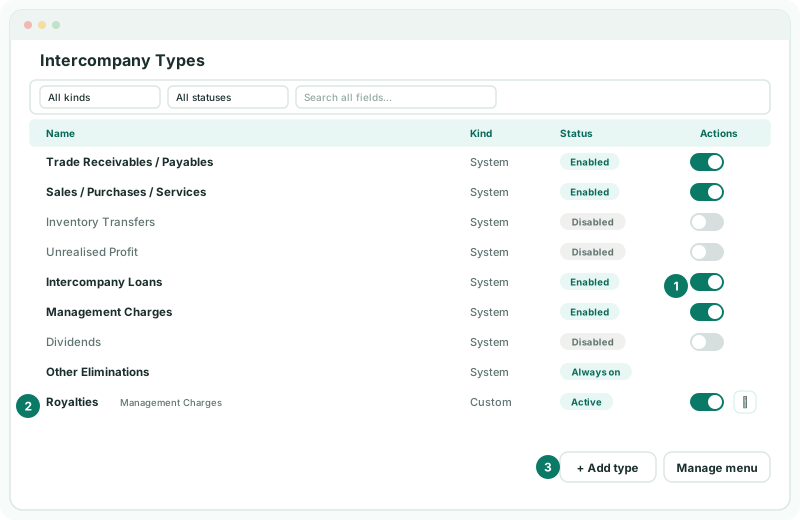
The page lists every built-in type, then your own. Each row shows:
| Name | The type, with a line on what it is for. For a type of your own, the line is the built-in type it works like. |
|---|---|
| Kind | System for the built-in types, Custom for your own. |
| Status | Enabled or Disabled for a built-in type, Active or Inactive for your own. Other Eliminations shows Always on and has no switch. |
| Actions | The switch, and for your own types an edit button. |
The settings belong to the group, so they apply to every company in it and to everyone who works on it.
2Switch on what your plan uses
A new group starts with Trade Receivables / Payables, Sales / Purchases / Services, Inventory Transfers and Management Charges switched on. Compare that with your plan. Your Group needs:
| Type | Change | Why |
|---|---|---|
| Trade Receivables / Payables | Keep on | The unpaid fees between Company A and Company B. |
| Sales / Purchases / Services | Keep on | The goods Company A sells to Company B. |
| Management Charges | Keep on | The monthly fee, and the base for the Royalties type in step 4. |
| Intercompany Loans | Switch on | Company A’s loan to Company C. It is off in a new group. |
| Inventory Transfers | Switch off | Your Group files its goods under Sales / Purchases / Services, so this one would sit empty. |
- Click the switch on Intercompany Loans. Its status changes to Enabled.
- Click the switch on Inventory Transfers. Its status changes to Disabled.
There is no Save button: each switch is saved the moment you click it, and the Intercompany menu in the sidebar updates straight away.
3Know what switching off does
| Switching a type off | |
|---|---|
| Hides | Its entry in the Intercompany menu, for everyone in the group, and its place in the Intercompany Type list when you add or edit a rule. When BrizoElim suggests a rule whose accounts point to a type that is off, the rule is filed under Other Eliminations instead. |
| Keeps | Every rule and entry already filed under it. They are not deleted, and they still eliminate in the group’s figures. Switch the type back on and they are listed again. |
So switch off only types nobody has used, or whose items have moved elsewhere. If rules or entries are still filed under a type, switching it off leaves them working but out of sight.
4Add a type of your own
Company A charges Company B a royalty, and your team wants to see it apart from the management fee.
- Click Add type. Adding a new intercompany type opens.
- In Type name, enter Royalties.
- In Accounting treatment, choose Management Charges. It starts on Sales / Purchases / Services, so always check it.
- Click Save type. Type saved. appears under the table.
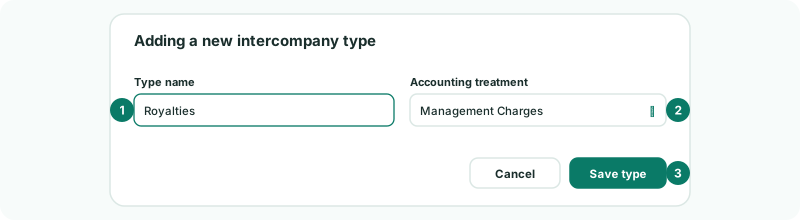
Royalties now appears with Kind Custom and status Active. The accounting treatment decides how it behaves: a Royalties entry or rule works exactly as a Management Charges one does, and accepts the same accounts. What it adds is its own name, its own place in the Intercompany menu, and its own line in the Intercompany Type list of a rule, under Management Charges.
The name can be up to 120 characters and must be unique in the group. A type of your own is only on the Intercompany menu, and in a rule’s list, while the built-in type it works like is switched on: switch Management Charges off and Royalties leaves both with it.
5Choose a treatment for an item that fits no built-in type
Every type of your own must work like one of the built-in types: there is no blank choice. Besides the menu, the treatment decides which accounts an entry under the type accepts. Each line of an entry must use a company account of one of these types, or the entry is refused:
| Accounting treatment | Accepts accounts of type |
|---|---|
| Trade Receivables / Payables | Accounts Receivable, Accounts Payable, Current Asset, Current Liability |
| Sales / Purchases / Services | Revenue, Other Income, Expense, Other Expense, Direct Costs, Inventory |
| Inventory Transfers | Inventory, Direct Costs, Revenue |
| Unrealised Profit | Inventory, Direct Costs, Revenue |
| Intercompany Loans | Current Asset, Non Current Asset, Current Liability, Non Current Liability, Interest Income, Interest Expense |
| Management Charges | Revenue, Expense, Accounts Receivable, Accounts Payable |
| Dividends | Equity, Other Income, Accounts Receivable, Accounts Payable |
| Fixed Assets | Fixed Asset, Depreciation, Revenue, Other Income, Other Expense |
| Rental / Lease Adjustments | Revenue, Other Income, Expense, Other Expense, Direct Costs, Fixed Asset, Non Current Asset, Non Current Liability, Current Liability, Depreciation, Interest Income, Interest Expense |
| Other Income / Expenses | Other Income, Other Expense, Interest Income, Interest Expense, Revenue, Expense |
| Other Eliminations | Any account |
So for an item that matches none of the built-in names, choose by how the two companies book it. Say Company B stores Company A’s stock and charges it warehouse charges: Company B books them as revenue, Company A as an expense. That is a charge for a service, so add Warehouse charges with the treatment Sales / Purchases / Services, which accepts both accounts. Check the table against the account types in both companies’ books before you choose: Management Charges, for example, would refuse the item if either company books it to Other Income or Other Expense.
If nothing else fits, choose Other Eliminations. It accepts any account and is always on, so a type based on it never leaves the menu — but nothing then checks that the entry’s accounts suit the item.
6Rename or retire a type of your own
- Click the edit button on its row. Editing intercompany type opens.
- Change the Type name if needed.
- To retire it, untick Available for new entries.
- Click Save type.
Unticking Available for new entries does the same as switching the type off on its row: the status changes to Inactive, the type leaves the Intercompany menu, and it can no longer be chosen for a new rule or entry. Rules and entries already filed under it keep it.
The Accounting treatment can only be changed until an elimination entry is saved under the type. After that, BrizoConsol refuses the change: create a separate type instead.
7Find a type quickly
Above the table, Filter by kind shows only System or only Custom types, and Filter by status shows only Enabled or only Disabled ones — for your own types, Enabled means Active. Search all fields... looks in the name, the description line and the kind.
Check
Filter by status Enabled. The list shows Trade Receivables / Payables, Sales / Purchases / Services, Intercompany Loans, Management Charges, Other Eliminations and Royalties — the types in your plan and nothing else. Open Intercompany in the sidebar: the same types are listed there.
8If something goes wrong
| A type is missing from the Intercompany menu | It is switched off. For a type of your own, check that the built-in type it works like is switched on too. |
| A type of your own can’t be chosen for a new rule or entry | It is Inactive. Switch it on, or tick Available for new entries. |
| An intercompany type with this name already exists in the group. | Names must be unique in the group, active or not. Choose another name, or edit the existing type. |
| An intercompany type used by saved entries cannot change accounting treatment. Create a separate type. | Elimination entries are saved under the type. Add a new type with the treatment you need, and retire the old one when its entries are no longer current. |
| … cannot be used in this elimination type. Allowed account types: … | An account in the entry is of a type the treatment does not accept. Use another account, or file the item under a type whose treatment accepts it, as in step 5. |
| Group figures still show eliminations under a type you switched off | That is expected: switching off hides a type, it does not undo its rules and entries. Delete or change those if they should no longer apply. |
| Intercompany Types is not in your Settings menu | It needs the Administrator or Data Loading Admin role. Ask your group’s administrator. |
Want more detail? See the documentation