
Read and Customise Reports · Track 1 · Tutorial 1 of 5
Find any report on the All Reports page
Every report you can open is on one page: the built-in statements and ratios, the statements for your accounting standard, your own row/column and Cell Reports, and your operational data. Knowing how the page is laid out, and how to keep the reports you use every month one click away, saves hunting through it at each month end.
1Open the page
- In the left navigation, open Reports and click All Reports.
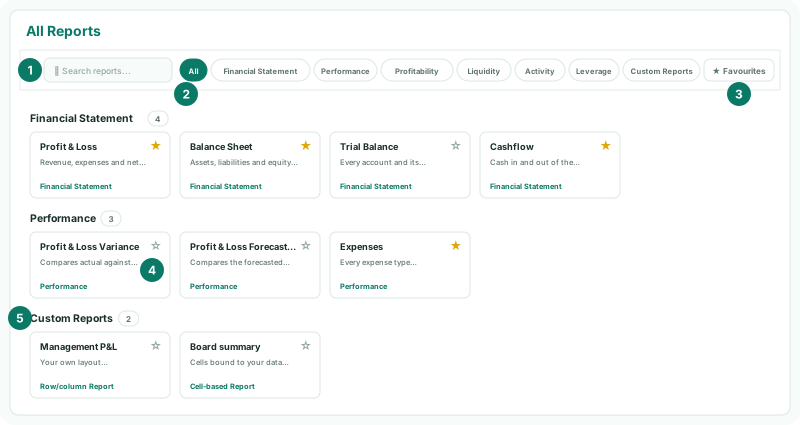
The reports are grouped into sections, each with the number of reports in it:
| Section | What is in it |
|---|---|
| Financial Statement, Performance, Profitability, Liquidity, Activity, Leverage | The built-in reports, such as the Profit & Loss, Balance Sheet, Cashflow and Trial Balance, and the ratio reports. |
| IFRS, SFRS, US GAAP, UK GAAP, Local GAAP or AASB | The statements of the accounting standard enabled for the organisation. Not shown on the Standard edition. |
| Operational Data | One card for each operational data source, opening it as an operational report. |
| Custom Reports | Your own reports, each marked Row/column Report or Cell-based Report. |
2Find a report
- Type variance in Search reports.... The page keeps the reports whose name or description contains it: Profit & Loss Variance and Profit & Loss Forecast Variance.
- Clear the search and click the Custom Reports chip to see only your own reports.
- Click All to see every report again.
There is a chip for each category in use, including any category you gave a custom report, a Custom Reports chip once you have one, and an Operational Data chip when the organisation has operational data. Operational data is shown with All, Operational Data and Custom Reports; search also finds it by the entity that holds it.
3Keep the reports you use one click away
- Click the star on the Profit & Loss Variance card, and on your Management P&L.
- Check the left navigation: both are now listed under FAVOURITES in Reports.
- Click Favourites at the right of the page to show only your starred reports. Click it again to show them all.
Until you star a report, the sidebar lists four favourites: Profit & Loss, Balance Sheet, Cashflow and Expenses. They stay when you star your first report; click a star again to take a report off.
4Open a report
- Click the Management P&L card.
| Card | Opens | To read it |
|---|---|---|
| Built-in, accounting standard, Row/column Report | The report with its toolbar | Use the report toolbar, search and filters |
| Cell-based Report | The Cell Report viewer | Drill, comment and export from a Cell Report |
| Operational data | The operational report | Operational Reports |
Check
FAVOURITES in the sidebar lists Profit & Loss Variance and Management P&L, and clicking Management P&L there opens the same report as its card.
5If something goes wrong
| No IFRS (or other standard) section | No accounting standard is enabled for the organisation, or the subscription is on the Standard edition. See Accounting Standard. |
|---|---|
| A Cell Report isn’t listed | Cell Reports need the Free, Pro or Premium edition, or the report is shared with another organisation only. |
| The page shows fewer reports than expected | A chip other than All is selected, Favourites is on, or text is left in the search box. |
| No Operational Data section | A category chip other than All, Operational Data or Custom Reports is selected, or the organisation has no operational data. |
Want more detail? See the documentation