
QuickBooks Online Groups · Track 1 · Tutorial 1 of 2
Connect each QuickBooks company
Each company in your group keeps its books in its own QuickBooks Online company. Connect each one once, and BrizoConsol reads its figures every night from then on.
1Understand what is connected
In this series’ running example, Your Group reports in Singapore dollars and owns three companies that each keep their books in QuickBooks Online: Maple Inc in US dollars, Maple UK Ltd in pounds sterling and Maple Pacific Pte Ltd in SGD.
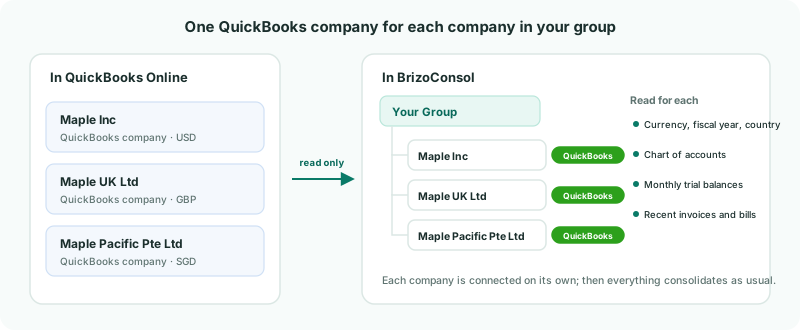
| Read from QuickBooks | Each company’s home currency, fiscal year and country, its chart of accounts, its monthly trial balances, and its recent invoices and bills. |
|---|---|
| Never written | BrizoConsol only reads. Nothing you do in BrizoConsol changes your QuickBooks data. |
| The group | Your Group is not a QuickBooks company. It holds the consolidated figures BrizoConsol builds from the three companies. |
2Check the companies are in the hierarchy
- Open Settings → Global Settings → Organisation Hierarchy.
- Check the three Maple companies sit under Your Group. Add any that are missing with + Add Organisation, and click Save Changes.
A company you have just added can’t be connected until the hierarchy is saved: its Connection section says Save hierarchy first before connecting newly added entities.
3Connect a company
- Click Maple Inc in the tree, and in its Connection section click Connect to QuickBooks.
- Sign in to QuickBooks. If your login has more than one company, choose Maple Inc.
- Allow BrizoConsol access. You come straight back to BrizoConsol, and the first load starts.
QuickBooks connects one company each time you sign in, so the company you choose in QuickBooks is the one linked to Maple Inc. There is no second choice to make in BrizoConsol.
4Let the first load finish
A Loading your QuickBooks data window shows each stage as it runs:
| Connecting to QuickBooks | Checks the connection. |
|---|---|
| Importing organisation and chart of accounts | Home currency, fiscal year and country, and every account in QuickBooks. |
| Loading trial balances | Month by month, up to 24 months back, within what your plan keeps. |
| Loading recent invoices, bills and class data | Last month and this month. |
| Preparing financial data | Queues the four months before that for invoices and bills, and refreshes the group. |
After that, the connection refreshes every night: the last 12 months’ trial balances, and the last 6 months’ invoices and bills. If BrizoConsol finds accounts that aren’t mapped yet, it offers to open Account Mapping — see Map every company to one group chart of accounts.
5Check the connection
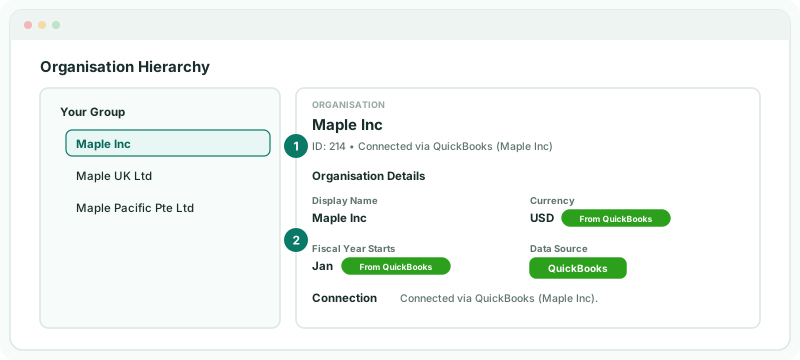
- In the Organisation Hierarchy, click Maple Inc again.
Check
The panel says Connected via QuickBooks with the QuickBooks company’s name, Data Source shows QuickBooks, and Currency and Fiscal Year Starts say From QuickBooks. On Data Loading, the months are marked loaded.
Currency and fiscal year now come from QuickBooks and can’t be edited in BrizoConsol. If the fiscal year is wrong, correct it in QuickBooks; the next load brings it in.
6Connect the others
Repeat steps 3 to 5 for Maple UK Ltd and Maple Pacific Pte Ltd. Each company has its own connection, so each can be signed in with a different QuickBooks login if your companies are managed by different people.
Maple Inc and Maple UK Ltd keep their books in USD and GBP while the group reports in SGD. That needs the Free, Pro or Premium edition: on Standard, the connection is refused because Standard consolidates in one currency. Set up their exchange rates and translation as in Handle foreign currency companies.
7If something does not look right
| What you see | What to do |
|---|---|
| A Token expired badge on a company | QuickBooks no longer accepts the connection. Click Reconnect Now in its Connection section and sign in again. Nothing loaded so far is lost. |
| You selected a different company for Maple Inc… | You reconnected and chose another QuickBooks company than the one linked before. Click Cancel and reconnect with the right company, or Continue with selected company if the change is intended. |
| QuickBooks did not return an authorisation code. Please reconnect and approve access. | The QuickBooks sign-in was cancelled. Connect again and allow access. |
| The QuickBooks connection could not be matched to an organisation. Please start the connection again. | The sign-in was finished in another tab or after a long wait. Start again from the company’s Connection section. |
| This group consolidates in SGD, so a company in USD needs the Pro edition.… | The group is on Standard, which consolidates in one currency. Upgrade from Standard to connect it. |
Want more detail? See the documentation