
QuickBooks Online Groups · Track 1 · Tutorial 2 of 2
Build the group chart from a QuickBooks company
If one of your QuickBooks companies already has the chart you want the group to report on, you don’t need to build a group chart from scratch. Copy that company’s chart into the Common COA, and that company is mapped in the same step. Only the other companies are left to map.
1Choose the company to copy from
Maple Inc is the head company and has the most complete chart, so its chart becomes the group’s.
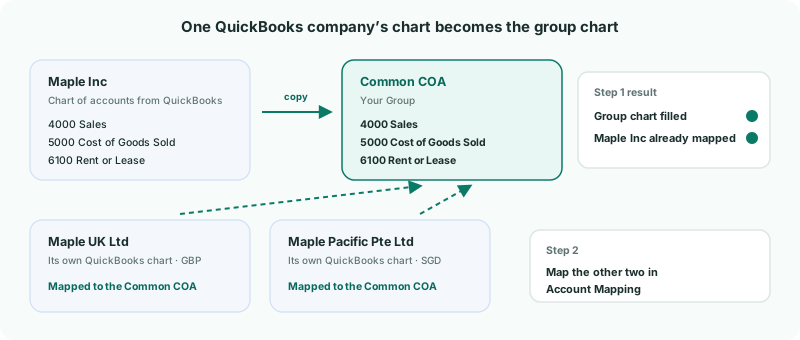
Copying is the quickest route when one company’s chart already suits group reporting. Two other options work differently:
| Start from Existing Organisation | Copies the chart of a company already in your group, and maps that company to it. Used in this tutorial. |
|---|---|
| Import from Connector | Signs in to QuickBooks and imports the chart of the QuickBooks company you choose. Use it when the chart you want is in a QuickBooks company that isn’t one of your companies here. It replaces the whole Common COA, imports the chart only, and maps nothing. |
| AI Suggest | Drafts a group chart from all your companies’ accounts when none of them has the right chart. See Map every company to one group chart of accounts. |
2Tidy the chart in QuickBooks first
The copy takes Maple Inc’s accounts as they came from QuickBooks. Fix these in QuickBooks before you copy, because the copy is made once and doesn’t follow later changes.
| Account numbers | QuickBooks only uses account numbers once they are switched on, under Settings → Account and settings → Advanced → Chart of accounts. An account with no number gets its QuickBooks account ID as its code — a number such as 35 that means nothing to anyone reading your reports. Switch numbers on and give every account one. |
|---|---|
| Share capital and retained earnings | Taken from each equity account’s detail type. Retained Earnings gives the type RETAINED EARNINGS, which the balance sheet’s retained-earnings section reads. Common Stock, Preferred Stock, Paid-in Capital or Surplus, Share capital and the other share and capital detail types give SHARE, as does an equity account whose name contains share capital, common stock or preferred stock. |
| Receivables and payables | Accounts of the QuickBooks types Accounts receivable (A/R) and Accounts payable (A/P) come in as ACCOUNTS RECEIVABLE and ACCOUNTS PAYABLE. |
| Interest and finance | An account whose name contains interest income, interest expense, finance income or finance cost gets the matching type, for the finance lines of the income statement. |
Changes you make in QuickBooks arrive with the next load: the nightly refresh, or a load you start from Maple Inc’s Data Loading page.
Each QuickBooks account type comes in under a matching section — for example Income as REVENUE, Cost of Goods Sold as DIRECT COSTS, Other Current Asset as CURRENT ASSET, Other Asset as NON CURRENT ASSET, Credit Card and Other Current Liability as CURRENT LIABILITY, and Long Term Liability as NON CURRENT LIABILITY.
3Copy the chart into the Common COA
- Select Your Group in the entity selector.
- Open Settings → Global Settings → Common COA. While it is empty, it shows No accounts in your COA yet.
- Click Start from Existing Organisation.
- In Source organisation, choose Maple Inc, then click Copy Accounts.
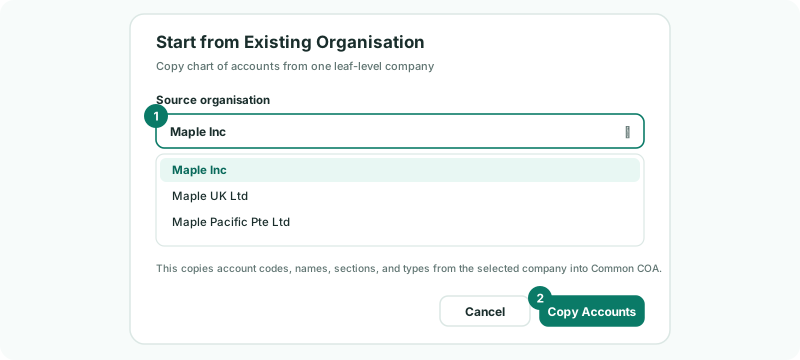
The copy brings across each account’s code, name, section and type, and its tags. In the same step, each of Maple Inc’s accounts is mapped to its copy, so it needs no mapping.
A company that has no accounts yet is listed with (No COA) and can’t be chosen. Load it first.
4Check the group chart
The Common COA now lists Maple Inc’s 38 accounts, with the same numbers and names it has in QuickBooks.
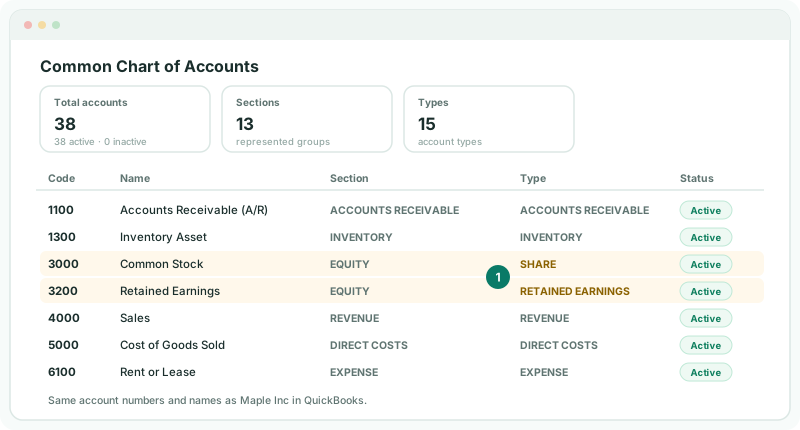
- Read down the Section column. Fix any account in the wrong section with the edit icon on its row — see Account Sections / Class.
- Add any account the group needs that Maple Inc doesn’t have with the + button.
Check
Every code is a real account number, not a QuickBooks ID, and Common Stock and Retained Earnings show the types SHARE and RETAINED EARNINGS.
5Map the other two companies
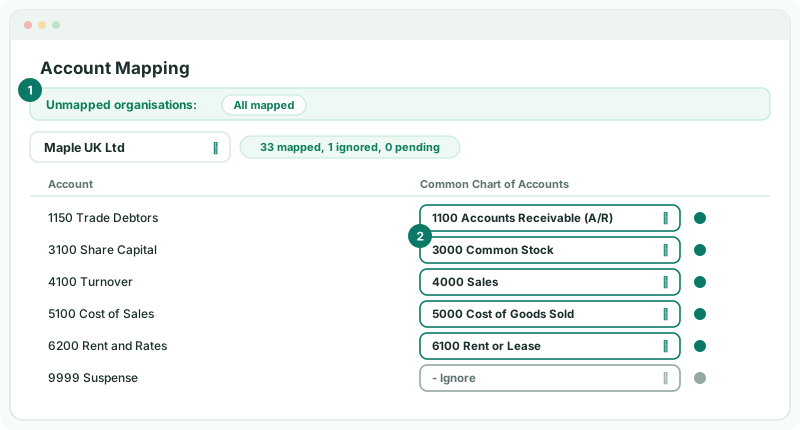
- Open Settings → Global Settings → Account Mapping. Unmapped organisations lists Maple UK Ltd and Maple Pacific Pte Ltd, but not Maple Inc.
- Choose Maple UK Ltd. Click BrizoMap, then Get Suggestions; untick any wrong suggestion and click Confirm & Map.
- Tick Show unmapped only, choose a group account or - Ignore for each account left, and click Save.
- Repeat for Maple Pacific Pte Ltd.
The UK and Singapore charts were set up separately, with their own numbers and names — Trade Debtors rather than Accounts Receivable (A/R), Share Capital rather than Common Stock — so check their Medium and Low suggestions carefully.
BrizoMap isn’t on the Standard edition. There, map each account from its dropdown.
Later, when you connect another QuickBooks company, or a company’s load brings in accounts that aren’t mapped, Data Loading asks New accounts need mapping. Go to Mapping opens that company in Account Mapping.
Check
Unmapped organisations shows All mapped, and no account-type warning is shown.
6If something goes wrong
| Start from Existing Organisation is greyed out | No company has accounts yet. Load at least one company from QuickBooks first. |
|---|---|
| Common COA already has accounts. Clear existing accounts before copying from an organisation. | The copy only fills an empty Common COA. Delete the existing accounts, or keep them and map Maple Inc in Account Mapping instead. |
| The selected company does not have accounts to copy. | That company’s chart hasn’t loaded. Open its Data Loading page and load a period. |
| Short meaningless numbers as account codes | Those accounts had no account number in QuickBooks, so their QuickBooks ID was used. Switch account numbers on and add them in QuickBooks, load the company again, and edit the codes in the Common COA to match. |
| Retained earnings missing from the balance sheet section | The account’s detail type in QuickBooks isn’t Retained Earnings. Change it in QuickBooks, or set the type in the Common COA. |
Want more detail? See the documentation