
Operational Data · Track 1 · Tutorial 9 of 10
Bring in tracking categories, classes, jobs and tags
Your accounting system already splits the profit and loss by department, branch, job or class. BrizoConsol copies that split into Operational Data each month you load, so you can report on it without building a dataset by hand.
1Know what arrives
| System | What it splits by | Dataset in Operational Data | Set it up |
|---|---|---|---|
| Xero | Tracking categories | One per category, such as Xero Tracking: Branch | Bring in tracking categories |
| QuickBooks Online | Classes | One, QuickBooks: Class, with every class side by side | Bring in classes |
| MYOB | Jobs and categories | MYOB: Job and MYOB: Category | Bring in jobs and categories |
| Zoho Books | Reporting tags | One per tag, such as Zoho Tag: Region | Bring in reporting tags |
Each dataset holds the system’s own profit and loss by option, month by month: a row per report line for each option. Amounts with no option come in as Unassigned.
2Load it
- Follow the tutorial for your system in the table to import the setup and confirm the mappings.
- Load the months you report on with the tracking report ticked, as that tutorial shows.
Every month is replaced whole each time it is loaded, so loading a month again after a change in the accounting system cannot leave two figures for one row.
3Find it in Operational Data
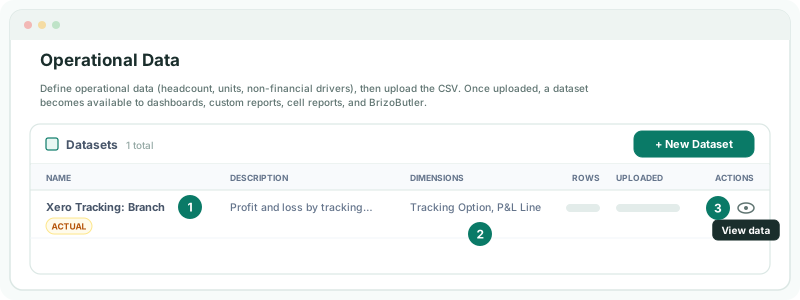
- Open Operational Data and click View data on the dataset.
Check
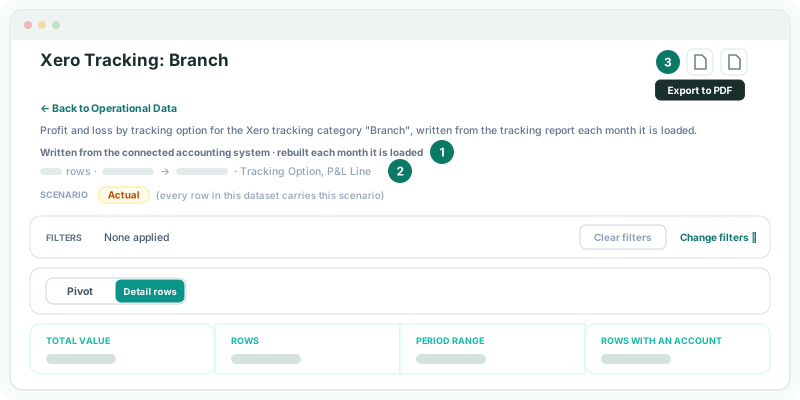
The dataset lists the months you loaded, with a row for each report line and option. For a month, the options and Unassigned add up to the company’s own figure for each line.
These datasets are copies of the accounting system’s report, so they have no Upload data or Edit definition: change the split in the accounting system and load the month again.
4If something goes wrong
| What you see | What to do |
|---|---|
| No dataset appears | The tracking report has not been loaded for any month. Load a month with it ticked. |
| A month is missing | Load that month with the tracking report ticked. |
| A large Unassigned amount | Transactions were entered without the option. Add it in the accounting system, then load the month again. |
Want more detail? See the documentation