
QuickBooks Online Groups · Track 3 · Tutorial 1 of 3
Bring in classes
Available on ProPremium
If your QuickBooks companies class their transactions by department, store or anything else, BrizoConsol can read QuickBooks’ profit and loss by class, every month, for dashboards and reports. Set it up once per company.
1Know what you get
Maple Inc runs three stores. In QuickBooks, it has a class Stores with three sub-classes — Boston, Chicago and Denver — and classes each sale and store cost to one of them.
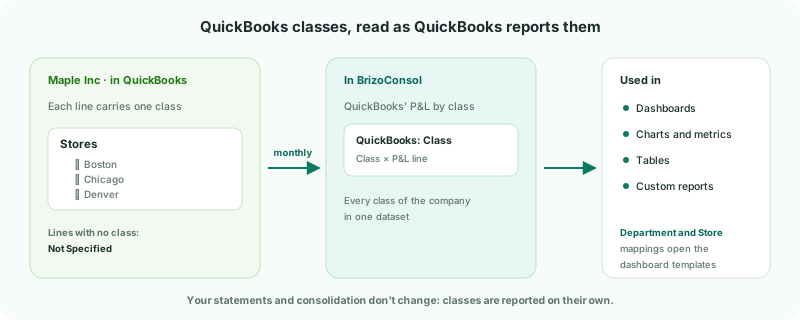
| What is read | QuickBooks’ profit and loss by class, month by month, as QuickBooks calculates it. Amounts with no class are QuickBooks’ Not Specified. |
|---|---|
| Where it goes | One datasource, QuickBooks: Class, with every class side by side and the P&L lines. You use it in dashboards, charts, metrics, tables and custom reports. |
| What it doesn’t change | Your statements and consolidation. Classes are reported on their own. |
QuickBooks allows one class on each line. Group classes that belong together under one parent class in QuickBooks — here, the three stores under Stores — so BrizoConsol treats them as one reporting dimension. A class with no parent is a group of its own.
2Switch on class reporting
- Select Maple Inc, and open Settings → Organisation Settings → Data Loading.
- Next to Additional reads, click Switch on P&L by class.
The page says Profit and loss by class is now read for this connection. Load the months you want it for. The class report is one QuickBooks read per month, which is why it stays off until you ask for it. Only a data administrator sees the button.
3Import Maple Inc’s classes
- Click Review Class Setup at the top of Data Loading.
- Click Import from QuickBooks.
Each top-level class is shown once, with its child classes listed under it. BrizoConsol suggests what each one stands for from its name. If no class figures have been loaded yet, the import also loads them from the start of Maple Inc’s fiscal year — so import straight after switching on.
If you add a class in QuickBooks later, click Refresh from QuickBooks.
4Confirm the mapping
A mapping tells BrizoConsol what a class group stands for. Department and Store open the shared dashboard templates in the next tutorial.
- Under Confirm Mapping, choose Store for Stores.
- Click Save Class Setup.
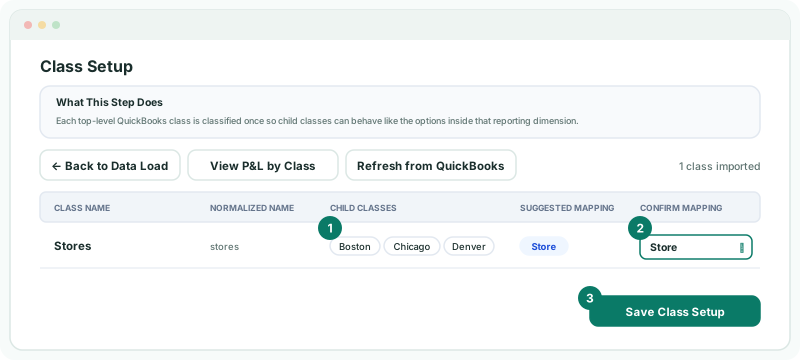
The other choices — Client Tracking, Project Tracking, Regional Division, Product Line, Service Line, Team/Staff, Other — describe the group. Every class is in the datasource whatever you choose.
5Load the months
- Click ← Back to Data Load.
- Tick any month you report on that isn’t loaded yet, and click Load selected.
- Untick everything except P&L by Class, and click Start Load.
Each month’s P&L by class column shows Loaded when it is in. After that, the nightly read keeps the last 6 months up to date. To have a month straight away, or after you change it in QuickBooks, load it the same way.
6Check against QuickBooks
- Click Review Class Setup, then View P&L by Class.
- Choose the Class Stores, From Date 1 October 2026 and To Date 31 October 2026, and click Load QuickBooks Report.
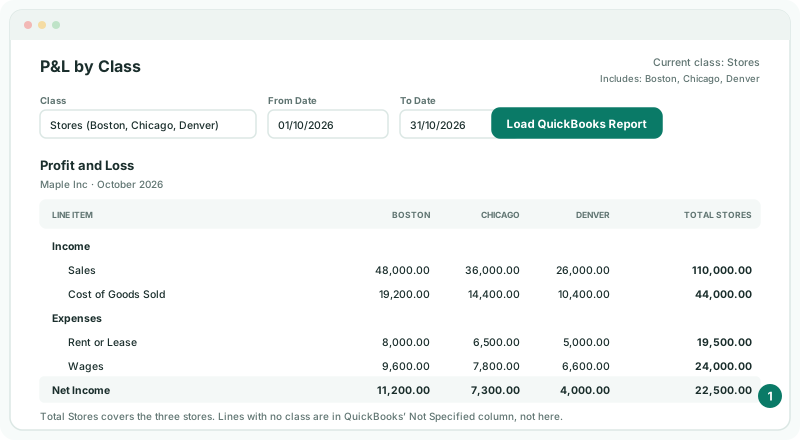
This report reads straight from QuickBooks, in Maple Inc’s currency, USD. It shows the class you chose and its child classes, with Total Stores as their sum.
Check
Each store’s column matches QuickBooks’ Profit and Loss by Class for October. There, Total Stores plus the Not Specified column equals Maple Inc’s total — head-office wages, with no class, are in Not Specified.
A large Not Specified amount usually means lines were entered without a class. Add the class in QuickBooks, then load the month again.
7If something goes wrong
| There is no Switch on P&L by class button | Your group is on Standard — Data Loading says the feature needs Free, Pro or Premium — or you aren’t a data administrator. |
|---|---|
| There is no Review Class Setup button | Class reporting isn’t switched on yet. Do step 2. |
| Import completed. No QuickBooks classes were found for this company. | The company has no classes in QuickBooks, or class tracking is off there. |
| Failed to import classes from QuickBooks. Please try again. | QuickBooks didn’t answer. Try again; if it keeps failing, check the connection for Token expired. |
| The stores appear as separate groups | They have no parent class in QuickBooks. Put them under one parent class, then click Refresh from QuickBooks. |
Want more detail? See the documentation