
Intercompany Eliminations · Track 3 · Tutorial 1 of 2
Set up BrizoElim and choose how it works
The first time anyone opens Other Eliminations, BrizoConsol asks for BrizoElim to be set up for the group. It checks your charts of accounts, recommends how BrizoElim should work, and confirms which transaction types the group uses. It takes a minute, and you do it once.
1Open Set up BrizoElim
- Select Your Group, and open Intercompany → Other Eliminations.
- Set up BrizoElim opens. It has no Cancel: complete it to use the page.
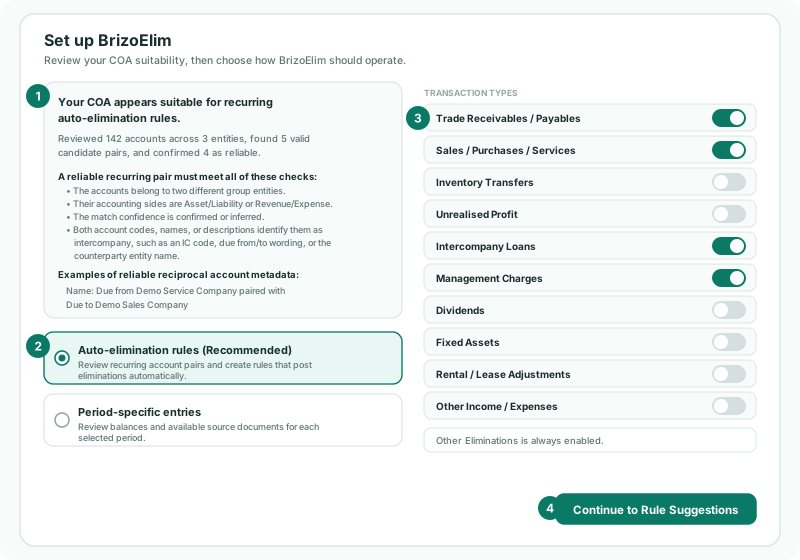
The setting is for the whole group, so it appears only once — for whoever opens Other Eliminations first. Completing it needs the Administrator role, or both the Data Loading Admin and Journals & Eliminations Admin roles. If that person doesn’t have them, ask someone who does to open the page and complete it.
2Read the suitability result
While it shows Checking entity chart-of-account conventions..., BrizoElim reads the charts of accounts. If you already ran COA Suitability and the accounts haven’t changed since, it shows that result straight away.
| Your COA appears suitable for recurring auto-elimination rules. | At least one pair of accounts passed every test. Below it: how many accounts and entities were read, how many candidate pairs were found, and how many were confirmed as reliable. |
|---|---|
| No reliable recurring intercompany naming convention was found. | No pair passed. The dialog suggests adding the other company to the account code, name or description. See Check your chart with COA Suitability for what to fix. |
The dialog also lists the four tests a reliable pair must pass, and examples of account codes, names and descriptions that pass them.
3Choose how BrizoElim works
The result picks a recommendation, and selects it for you:
| Choice | Recommended when | Continue takes you to |
|---|---|---|
| Auto-elimination rules | The chart is suitable: recurring pairs can be cleared by rules every month. | Elimination Rules, with BrizoElim ready to suggest rules. |
| Period-specific entries | The chart isn’t suitable: items are reviewed month by month, from balances and the invoices and bills behind them. | Other Eliminations, with Detect Missing Eliminations open. |
Your Group’s chart is suitable, so keep Auto-elimination rules. The choice only decides where you start: Suggest Rules and Detect Missing Eliminations both stay available afterwards, whichever you pick.
4Confirm the transaction types
On the right, Transaction types has a switch for each built-in intercompany type. They are the same switches as on the intercompany types page, so if you set the types up as in Switch on and add intercompany types, they are already right.
For Your Group, Trade Receivables / Payables, Sales / Purchases / Services, Intercompany Loans and Management Charges are on, and the rest are off. Other Eliminations is always enabled. Change a switch here only if your plan has changed; it is saved when you continue.
5Continue
- Click Continue to Rule Suggestions (or Continue to Entry Detection if you chose Period-specific entries).
- On Elimination Rules, BrizoElimAI opens. Click Get Suggestions.
From here, reviewing the suggestions and scanning for missing eliminations are covered in Let BrizoElim suggest rules and find missing eliminations.
Check
Open Intercompany → Other Eliminations again. The page opens directly, without Set up BrizoElim.
6If something goes wrong
| The COA suitability check did not return a valid result. | BrizoElim didn’t return a usable result. Click Retry. |
|---|---|
| The COA suitability check could not be completed. | The check stopped before it finished. Click Retry. |
| Continue does nothing | The check is still running, or it failed. Wait for the result, or click Retry. |
| Period-specific entries is recommended, but you want rules | Choose Auto-elimination rules anyway: you can still write rules for the pairs you know. To have BrizoElim suggest them, fix the account names first, as in Check your chart with COA Suitability. |
Want more detail? See the documentation