
Intercompany Eliminations · Track 6 · Tutorial 5 of 5
Show the auditor every elimination
An auditor wants three things for intercompany: every elimination in the period, the support for each one, and who entered, changed or approved it. BrizoConsol keeps all three; this tutorial puts them in one file.
1Export every elimination in the month
- Select Your Group, and open Review → Elim. & Journals Report with Actual and Oct-2026.
- Read down the list: each entry’s type, description and who posted it. Entries posted by rules show System.
- Click Export to PDF, and file it as the month’s list.
The report holds every group-level entry for the month, journals and CTA and NCI included. Use the All entities list when the auditor asks about one company.
2Make each entry explain itself
| Entry | Its support |
|---|---|
| Posted by a rule | The rule under Intercompany → Elimination Rules: its description, method, companies and accounts. |
| Built from invoices and bills | The documents it lists, by number, such as INV-1043 and BILL-778. |
| A GL entry | Its Elimination ID and description, and the schedule or agreement it came from: a loan agreement, a lease schedule, a stock count. |
| Any entry with a difference | The treatment and its justification, as in Allocate a difference on a manual entry. |
A description an auditor can’t understand without asking is worth fixing now: edit the entry and say what it is and why.
3Export the month’s reviews
- Open Intercompany → Elimination Review for October.
- Click Export to Excel. Each row comes with its date, description, type, companies, accounts, difference and warning.
This lists the month’s reviews and the differences behind them; the trail in the next step shows who approved or rejected each one. See Work through Elimination Review.
4Show who changed what
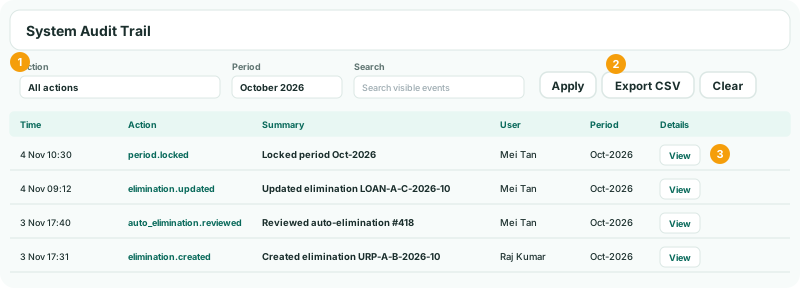
- Open Settings → Global Settings → System Audit Trail.
- Choose the month in Period, keep All actions or choose one, and click Apply.
- Click View on an event to see what changed.
- Click Export CSV for the file.
| Action | Recorded when |
|---|---|
| elimination.created, elimination.updated, elimination.deleted | A manual elimination entry is added, changed or deleted. |
| auto_elimination.reviewed | A row in Elimination Review is approved. |
| auto_elimination.invalidated | A row in Elimination Review is rejected. |
| auto_elimination_rule.created, auto_elimination_rule.updated, auto_elimination_rule.deleted | A rule is added, changed or deleted. |
| period.locked, period.unlocked | A month is locked or unlocked. |
The page shows the latest 500 events that match. The CSV has every one, with the old and new values of each change. Search visible events searches only what is on the page.
Check
For any October elimination the auditor picks, you can show the entry in the report, its support, and in the trail who entered it and when.
5If something goes wrong
| System Audit Trail isn’t in Global Settings | It needs Administrator access. |
|---|---|
| The Elim. & Journals Report isn’t in the Review menu | It needs Administrator or Journals & Eliminations Admin access. |
| An entry in the report has no clear support | Find it in the trail by its Elimination ID to see who entered it, and ask them to complete the description. |
Want more detail? See the documentation