
Controls and Audit · Track 2 · Tutorial 3 of 4
Control when connected companies refresh
Available on Premium
Every night BrizoConsol reloads the recent months of each connected company from its accounting system. That keeps the figures current, but it also means a late posting in Xero can change a month you have already reported, and a month lock doesn’t stop it. Accounting Sync lets you decide, company by company, when that refresh happens.
1Know what runs at night
Each night a run reloads the recent months of every connected company: trial balances, invoices and bills, with the details its connector reads. A month can change after you report it if someone posts to it in the accounting system.
Locking the month on Month End Status doesn’t stop this: trial balances from connectors still load a locked month, as in Lock closed periods. Accounting Sync is how you control it.
The same schedule also decides when the company’s operational data connectors refresh, such as Google Search Console or Harvest.
2Open Accounting Sync
- Open Settings → Global Settings → Accounting Sync, under Integrations.
The chips at the top say when the overnight run starts and in which time zone, such as 00:15 (Asia/Singapore) · fixed: that time can’t be changed. The cards count your Connected companies, those on Every day, those Paused or selected dates, and those where Reconnect required. Click a card to show only those companies.
| Column | Shows |
|---|---|
| Company | A company connected to Xero, QuickBooks, MYOB or Zoho, with a Data loading link for loading it by hand. |
| Connector | Its accounting system. An amber dot means its sign-in has lapsed. |
| Schedule | Every day, Selected dates or Paused. |
| Dates | The dates of the month, for Selected dates, with Edit. |
| Last sync | When the company was last loaded from its accounting system. |
| Next sync | When it will next refresh, Manual sync only when paused, or Reconnect required. |
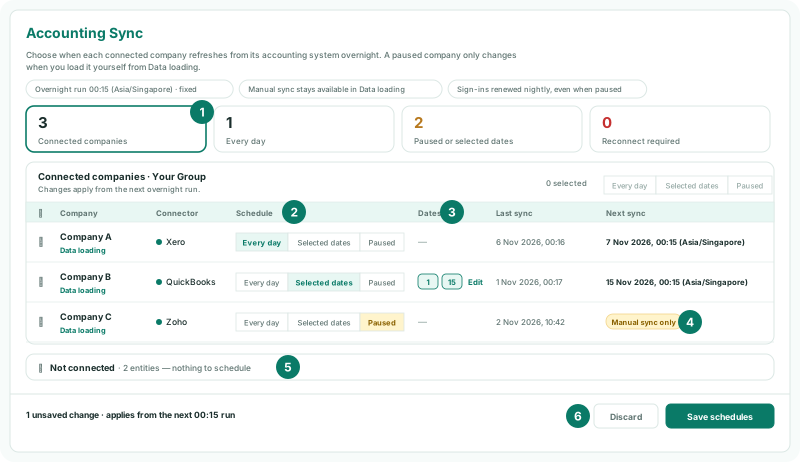
The group itself and companies loaded from files are under Not connected at the bottom: they have nothing to schedule. Open it to see each one with How it is loaded and a Connect in Data loading link.
3Choose a schedule for each company
| Schedule | When the company refreshes | Suits |
|---|---|---|
| Every day | Every night. This is the setting on other editions. | A company whose figures you want current all month. |
| Selected dates | Only on the nights of the dates you choose each month. | A company you review on a rhythm, such as the 1st and the 15th. |
| Paused | Never by itself. It changes only when you load it from Data loading. | A company whose reported months must not move unless you decide. |
- In Company C’s row, click Paused in the Schedule switch. Next sync shows Manual sync only.
To give several companies the same schedule, tick them and use the switch at the top of the table. The connection stays alive while a company is paused or refreshes only on selected dates: sign-ins are renewed every night, even when paused.
4Pick the dates and save
- In Company B’s row, click Selected dates. Choose 1 and 15, and click Apply dates. To change them later, click Edit in its Dates column.
- Click Save schedules in the bar at the bottom.
Apply dates only changes the row on screen; the bar counts the unsaved changes, and Save schedules saves them all at once (Discard drops them). Changes apply from the next overnight run. A date a month doesn’t have, such as the 31st in November, is skipped that month. Next sync now shows the next 1st or 15th, at the run time.
5Load by hand when you need to
- Click Data loading under Company C’s name.
- On the month you want, click Reload (or Load missing), and tick what to load.
Loading by hand works whatever the schedule, including Paused. The sync bar on Data loading shows the company’s schedule and Next sync: Paused for Company C.
6Check it
- Open Global Settings → System Audit Trail.
Check
Accounting Sync shows Company B on Selected dates 1, 15 with its next date, and Company C on Paused with Manual sync only. The System Audit Trail lists the action connector.sync, Connector sync schedule changed, with the old and new schedules and who changed them.
7If something goes wrong
| What you see | What to do |
|---|---|
| Accounting sync scheduling is available on Premium. | The group is on another edition, where every company refreshes every night. |
| A company isn’t in the table | It has no Xero, QuickBooks, MYOB or Zoho connection; it’s under Not connected and never refreshes by itself. |
| Reconnect required | The connection’s sign-in has lapsed, and its schedule can’t be changed. Click Reconnect in Data loading. |
| Select at least one date. / Choose at least one day of the month. | Selected dates needs at least one date. Click Edit and choose one. |
| A reported month changed | The company refreshed after you reported. Load it again by hand to see the current figures, and pause it or move its dates after your close. |
Want more detail? See the documentation