
Cell Reports · Track 2 · Tutorial 5 of 6
Check a Cell Report after month-end and chart changes
Available on ProPremium
A Cell Report reads the ledger as it is today, so month-end, a new account or a changed mapping can change what it shows. Most problems announce themselves; a few hide as a zero or an old heading. A short routine after each change catches both.
1Find the broken figures
- Open the report in View, on every sheet.
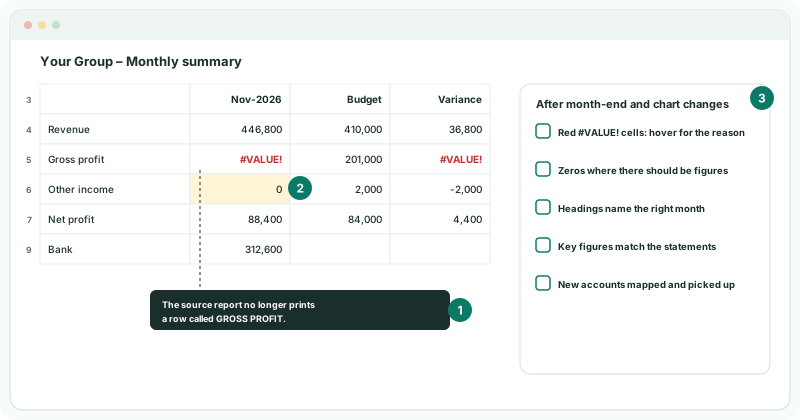
- Look for figures in red showing #VALUE!. Hover over one to read why it couldn’t be worked out.
| The reason says | What to do |
|---|---|
| The source report no longer prints a row called … | The cell was built from a report whose row was renamed or removed. Bind it to that row’s section, total or tag instead. |
| The source report has no … column for … | The source report doesn’t cover that month. Check the month cell. |
| The report this cell was compiled from no longer exists. | Rebind the cell to a section, total or tag. |
| The month this cell asks for is not a month: … | The cell its month is linked to holds something else. Fix that cell, or the link. |
| The selected entity is not available. | The entity cell names an entity that was renamed or removed. Choose it again. |
| Invalid binding cell reference. | A Cell reference points at a deleted cell. Point it at the right cell. |
A formula that reads a broken figure shows #VALUE! too; fix the figure and the formula follows.
2Question the zeros
A figure that finds nothing to read shows 0, not an error. A zero is right when the line had no activity, and wrong when the figure no longer reads what it should: a single account that was replaced or remapped, an account type that was renamed, or a tag taken off the accounts.
- For each 0 you didn’t expect, click the cell in the editor and read its binding.
- Compare it with the same line on the statements for the same entity and month.
- If the statements show a figure, rebind the cell. See Bind to types, totals and tags, not single accounts.
3Check the months
- Check the month headings name the month just closed: Nov-2026 under Actual, Oct-2026 under the prior month.
- If a selection list sets the month, change its Selected value to Nov-2026 and save. If an Entity information cell sets it, check the reporting month has moved on.
- Look for any figure still on Fixed month. Link it to the month cell.
A heading that names the month is the quickest check, because it is the same cell the figures read. See Drive every period from one reporting-month cell.
4Tie the key figures to the statements
- Open Reports → Profit & Loss and Balance Sheet for the same entity, month and currency as the report.
- Compare three or four figures that carry the report: revenue, net profit, bank.
Check
Revenue, Net profit and Bank in the monthly summary for Nov-2026 match the statements exactly. Do the same for Company B if readers choose entities.
5After a change to the chart of accounts
- For a new account in a company, check it is mapped to the Common Chart of Accounts. A company’s account counts in the group’s figures only once it is mapped. See Account Mapping.
- Check the new account carries the account type or tag the report reads. A figure bound to a type or tag picks it up; a figure bound to one account doesn’t.
- Run steps 1 to 4 again.
6If something goes wrong
| What you see | What to do |
|---|---|
| A company’s figure is right, but the group’s is short | One company’s accounts aren’t mapped. Map them on Account Mapping. |
| The figures match the statements for last month | The month cell hasn’t moved. Check step 3. |
| The report matches the statements but a dashboard card doesn’t | The card shows the report as saved. Save the report after changing its Selected values. |
| Everything shows #VALUE! | The month or entity cell everything reads is broken. Fix that cell first. |
Want more detail? See the documentation