
Cell Reports · Track 2 · Tutorial 2 of 6
Bind to types, totals and tags, not single accounts
Available on ProPremium
A figure bound to one account is right until someone adds a second. Bind each figure to the section, account type, total or tag that defines the line instead, and new accounts are picked up without anyone touching the report.
1See what each binding picks up
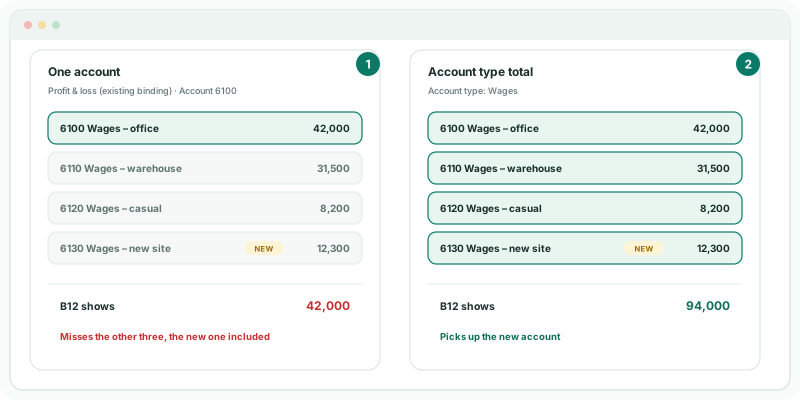
Say B12 is a Wages line. Bound to one wages account, it shows that account and nothing else. Bound to the account type, it shows every account of that type, including one added next month. Nothing on the sheet tells you the first one is short.
| The line is | Bind it to |
|---|---|
| A statement section, such as Revenue or Bank | System account type |
| A statement total, such as Gross Profit or Net Profit | Financial statement total |
| A finer split, such as Wages within expenses | Account type total |
| A line of a standard’s statements, such as Administrative Expenses | Accounting standard tag |
Each reads every account in the section, type or tag at the time the report is opened. These sources don’t read single accounts at all; only the older (existing binding) sources do.
2Find the single-account figures
- Open the report in the editor and click each bound cell in turn.
- Note every cell whose Data source is Profit & loss (existing binding) or Balance sheet (existing binding) with Detail Account, or Trial balance (existing binding).
Those are the cells that read one account. An existing binding with Detail Section total reads a section; it is not short, but move it to System account type when you next change it.
3Rebind each one
- Click B12. Set Data source to Account type total, and choose the account type that holds the wages accounts.
- Set Reporting month again: Link to a cell, B3. Set Version and Value as they were.
- Set any Cell reference boxes again, such as Entity B2 and Presentation currency E2.
- Do the same for each cell you noted, then click Save.
Changing the Data source starts the figure afresh: only the Entity is kept. That is why the month, version, value and references are set again.
If the account type mixes accounts that belong on different lines, use a section or a tag instead, or ask whoever keeps the chart of accounts to split the type. The report is only as tidy as the chart it reads.
Check
B12 matches the total of the wages accounts on Reports → Profit & Loss for the same entity and month. If it is higher than before, the old binding was missing accounts.
4Keep one account only when the line is one account
A line that really is one account — a single loan, a suspense account you watch — can stay on an existing binding with Detail Account. Label it with the account, such as Loan – term facility (2400), so a reader knows it covers that account alone, and check it after chart changes.
5If something goes wrong
| What you see | What to do |
|---|---|
| The account type you need isn’t in the list | The list holds the account types of the report’s organisation. Check the accounts carry that type. |
| The tag you need isn’t in the list | The list holds the tags of the standards switched on for the organisation. Switch the standard on on the Accounting Standard page, or use an account type. |
| The figure stopped following B3 after rebinding | Changing the Data source cleared the month. Set Reporting month to Link to a cell, B3. |
| The figure is higher than the old one | The old binding read one account. Check the new figure against the statements; it is the complete one. |
Want more detail? See the documentation