
Cell Reports · Track 2 · Tutorial 6 of 6
Name, share and control who can change a Cell Report
Available on ProPremium
A Cell Report that people rely on needs a name they recognise, an audience you chose on purpose, and a clear answer to who may change it. Settle those three, and make big changes on a copy, so the report readers use is never half-finished.
1Name it for its readers
- Open the monthly summary in the editor.
- Click the report name at the top and type Monthly summary – Group board.
- In Category, choose or type the group it belongs to in the report lists.
- Click Save.
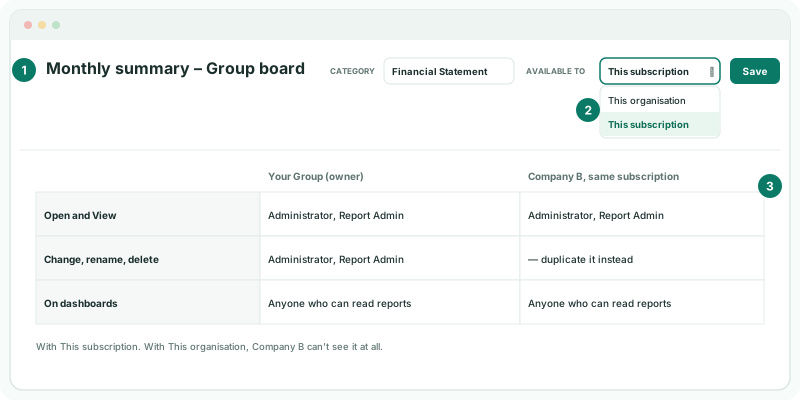
Say what it is and who it’s for. Leave the month out of the name: the report rolls forward, and a name with October in it is wrong in November. The name is what dashboard cards and pack sections show, and what people search for when they add one.
2Choose who it’s available to
| Available to | Who can use it |
|---|---|
| This organisation | Only the organisation that owns it. |
| This subscription | Every organisation in the subscription can open it, put it on a dashboard, and duplicate it. Only the owner can change it. |
- Set Available to to This subscription, and click Save.
Share a report when other organisations of the subscription should use the same layout; keep it to This organisation when it is the group’s own. An organisation that wants its own version duplicates it.
3Know who can change it
| Open, edit, rename, delete | Users with Administrator or Report Admin rights in the owning organisation, and its owner, on a plan that includes Cell Reports. |
|---|---|
| Open a shared report | Users with those rights in the other organisations of the subscription. They can’t change it; they can duplicate it. |
| See it on a dashboard or in a pack | Anyone who can read the organisation’s reports. |
Rights are set per user on the organisation, so to stop someone changing the report, change their rights, not the report.
4Make big changes on a copy
- Open Reports → Custom Reports and click Duplicate beside the monthly summary.
- Keep the name Copy of Monthly summary – Group board, or name it as a draft, and set Available to to This organisation.
- Make and check the changes on the copy.
- When they are right, make the same changes on the original, or point the dashboard cards and pack sections at the copy and delete the original.
A copy belongs to the organisation that made it, so another organisation can duplicate a shared report and change its own copy freely. The copy doesn’t follow later changes to the original.
5Unshare or delete safely
Before you set a shared report back to This organisation, or delete a report, find where it is used. A dashboard card or pack section that uses a report it can no longer see shows Unable to load this Cell Report.
- Check the dashboards and insight packages of every organisation that uses it, and remove or repoint those cards and sections.
- Then change Available to, or click Delete beside the report on Custom Reports.
Deleting a report deletes its cell comments too. A report that replaces a built-in statement can’t be deleted until the statement is restored with Restore default.
6If something goes wrong
| What you see | What to do |
|---|---|
| Another organisation can’t find the report | It is available to This organisation. Set it to This subscription. |
| Another organisation can open the report but not edit it | Only the owner can change it. Duplicate it, or ask the owner. |
| Unable to load this Cell Report. on a dashboard | The report was deleted or unshared, or the reader can’t read reports. Repoint or remove the card. |
| A colleague can see the report on a dashboard but not open it | Opening it needs Administrator or Report Admin rights. |
Want more detail? See the documentation