
Insight Packages · Track 2 · Tutorial 2 of 4
Schedule a package by email
A schedule sends the pack without anyone remembering to. Each time it runs, it builds the PDF for the month you chose and emails it.
You will needAn Administrator, Report Admin or Dashboard Admin of Your Group. A saved package.
By the endThe board pack emailed to the board three days before each month end.
1Create the schedule
- Open Insight Packages → Schedule, and click Add a new schedule.
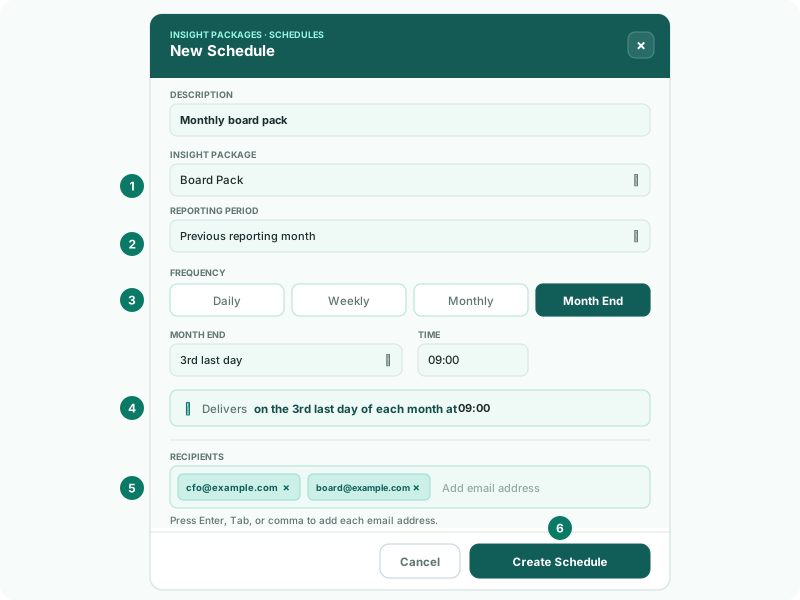
- In Description, type Monthly board pack.
- Under Insight Package, choose the package.
- In Reporting period, choose Current reporting month or Previous reporting month.
2Set when it sends
| Daily | Every day at the Time. |
|---|---|
| Weekly | On the Day of the week, at the time. |
| Monthly | On the Day of Month, at the time. |
| Month End | On the last day, or the 2nd to 5th last day, at the time. |
- Choose Month End, then 3rd last day, and a time.
- Read the Delivers line to confirm when it will send.
3Add the recipients
- Under Recipients, type each email address and press Enter, Tab or a comma.
- Click Create Schedule.
Recipients get an email headed Your … is ready, with the package as a PDF. They don’t need a BrizoConsol account.
Check
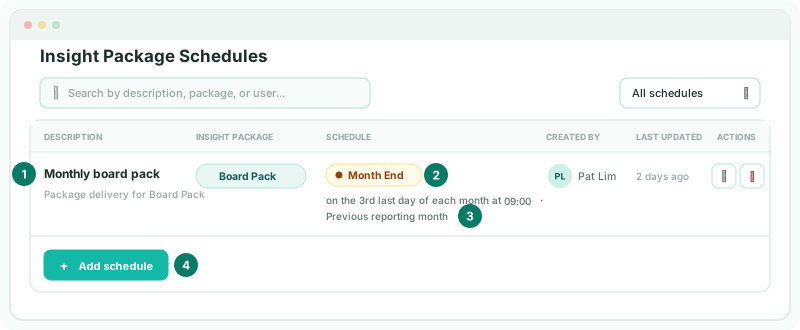
The schedule is listed with its frequency and reporting period, such as Previous reporting month.
4If something goes wrong
| What you see | What to do |
|---|---|
| Contains invalid email | Correct or remove the address shown. |
| Create an insight package first before adding a schedule. | Build and save a package first. |
Want more detail? See the documentation