
Insight Packages · Track 2 · Tutorial 3 of 4
Choose the period each section reports
A board pack rarely shows every report the same way. The profit and loss for the month, a twelve-month trend, the balance sheet at the month end, the year against budget. Every section reads the package’s month, and each report section can choose how it lays that month out.
1Know what sets a section’s period
| Setting | Decides |
|---|---|
| The package’s month | The month every section ends at: the reporting month when you open the package, or the Reporting month chosen when you publish a copy. |
| Report period | How a standard report section lays that month out: the month alone, a run of months, the year, or a comparison. |
| Data type | Whether its figures are movement, the change in each period, or balance, the position at the end of it. |
Both are on a section that shows a standard report. A custom report prints the period and basis saved in the report itself, so change the report, or save a copy of it with another period, as in Create a report and choose its period layout.
2Know the defaults
Left on Use default, a section reads its report the usual way:
| Report | Report period | Data type |
|---|---|---|
| Profit & Loss, and most others | Fiscal Year with Full Year | movement |
| Balance Sheet | By Month | balance |
| Profit & Loss Variance | Actual vs Last Year | movement |
| Profit & Loss Forecast Variance | Actual vs Forecast | movement |
| Trial Balance | Debit/Credit | movement |
| Current Ratio, Quick Ratio, Debt to Equity, Debt to Assets | Fiscal Year | balance |
3Set the month alone
- Open Insight Packages → Custom, click Edit on the board pack, and click Manage sections.
- On the Profit & Loss section’s bar, click the gear (Section settings).
- In Report period, choose By Month. Leave Data type on Use default.
- Click Save Section.
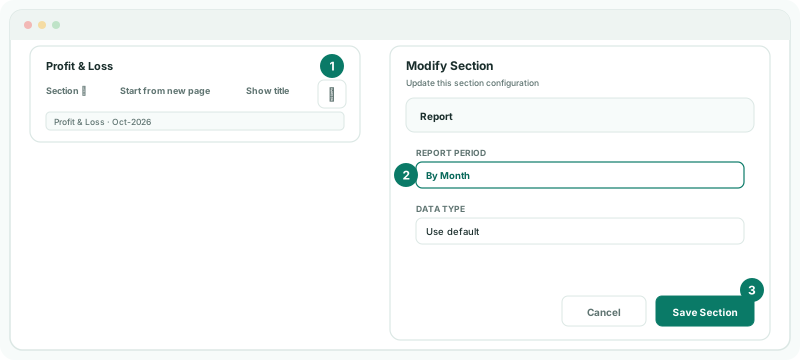
The section now prints one column, the package’s month, in place of the twelve months and the full year.
4Add a rolling twelve months
- Click + (Add a section), choose Report, keep Your Group, and choose Profit & Loss again. Type the Section title Profit and loss, last 12 months, and click Add Section.
- On its bar, click the gear, choose Last 12 Months in Report period, and click Save Section.
- Set the section to Landscape in Page orientation, so twelve columns fit.
- Click Save changes.
The same report can be in a package more than once, each section with its own period. Other choices that suit a pack:
| Report period | Shows |
|---|---|
| Last 3, 6, 9 or 12 Months | A rolling window of months ending at the package’s month. |
| Last 4 Quarters | The current quarter and the three before it. |
| Fiscal Year with Full Year | The twelve months of the fiscal year and a full-year total. |
| Actual vs Last Year, Actual vs Budget, Actual vs Forecast | The month and the year to date against the comparison, with the variance. |
The full list is the one a report offers; each layout is described in Create a report and choose its period layout. Actual vs Budget and the other budget and forecast layouts are greyed out on the Standard edition.
5Choose the basis
A profit and loss reads movement, a balance sheet balance, and the defaults already do that. Change Data type only when a section should read the other basis, and check the result against the report itself.
6Check it
- Open the package from the Insight Packages menu for October 2026.
Check
The Profit & Loss section shows October alone, the new section shows November 2025 to October 2026, and the Balance Sheet shows the position at 31 October. Publish a copy for September 2026: every section moves back one month together.
7If something goes wrong
| What you see | What to do |
|---|---|
| This custom report prints the period and basis saved in the report itself. | The section shows a custom report. Change the period in the report, or use a standard report. |
| A period can’t be chosen | Forecast and budget are not included in the Standard edition. |
| A section shows the wrong month | The package’s month decides it. Check the reporting month, or the Reporting month of the published copy. |
| A wide period runs off the page | Turn the section to Landscape, or choose a shorter period. |
Want more detail? See the documentation