
Controls and Audit · Track 1 · Tutorial 3 of 3
Control what AI clients and integrations may do
An AI client or another system that connects to BrizoConsol acts with real figures. You decide, once for the group, which companies they may reach and what they may read or write, and you can end any connection.
1Know the two doors
| AI Access | What AI clients, such as Claude or ChatGPT, may read through the BrizoConsol MCP server, and on Premium what the Zapier MCP client may write. Every plan. One setting for the whole group: everyone who connects a client gets exactly this, and can’t choose more. |
|---|---|
| API Access | Credentials your own systems use to write data into BrizoConsol and request a consolidation. Premium only. |
Both are under Settings → Global Settings → Integrations.
2Set what AI clients may read
- Open Settings → Global Settings → Integrations → AI Access.
- Tick Allow AI connections.
- Under Companies they may read, tick Your Group and each company AI clients may use. Tick the group itself for consolidated figures.
- Under What they may read, tick only what is needed, such as Statements (read) and KPIs (read).
- Click Save.
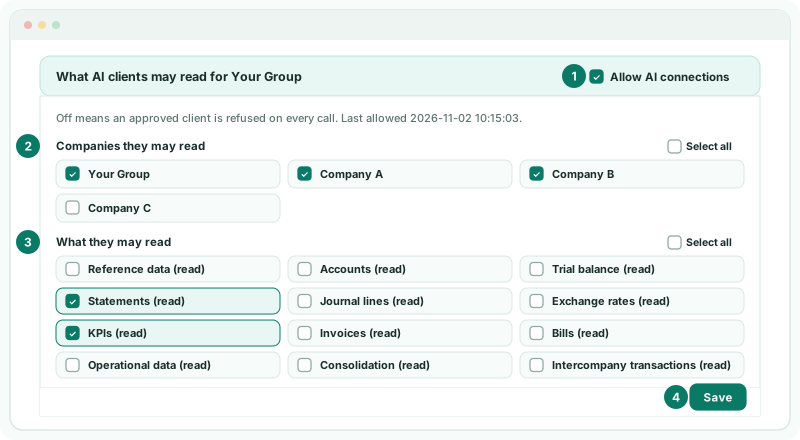
A connection reads no more than this, and no more than the person who approved it may report on: if their access to a company is removed, their client loses it on its next call. Untick Allow AI connections to refuse every client on every call.
On Premium, Companies they may write and What they may write set what the Zapier MCP client may write. Only companies ticked for reading can be ticked for writing. A company with no write scope is read only.
3Review and end connections
The list below the settings shows each live connection: the Client, the Person who approved it, what it May read, its Usage in reads, writes and refused calls, when it was Approved, and its Last read.
- Click End on a connection you don’t recognise or no longer need.
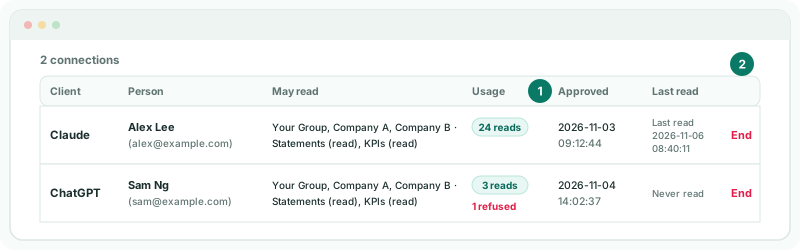
The client is stopped on its next call and its tokens are revoked. The person has to connect again to use it.
4Issue and revoke API credentials (Premium)
- Open Settings → Global Settings → Integrations → API Access, and click New credential.
- Give it a Name, such as Finance system, and an expiry date if it should stop on its own.
- Tick the Companies it may write for and What it may write. Under Allowed IP addresses, enter your system’s addresses, one per line.
- Click Create credential, then Copy secret. This is the only time the secret is shown.
To stop a credential, click Revoke on its row and confirm. Its status changes to Revoked and the system can no longer use it.
5Check what they did
- Open Settings → Global Settings → System Audit Trail. This needs Administrator access.
- In Action, choose one of the actions below, and click Apply.
| Action | Recorded when |
|---|---|
| mcp.read, mcp.write | An AI client read or wrote, with the tool, company and client. |
| mcp.refused, mcp.denied | A call was turned away, with the reason. |
| mcp.settings | The AI Access settings were changed. |
| mcp.connection.revoked | A connection was ended. |
| api_client.created, api_client.revoked | An API credential was created or revoked. |
Check
AI Access shows Allow AI connections ticked with only the companies and reads you chose, and every connection listed is one you expect.
6If something goes wrong
| What you see | What to do |
|---|---|
| Choose at least one company and one read scope before allowing AI connections. | With the switch on, tick at least one company and one read. |
| A company you may write must be one of the companies you may read. | Tick the company under Companies they may read first. |
| Writing is available on Premium | Writing, and API Access, need the Premium edition. |
| A client can’t read a company you ticked | The person who approved it may not report on that company. Add them on it in User Deployment, or have someone who can approve the client. |
Want more detail? See the documentation