
Controls and Audit · Track 3 · Tutorial 2 of 3
List every adjustment for the year
An auditor asks for every adjustment made to the year’s consolidation. The Elim. & Journals Report shows the whole financial year in one view, and exports it in one file.
1Know what the report lists
The auditor of Your Group asks for every adjustment made to the 2026 consolidation. In BrizoConsol they are all in one report, the Elim. & Journals Report: your journals, your eliminations, the eliminations BrizoConsol posts itself, and its CTA, NCI, JV and fiscal year alignment entries. Shown By year, it lists the whole financial year in one view.
2Open the year
- Select Your Group, and open Review → Elim. & Journals Report.
- Choose Actual in Scenario.
- Click By year, and choose 2026 in Period.
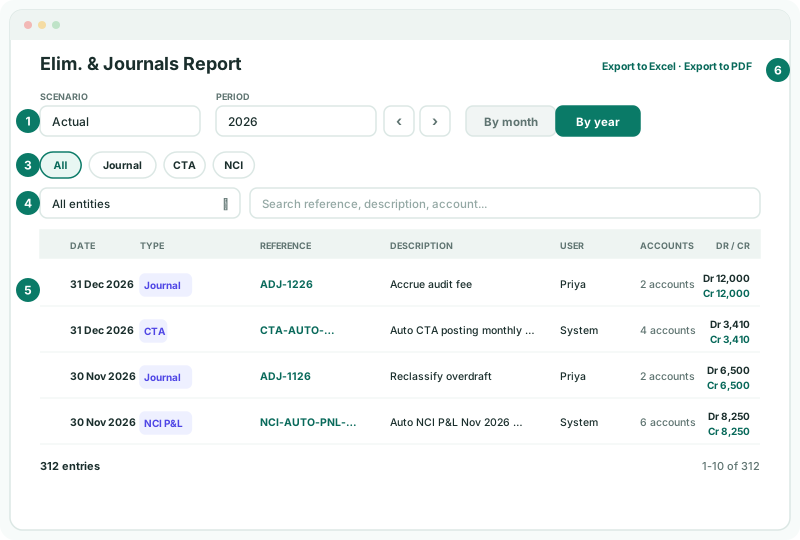
By year covers the group’s financial year: for a group whose year starts in April, the year runs April to March. The month on screen is kept: switching from Aug-2026 to By year shows the year Aug-2026 falls in, and switching back returns to Aug-2026.
| Type | Where the entry came from, such as Journal, CTA, NCI, NCI P&L, JV, an elimination type such as Trade receivables / payables, or Auto Elimination. |
|---|---|
| Reference | The entry’s ID. Entries BrizoConsol posts itself start with their kind, such as CTA-AUTO, NCI-AUTO or AUTO-ELIM-. Click it to open the entry: the accounts it moved and the documents behind it. |
| User | Who posted it. Entries BrizoConsol posts itself show System. |
| Dr / Cr | The entry’s total debit and credit. Click the row to see its lines. |
If the title reads Journals Report, the organisation selected is a single company, not the group: it lists that company’s journals only. Select Your Group.
3Choose what counts as an adjustment
Keep All to give the auditor everything. To give only the adjustments people made, click the chips for Journal and the elimination types, and leave out CTA, NCI, NCI P&L, JV, Auto Elimination and Fiscal Year Alignment. A chip appears only when the year has an entry of that type. Each chip you click is added to the ones already chosen; All clears them.
To list one company’s adjustments, choose it in All entities. An entry with no company on it, such as a journal, only shows under All entities.
4Export the year
- Click Export to Excel at the top of the page.
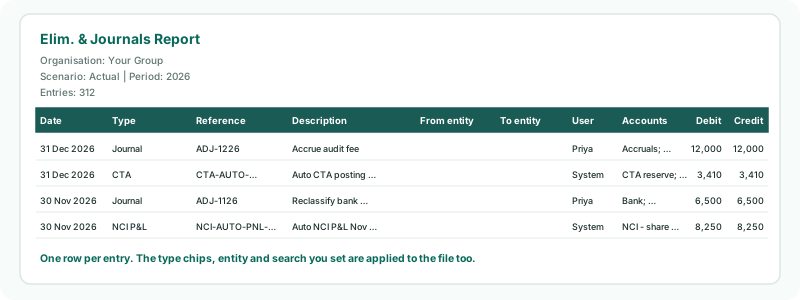
The file has a heading with the organisation, scenario, period and number of entries, then one row per entry: Date, Type, Reference, Description, From entity, To entity, User, Accounts, Debit and Credit, latest first. It holds the entries the chips, entity and search leave on screen, on every page of the list, not only the 10 shown.
Export to PDF gives the same entries with every line of each one: the account, its description, debit and credit. Use it when the auditor wants the lines, not only the totals.
Check
Entries in the file’s heading is the same number as below the list on screen.
5Look at one month
Click By month to go back to one month, and use the arrows beside Period to step through the year. Each month exports the same way.
6Answer the follow-up questions
| Why was this posted? | Click its Reference in the report: the entry opens with its accounts and the documents attached to it. |
|---|---|
| Who changed or deleted it? | The report lists the entries as they are now. Changes and deletions are in the System Audit Trail: see Find who changed what in the System Audit Trail. |
| Where did this figure come from? | See Trace a consolidated figure to its source. |
7If something goes wrong
| What you see | What to do |
|---|---|
| The page title reads Journals Report and no eliminations are listed | A single company is selected. Select Your Group. |
| No entries found. | Check the Scenario and Period, then the chips, entity and search: clear them with All, All entities and an empty search. |
| The report doesn’t open | It needs Administrator or Journals & Eliminations Admin access to Your Group. |
| The file has fewer rows than expected | The chips, entity or search are still set. Clear them and export again. |
| The year shows only one month | By month is chosen. Click By year. |
Want more detail? See the documentation