
Controls and Audit · Track 3 · Tutorial 3 of 3
Trace a consolidated figure to its source
An auditor picks a consolidated figure and asks where it came from. The drill shows every amount behind it, company by company and entry by entry, adding up to the cell.
1Open the figure’s drill
- Select Your Group, and open the balance sheet for Oct-2026.
- Click the trade receivables amount. Or right-click it and choose Open drill in new tab.
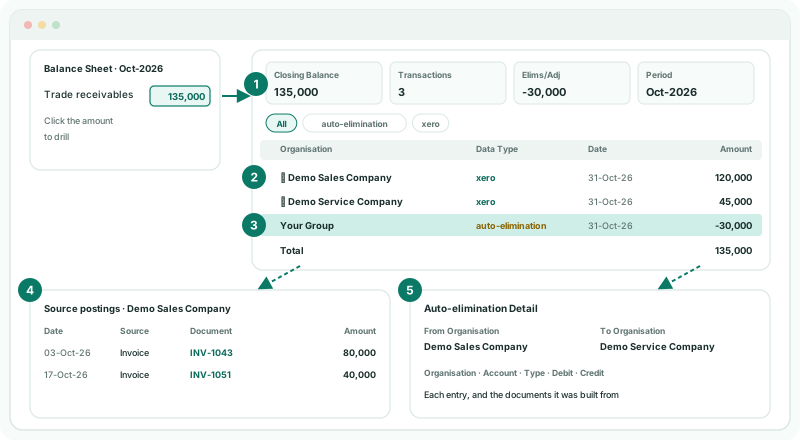
2Read what makes up the figure
| Closing Balance | The total of the rows, equal to the cell. It reads Total Amount, Month movement or YTD Amount for other kinds of figure. |
|---|---|
| Transactions | How many rows are shown. |
| Elims/Adj | The total of the elimination and journal rows: what the consolidation changed. |
| Period | The month the drill is for. |
Each row is one amount: its Organisation, Account, Data Type (where it came from, such as xero for a company’s loaded books, auto-elimination, or a journal or elimination type), date, currency, rate and Amount. Click a type chip to show only those rows.
3Follow a company’s amount to its documents
- Click a company’s row that shows ▸.
- Read its source postings: date, source, document and amount.
- Where the document number is a link, click it to open the document.
Source postings are available for companies connected to Xero, QuickBooks Online, MYOB and Zoho Books, for Actual figures. When they can’t be shown, a notice above the table says why.
4Follow an elimination to its entries
- On an auto-elimination row, click the amount.
The Auto-elimination Detail page shows the account, From Organisation, To Organisation, the elimination amount, and each entry with its debit and credit. Click a row marked ▸ to see the documents it was built from.
5Find who posted the journals
- Open Review → Elim. & Journals Report for Actual and Oct-2026.
- Use the type chips and the All entities list to find the entries behind the journal and elimination rows of the drill.
Each entry shows its Reference, Description, User and accounts. Entries posted by rules and calculations show System. For who changed an entry after it was posted, search its reference in the System Audit Trail.
Check
The drill’s rows add up to the consolidated figure, each company’s row ties to its documents, and each elimination or journal row ties to an entry in the Elim. & Journals Report with its author.
6If something goes wrong
| What you see | What to do |
|---|---|
| Source postings are not attached | The notice above the table says why, such as transactions not loaded for the month. Reload the month on Data Loading with the data it names. |
| A red notice says part of the movement is not reconciled to a document | The company’s trial balance moved by more than the documents loaded. Reload the month with Transactions, or GL for QuickBooks Online, ticked. |
| A company’s row has no ▸ | Its books were uploaded from a file, or no source records are held for it. Ask the company for its ledger. |
Want more detail? See the documentation