
Cell Reports · Track 1 · Tutorial 10 of 12
Replace a built-in statement with a Cell Report
Available on ProPremium
When the built-in Profit & Loss or Balance Sheet needs more than its rows can give — commentary beside the figures, a layout of your own, conditional colours — you can replace it with a Cell Report. BrizoConsol starts the Cell Report from the statement as it is on your screen, so you begin with every row and figure in place.
1Know what replacing does
| Who sees it | Everyone in the subscription. Opening Reports → Profit & Loss shows your Cell Report in place of the built-in one, for every organisation. |
|---|---|
| What it starts from | The statement as it is on your screen when you replace it: its rows, and the columns of the period layout or column set you chose. Each figure is a bound cell, so it stays live. |
| How to undo it | Restore default brings the built-in statement back and deletes the Cell Report. The built-in statement itself is never changed. |
To lay out the built-in rows differently without leaving the row editor, use Customise the profit and loss instead.
2Set the statement up as you want to start
- Open Reports → Profit & Loss for Your Group.
- Choose the period layout or column set, and the currency, the Cell Report should start with — for example a column set of the month, the budget and the year to date.
- Wait for the figures to finish loading.
The columns on screen become the Cell Report’s columns, so this is the moment to choose them.
3Replace it with a Cell Report
- Click Override Report, the edit icon at the top of the report.
- In Choose System Report editor, choose Cell-based report.
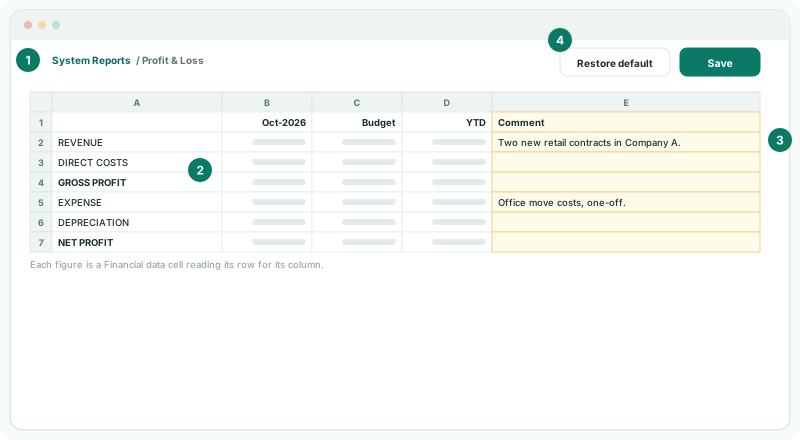
BrizoConsol builds the workbook and opens it in the Cell Report editor. The breadcrumb leads back to System Reports. Every row label is a cell in column A, and every figure a Financial data cell reading that row for that column.
4Make it yours
Everything in the earlier tutorials of this track works here. For Your Group:
- Type Comment as the heading of the first empty column, and the month’s commentary beside the rows that need it.
- Add a variance column with a formula, as in Write formulas and use the formula helper.
- Colour the variances, as in Format and highlight with conditional formatting.
- Click Save.
Leave the rows that read the statement as they are. Deleting one takes that line out of everyone’s Profit & Loss.
5Check what everyone sees
- Open Reports → Profit & Loss for Your Group, then for Company B.
Check
Both open the Cell Report, with the comment column, each showing its own figures. The bound figures for October match what the built-in statement showed before you replaced it.
6Restore the default
- Open Reports → Profit & Loss, and click Edit to open the Cell Report editor.
- Click Restore default.
The built-in Profit & Loss is back for the whole subscription, and the Cell Report is deleted, with its comments and formulas. Replacing the statement again starts a new Cell Report from the statement on screen.
7If something goes wrong
| What you see | What to do |
|---|---|
| The report data must finish loading before creating a cell-based override. | Wait for the figures on screen, then click Override Report again. |
| The Cell Report has the wrong columns | It starts from the columns on screen. Restore the default, choose the right layout, and replace it again. |
| A line is missing from everyone’s Profit & Loss | Its row was deleted from the Cell Report. Restore the default and start again, or add the line back as a bound row. |
Want more detail? See the documentation