
US GAAP Groups · Track 4 · Tutorial 1 of 1
Build the US GAAP year-end pack
Available on ProPremium
An Insight Package puts reports, commentary and documents into one PDF. Build one with the five US GAAP statements and your notes, then publish it for the year end: the published copy is frozen, so it stays as you sent it.
1Create the package
- Select Your Group, and open Insight Packages → Custom.
- Click Add a new insight package. BrizoConsol creates New Insight Package and opens it.
- Rename it in the package name box, for example US GAAP financial statements.
You build the package once. Each year you publish it again for the new year end.
2Add the statements
- Click Manage sections, and open the + tab (Add a section).
- Choose Page Title, enter the title of the statements, and click Add Section.
- Choose Report. Keep Your Group as the Entity, choose Consolidated Balance Sheets as the Report, and click Add Section.
- Add the other four the same way, in this order: Consolidated Statements of Operations, Consolidated Statements of Comprehensive Income, Consolidated Statements of Changes in Stockholders’ Equity and Consolidated Statements of Cash Flows.
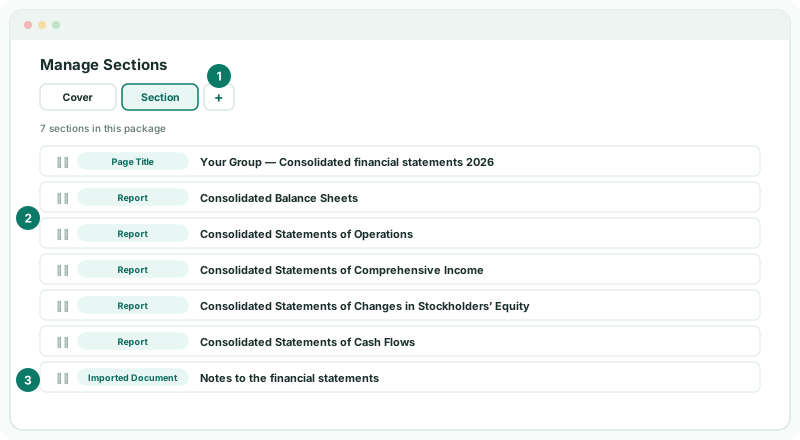
Drag a section to change the order. Each report section uses the report’s own period, which you can change in the section’s settings.
3Add the notes
- On the Add a section tab, choose Insert File, and upload the notes as a Word or PDF document.
- For commentary you write in BrizoConsol, such as a directors’ summary, add a Text section instead.
- Click Save changes.
The notes are your own document: BrizoConsol doesn’t write them. Update the figures in them from the statements before you upload.
4Publish the year end
- Click Publish. It is available once everything is saved.
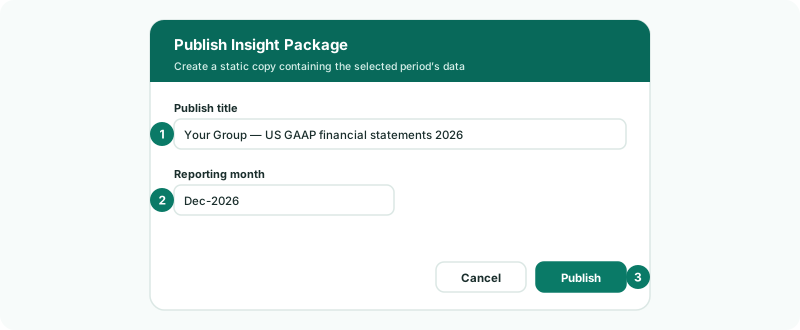
- Enter a Publish title that names the year, choose the last month of the financial year as the Reporting month, and click Publish.
- Open the publication from the Insight Packages menu, and click Export to PDF to download it.
Check
The PDF has the title page, the five statements for the year end and the notes, in order. The figures match the statements you checked: Total Equity, Profit for the Year and the closing cash.
A publication is a frozen copy: reloading a month or posting a late journal changes the live package and the reports, but not what you published. If the figures change before you send it, publish again.
5If something goes wrong
| Publish can’t be clicked | The package has unsaved changes. Click Save changes first. |
| The US GAAP statements aren’t in the Report list | Choose Your Group as the Entity. The US GAAP statements belong to the group, and US GAAP must be enabled for it. |
| A statement shows the wrong period | Check the Reporting month you published for, and the section’s period in its settings. |
| The figures in the PDF are out of date | It was published before the last change. Publish again for the same month, with a new title. |
| Add a new insight package can’t be clicked | The Free plan’s Insight Package limit is reached. |
Want more detail? See the documentation