
SFRS Groups · Track 1 · Tutorial 1 of 2
Switch on SFRS and classify equity
Available on ProPremium
Your group presents its consolidated statements under SFRS. Switching SFRS on makes the five SFRS statements available; classifying the equity accounts tells them which line each account belongs on.
1Know what switching on SFRS does
In this series’ running example, Your Group reports in SGD and owns Company A, Company B (80%, in AUD) and Company C (in GBP), as in the Foundations series. The group presents its consolidated statements under SFRS. Each company keeps its own books under whatever standard applies to it.
| What changes | The presentation. Five SFRS statements become available on the group — Consolidated Statement of Financial Position, Consolidated Statement of Profit or Loss, Consolidated Statement of Profit or Loss and Other Comprehensive Income, Consolidated Statement of Changes in Equity, and Consolidated Statement of Cash Flows, each listed under SFRS — and they place accounts by the classifications you set. |
|---|---|
| What doesn’t | The figures. There is one consolidation: every load, elimination and journal is part of it, and the SFRS statements show the same totals as the Base reports. There are no SFRS-only entries. |
| Where it is set | On the group. Its classifications are on the group’s Common COA. |
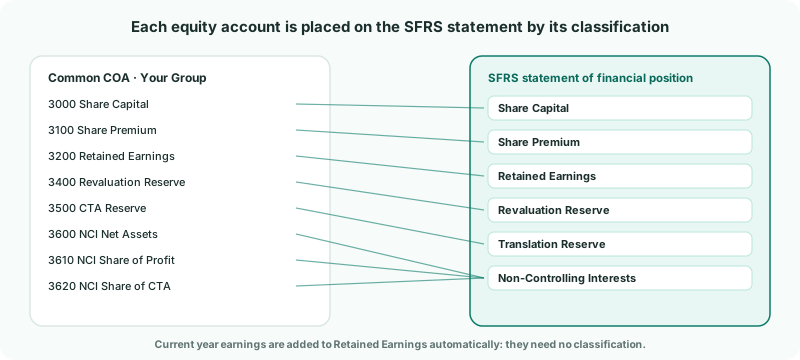
The SFRS statement of financial position shows equity line by line. An equity account that isn’t classified isn’t on any line, so its balance is missing from the statement’s equity. Classify every equity account.
2Switch on SFRS
- Select Your Group in the entity selector.
- Open Settings → Organisation Settings → Accounting Standard. The page says Applies to: Your Group.
- Under Enabled Standard, choose SFRS.
Only one standard can be enabled. Base, the reports without a standard’s presentation, is always there alongside it. Don’t save yet — classify the accounts first, then save once.
3Classify the equity accounts
- Under Account Classifications, choose Equity in the Type column. SFRS is selected at the top right.
- On a line, click Select accounts. Select Equity Accounts lists the equity accounts in the Common COA; tick the account, or search by code or name, and click Apply.
- Repeat for each line your group uses, then click Save Changes.
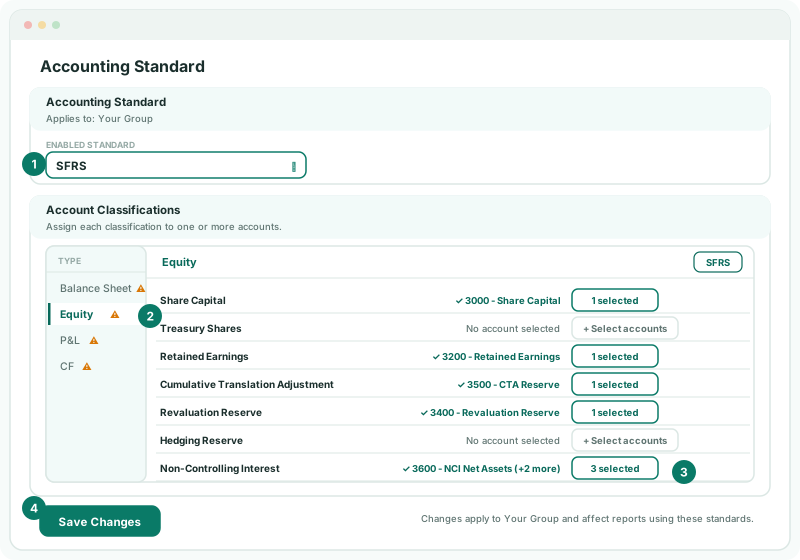
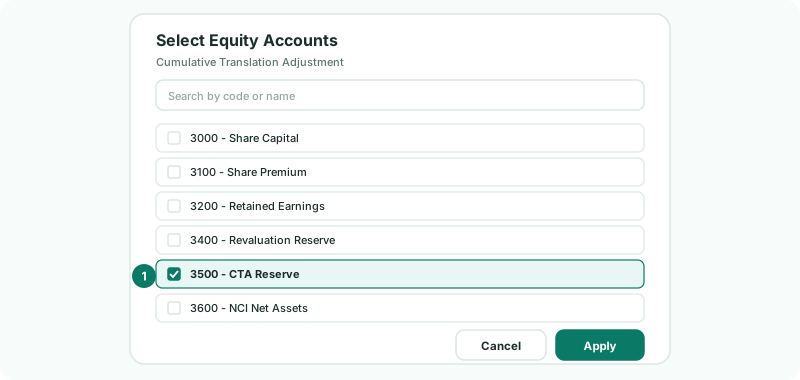
For Your Group:
| Line | Accounts |
|---|---|
| Share Capital, Share Premium, Treasury Shares | 3000 Share Capital and 3100 Share Premium. Your Group holds no treasury shares. |
| Retained Earnings | 3200 Retained Earnings. The year’s profit is added to this line on its own, so don’t look for a current year earnings account to classify. |
| Cumulative Translation Adjustment | 3500 CTA Reserve, the account BrizoConsol posts the CTA to. It shows as Translation Reserve on the statements. |
| Revaluation Reserve, Hedging Reserve, FVOCI Reserve | 3400 Revaluation Reserve. Leave a line with no account if the group has none. |
| Equity Transaction Reserve | The reserve for changes in a subsidiary’s ownership that don’t change control, if you keep one. |
| Non-Controlling Interest | All the NCI accounts BrizoConsol posts to: 3600 NCI Net Assets, 3610 NCI Share of Profit and 3620 NCI Share of CTA, and NCI Share of Other Reserves if the group has one. |
| Acquisition Accounting Adjustment | The account your acquisition entries post to, if you use one. |
Accounts that the Common COA got by copying a company’s chart, importing a file or AI Suggest come with a classification already filled in when their name is a common one, such as Share Capital or Retained Earnings. Check those, and fill the rest. Accounts you create yourself — such as the CTA reserve set up from its own page — start unclassified. NCI accounts created in Posting accounts on the Ownership page are classified from their names in the same way.
4Check the equity agrees
- Open Reports → All Reports. The five SFRS statements are now listed.
- Open Consolidated Statement of Financial Position for 2026.
- Open the group’s Balance Sheet for the same date.
Check
Total Equity on the SFRS statement equals the equity total on the Balance Sheet — for Your Group, 1,817,100.
A warning sign next to Balance Sheet, Equity, P&L or CF means at least one line on that tab has no account. It stays for lines your group doesn’t use, such as Hedging Reserve here, so use the check above rather than the sign. The P&L and CF lines are next — see Classify profit or loss and cash flow lines.
5If something goes wrong
| Total Equity on the SFRS statement is lower or higher than the Balance Sheet | An equity account isn’t classified. Open Equity and find the account that isn’t on any line — often the CTA reserve or an NCI account. In the example, leaving out 3500 CTA Reserve and the three NCI accounts makes SFRS Total Equity 1,739,400, short by 77,700. |
|---|---|
| The SFRS statements aren’t in All Reports | SFRS isn’t enabled for the selected entity, or it isn’t saved. Select Your Group, enable SFRS and click Save Changes. The SFRS statements are listed only for an entity SFRS is enabled for; on the group they are the consolidated statements. |
| No equity-related accounts found in Common COA. | The Common COA has no equity accounts yet. Build it first — see Map every company to one group chart of accounts. |
| Upgrade to Pro for Accounting Standard | The subscription is on Standard, which doesn’t include accounting standards. |
| A new equity account appears later | It starts unclassified unless its name is a common one. Add it to its line and save. |
Want more detail? See the documentation