
Row/Column Reports · Track 2 · Tutorial 3 of 6
Style rows: headers, bold, italics and spacing
Styling tells the reader where to look: a heading that stands out, a subtotal on a shaded row with a line above it, a ratio set apart in italics. Each row carries its own style, set in the same panel you used to build it.
1Make the title a heading
- Open the Management P&L in the editor and click the title row, Management profit and loss.
- Under Text style, click B Header, and click Update Row.
Header styles the row’s name, in the first column. Data styles its figures, and the account lines of a section shown with its accounts. A label row has no figures, so Header is the one that counts.
2Style the subtotal
- Click the Gross profit row.
- Under Text style, click B Header and B Data.
- Under Format, click Background.
- Under Skip, click After, and click Update Row.
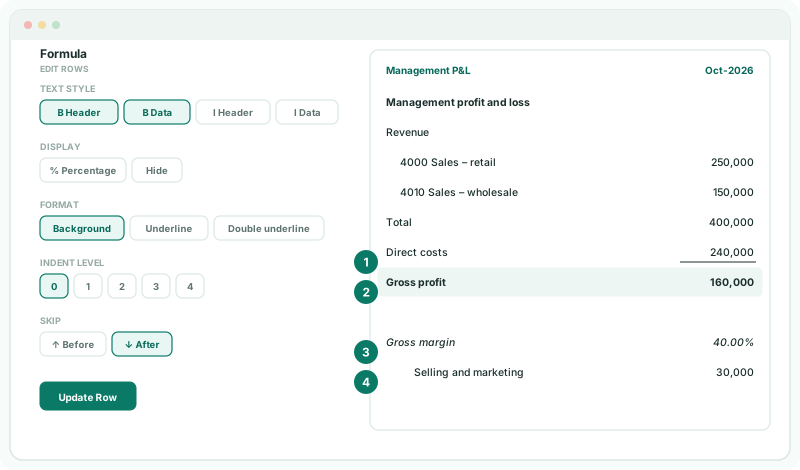
Each setting is a button: click it again to turn it off. Before and After put a blank line above or below the row, which is the way to space sections out; a label row needs text.
3Draw the line above the subtotal
- Click the Direct costs row.
- Under Format, click Underline, and click Update Row.
Underline draws a line under the row’s figures, not under its name, so put it on the row just above a subtotal. Double underline is the usual style under a final total.
4Set off the ratio and indent a line
- Click the Gross margin row. Under Text style, click I Header and I Data, and click Update Row.
- Click the Selling and marketing row. Under Indent level, click 2, and click Update Row.
Indent levels run from 0, the report’s outermost level, to 4. A new row starts on 1.
5Check the result
- Click Save, then View.
Check
The title is bold. Direct costs has a line under its figures. Gross profit is bold, name and figures, on a shaded row with a blank line after it. Gross margin is in italics, and Selling and marketing sits further in than the rows around it.
6If something goes wrong
| What you see | What to do |
|---|---|
| The name is bold but the figures are not | Header styles the name only. Click B Data as well. |
| The line is under the subtotal, not above it | Underline is on the subtotal row. Turn it off there and turn it on for the row above. |
| A row is missing from the report | Hide is on under Display. Click it to turn it off. |
| A style doesn’t show in the report | The row was not updated. Click the row, set the style again, and click Update Row, then Save. |
Want more detail? See the documentation