
Row/Column Reports · Track 2 · Tutorial 5 of 6
Duplicate, categorise and share reports
A report library stays usable when new reports start as copies, each report is filed where people look for it, and the ones meant for everyone are shared. Copy a report rather than rebuild it, give it a category, and choose who can see it.
1Copy a report
- Open Reports → Custom Reports and click Duplicate Existing.
- Under Report to copy, choose Management P&L under Row/column reports.
- In Name for the copy, replace Copy of Management P&L with Management P&L – board.
- Leave Copy as on Row/column and Available to on This organisation, and click Duplicate report.
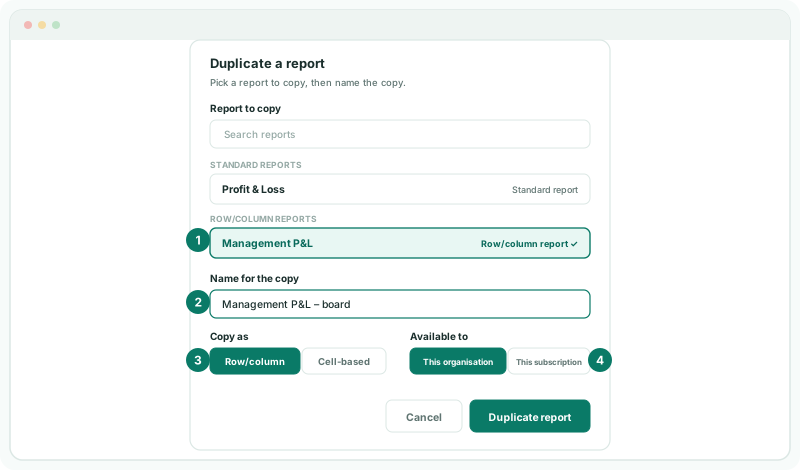
The list also offers the standard reports, such as Profit & Loss, so a new report can start from a statement you already trust. Copy as appears when you copy a row/column report on a plan with Cell Reports: Cell-based turns the copy into a Cell Report. To copy a report straight from the list, click Duplicate on its row.
2File it under a category
- Click Edit on Management P&L – board.
- Click the arrow in Category and choose Profitability, then click Save.
The list offers Financial Statement, Performance, Profitability, Liquidity, Activity and Leverage, or type a category of your own. Under Reports → All Reports, the Profitability filter now shows the report alongside the standard profitability reports.
3Share it
- In the same report, set Available to to This subscription, and click Save.
Every organisation in your subscription now lists the report under Custom Reports, marked Shared with subscription. People there can view and duplicate it; only your organisation can edit or delete it. Set it back to This organisation to stop sharing.
4Keep it in Favourites
- Open Reports → All Reports and click the star on Management P&L – board.
Check
Custom Reports lists Management P&L – board with the category Profitability and Available to Shared with subscription. The report is under Favourites in the Reports menu, and the Favourites filter on All Reports shows it.
5If something goes wrong
| What you see | What to do |
|---|---|
| Duplicate report is greyed out | Choose a report to copy and give the copy a name. |
| Copy as isn’t there | You are copying a standard or Cell Report, or your plan has no Cell Reports. The copy keeps the source’s format. |
| A report shows View but not Edit | Another organisation shared it. Duplicate it and change the copy. |
| Add a new report and Duplicate Existing are blocked | The Free plan’s report limit is reached. Delete a report you no longer use, or change plan. |
Want more detail? See the documentation