
Row/Column Reports · Track 2 · Tutorial 6 of 6
Keep row/column reports maintainable
A report built once should stay right as accounts are added and rows are renamed. A few habits do most of the work: let sections and tags find the accounts, rename rows in the editor, and never delete a row a formula still uses.
1Let sections and tags find the accounts
- Open the Management P&L in the editor and look for Account rows that are meant to cover a group of accounts.
- Replace each with a Section row, or with an account row that reads a tag, as in Read accounts by accounting-standard tag.
A section or tag row reads every account in it, so an account added to the chart next month appears in the report with no change. An Account row reads that one account only; keep it for a line that really is one account, such as Selling and marketing.
2Rename rows in the editor
- Click the Direct costs row, change its Row label to Cost of sales, and click Update Row.
- Click the Gross profit row and read its Working Formula.
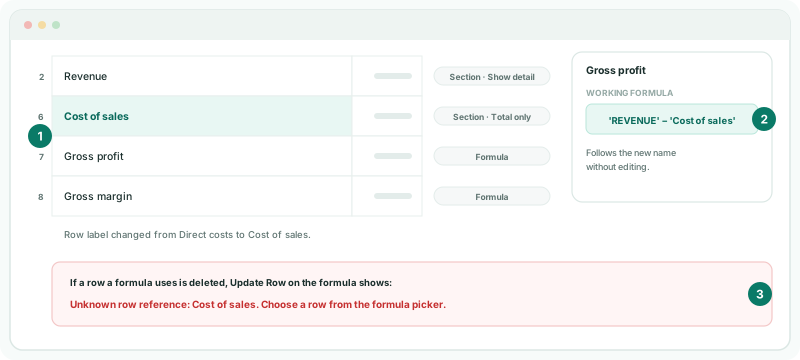
The formula now reads 'REVENUE' − 'Cost of sales': renaming a row in the editor carries the new name into every formula that uses it. A section shown with its accounts is used by its section name, such as REVENUE, and its Row label can’t be changed.
3Check formulas before you delete a row
- Before deleting a row, click each formula row and look for the row’s name in the Working Formula.
- If a formula uses it and you only want it out of sight, click it and turn on Hide under Display instead.
Deleting a row a formula uses asks you to confirm first, naming the formula rows that read it. If you delete it anyway, Save is refused with Invalid Formula until no formula uses it. When you edit such a formula you see Unknown row reference, with the row’s name. A hidden row is left out of the report, and formulas can still use it.
4Share layouts through column sets
- Give reports that should look alike the same column set, such as Month vs budget, as their Period.
Change the set once under Reports → Column Sets, and every report that uses it changes with it. A layout copied into each report by hand has to be changed in each one.
5Check the result
- Click Save, then View.
Check
The row reads Cost of sales, and Gross profit is still Revenue less Cost of sales in every column. No formula row shows 0 where it showed a figure before.
6If something goes wrong
| What you see | What to do |
|---|---|
| Invalid Formula when you save | A formula still uses a deleted row. Click the formula, remove the missing part from the Working Formula, and choose the row again from the formula picker. |
| Unknown row reference when you update a formula | The named row no longer exists. Choose a row from the formula picker. |
| A new account is missing from the report | It is not in any section or tag the report reads. Add it to the right section or tag, or change an Account row to a Section row. |
| A ratio row shows 0 for one month | The row it divides by is 0 that month. The report shows 0 rather than an error. |
Want more detail? See the documentation