
Budgets and Forecasts · Track 5 · Tutorial 2 of 2
Explain variances in the monthly pack
Available on ProPremium
A board reads the month against the plan. Add the comparison to the monthly pack once, and write the commentary around figures that update every month.
1Add the comparison
- Open Insight Packages → Custom, click Edit on the package, and click Manage sections.
- Click + (Add a section), and choose Report.
- Keep Your Group as the Entity, choose Profit & Loss Variance, type the Section title Actual vs Budget, and click Add Section.
2Compare it with the budget
- On the section bar, click the gear (Section settings).
- In Report period, choose Actual vs Budget, and click Save Section.
- Click Save changes.
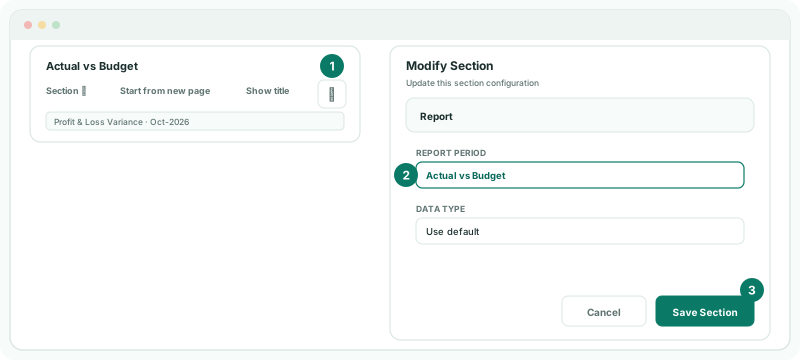
Left on Use default, the section compares with last year. Actual vs Forecast compares with the forecast instead.
3Quote the figures in the commentary
- In the package’s Text section, put the cursor where the figure goes, and click $ Insert variable.
- In Value, choose Financial figure; in Data source, Financial statement total; then the revenue line.
- Set Version to Budget, type Name in this section Revenue budget, and click Insert variable.
- Insert the same line again with Version Actual, named Revenue.
Then write the explanation around them: “Revenue for October was [Revenue] against a budget of [Revenue budget], mainly because …”. Start from the lines with the largest variance in the section, and say why each moved. Both figures follow the package’s month.
4Check the month
- Open the package from the Insight Packages menu for October 2026.
Check
The Actual vs Budget section shows actual, budget and variance for October and the year to date, and the two figures in the text match its revenue line.
5If something goes wrong
| What you see | What to do |
|---|---|
| Actual vs Budget can’t be chosen | Forecast and budget are not included in the Standard edition. |
| The budget column is empty | No budget is loaded for 2026 at the entity the section reports on. |
| The value could not be read. | The budget has no figure for that line and month. Check the line, or set what to show if no figure is found. |
Want more detail? See the documentation