
Budgets and Forecasts · Track 2 · Tutorial 1 of 3
Enter the budget by company and account
Available on ProPremium
For a small group, or a few accounts, typing the budget straight into BrizoConsol is the quickest way. Each value is that month’s movement on the account, and a formula can fill the rest of the year from one cell.
1Open the company’s budget
- Select Demo Sales Company, and open Budget → Profit & Loss.
- Choose 2027.
- In Chart of Accounts, choose the accounts to budget in.
| Organisation Chart of Accounts | The company’s own accounts, as in its books. |
|---|---|
| Common Chart of Accounts | The group’s accounts. A value goes to one of the company’s accounts mapped to it, and the others mapped to it are cleared for that month. A group account the company has nothing mapped to can’t take a value. |
2Type the figures
- Turn on Input Mode.
- Click a cell, type the month’s amount, and press Enter or Tab to save it and move on.
In Input Mode the columns show movements, and each value you type is stored as that month’s movement on the account. Type amounts the way the report shows them: a positive figure is income on a revenue line and a cost on an expense line.
3Fill a row with a formula
- Click the Jan-2027 cell of the line, and type its amount.
- Click the tools icon at the right of the cell.
- In Formula Applied, choose a formula, fill in its figures, and click Apply.
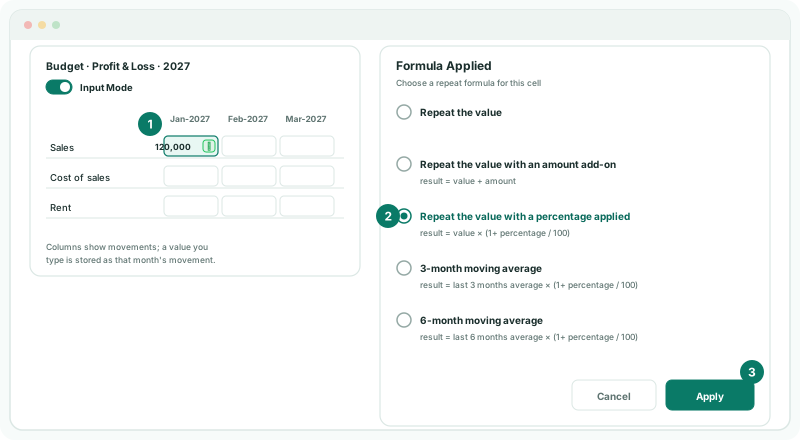
| Repeat the value | The same amount in this month and every month after it. |
|---|---|
| Repeat the value with an amount add-on | Each month after the first adds the amount again: 120,000, then 121,000, then 122,000 with an add-on of 1,000. |
| Repeat the value with a percentage applied | Each month after the first grows by the percentage again. The percentage starts at 5. |
A formula fills from the cell you clicked to the last month of the year shown.
4Budget the balance sheet
- Open Budget → Balance Sheet, choose 2027, and turn on Input Mode.
- Type each month’s movement on the balance sheet accounts you budget.
With Input Mode off, the balance sheet shows balances again, starting from the opening set in Set the plan’s opening balances.
Check
With Input Mode off, the FY-2027 column on the Profit & Loss adds up the twelve months you entered. Select Your Group and open Budget → Profit & Loss: Demo Sales Company’s budget is in the group’s figures.
5If something goes wrong
| What you see | What to do |
|---|---|
| Input Mode is greyed out | The level you are on is not allowed by Budget & Forecast Input. Hover over it to see where to enter, or change the setting. |
| A cell won’t take a value | Turn on Input Mode. Only budget columns can be typed into, not the FY total. |
| A value shows with the wrong sign | Type it as the report shows the line: positive for income on a revenue line and for a cost on an expense line. |
| A foreign company’s budget shows nothing at group level | The Budget scenario has no exchange rate for its currency and month. See Set rates for budgets and forecasts. |
Want more detail? See the documentation