
Insight Packages · Track 1 · Tutorial 8 of 11
Write text with live figures and placeholders
Commentary goes stale when it repeats numbers typed by hand. Variables put live figures, the month and the entity into the text, so the words stay right each month.
You will needAn Administrator, Report Admin or Dashboard Admin of Your Group.
By the endA commentary paragraph that reads, for example, Revenue for Oct-2026 was 400,000, with both values live.
1Add a text section
- Open Insight Packages → Custom, and click Edit on the package.
- Click Manage sections.
- Click + (Add a section), choose Text, and click Add Section.
- On the section bar, click the gear (Section settings) to open the text.
Write with the toolbar: bold, italic, underline, a heading, bulleted and numbered lists, and quotes. A section holds up to 25,000 characters.
2Start from a placeholder
- Click Insert placeholder and choose one.
| Monthly close summary | How the month closed, with revenue, gross profit and net profit. |
|---|---|
| Revenue commentary | Revenue for the month. |
| Cost commentary | The month’s costs. |
| Profit line | The month’s profit. |
| Cash and working capital | Cash and working capital. |
A placeholder is ready-made text with its figures already live. Edit the words so they say what happened.
3Insert a live figure
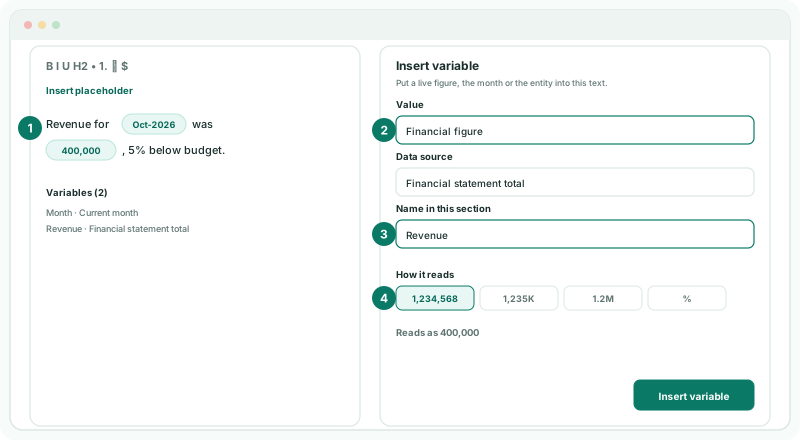
- Put the cursor where the figure goes, and click $ Insert variable.
- In Value, choose Financial figure. Then choose the Data source, such as Financial statement total, and the line, such as revenue.
- In Name in this section, type Revenue.
- Under How it reads, choose 1,234,568, and check Reads as.
- Click Insert variable.
| Financial figure | A figure from the books, such as a statement total, an account type or a KPI. |
|---|---|
| Custom dataset | A value from a custom dataset. |
| Current month or entity | The month the package is built for, or its entity. |
More options sets decimal places, minus sign or brackets for negatives, the currency, and what to show if no figure is found.
4Check and save
- Click Variables to list the variables in the section. Click a variable in the text to edit or remove it.
- Click Save changes.
Check
Change the reporting month: the month and the revenue in the text change with it.
5If something goes wrong
| What you see | What to do |
|---|---|
| The value could not be read. | The figure has no data for this month or entity. Check the source in the variable, or set what to show if no figure is found. |
Want more detail? See the documentation