
Insight Packages · Track 1 · Tutorial 2 of 11
Start from a template or a copy
You rarely need to start from nothing. A template gives a ready structure, and a copy of an existing package keeps everything you already set up.
You will needAn Administrator, Report Admin or Dashboard Admin of Your Group.
By the endA new package, named and saved, ready for its sections.
1Choose how to start
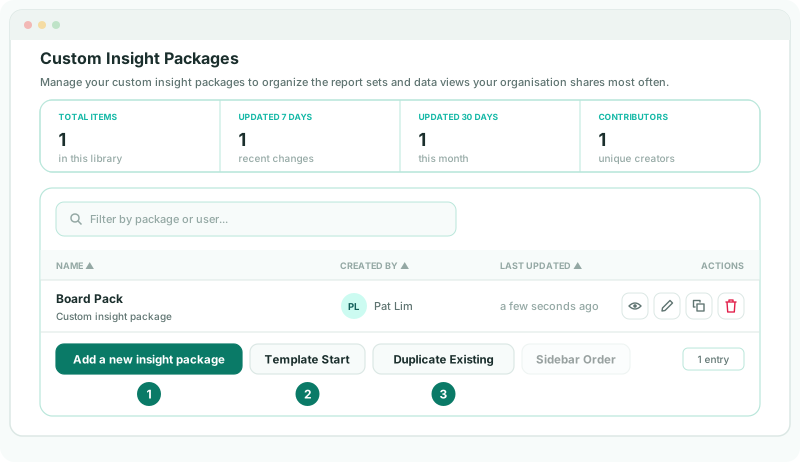
- Open Insight Packages → Custom.
| Add a new insight package | A blank package. |
|---|---|
| Template Start | A package built from a template. |
| Duplicate Existing | A copy of a package you already have. |
2Start from a template
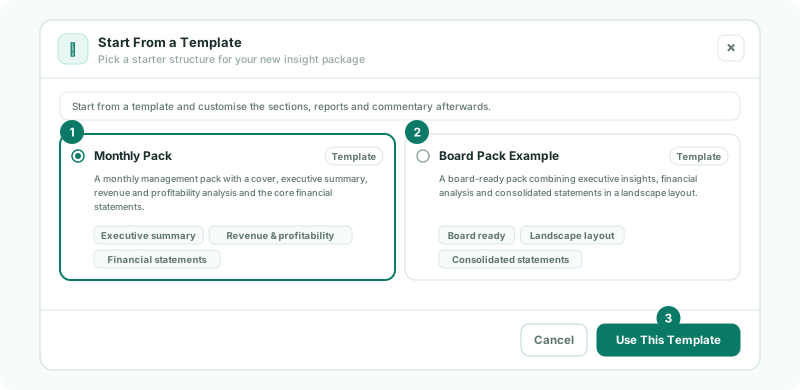
- Click Template Start.
- In Start From a Template, choose a template. Monthly Pack is a monthly management pack with a cover, executive summary, revenue and profitability analysis and the core statements. Board Pack Example is a landscape board pack with executive insights, analysis and consolidated statements.
- Click Use This Template.
3Or copy a package
- Click Duplicate Existing.
- Choose the package and click Duplicate Package.
The copy takes the original’s name with Copy added, such as Board Pack Copy.
4Name and save it
- In the editor, type the package name at the top of the left panel, such as October board pack.
- Click Save changes.
Check
The package is listed in Custom Insight Packages under its new name.
5If something goes wrong
| What you see | What to do |
|---|---|
| Add a new insight package is greyed out | The free edition allows one package. Upgrade, or delete the package you no longer need. |
| Duplicate Existing is greyed out | There is no package to copy yet. |
Want more detail? See the documentation