
Insight Packages · Track 1 · Tutorial 3 of 11
Design the cover and contents
The cover is the first page every reader sees. Set the logo, the heading, the pattern and the colours once, and every month's pack carries them.
You will needAn Administrator, Report Admin or Dashboard Admin of Your Group.
By the endA teal cover with your logo and heading, and a contents page of its own.
1Open the cover
- Open Insight Packages → Custom, and click Edit on the package.
- Click Manage sections.
- Click the Cover tab.
2Set the cover
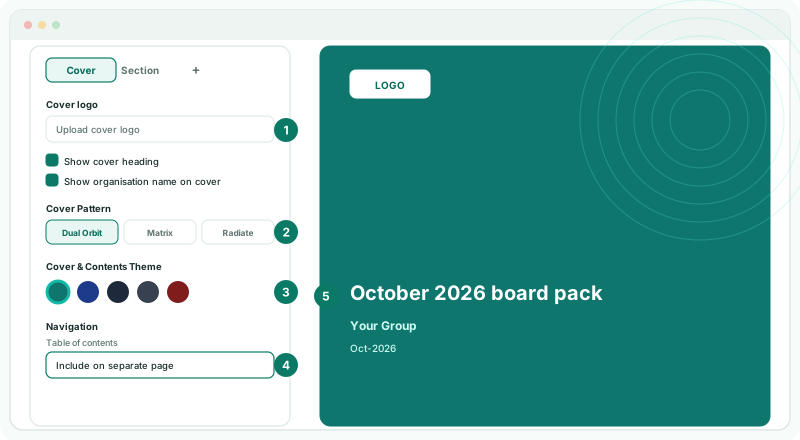
- Under Cover logo, click Upload cover logo to add a package logo, or leave it to use the organisation logo.
- Tick Show cover heading and Show organisation name on cover to show them.
- Under Cover Pattern, choose a pattern, such as Dual Orbit.
- Under Cover & Contents Theme, choose a colour, such as Teal, or Custom for your own gradient.
- Under Navigation → Table of contents, choose Include on separate page.
3Place the heading and logo
- On the cover beside the panel, click the heading and type it, such as October 2026 board pack.
- Drag the heading, the organisation name or the logo to move it. Drag the logo’s handle to resize it.
- Click Save changes.
| Exclude | No contents page. |
|---|---|
| Include on first page | The contents sit on the cover page. |
| Include on separate page | The contents get a page after the cover. |
Check
The cover shows the heading and logo where you placed them, and the contents page lists each section with its page number.
Want more detail? See the documentation