
Insight Packages · Track 2 · Tutorial 1 of 4
Preview and publish a fixed copy
The live package moves as the books move. Publishing freezes it for one month, so you always have the exact pack you reported.
You will needAn Administrator, Report Admin or Dashboard Admin of Your Group. A saved package.
By the endAn October 2026 board pack published as a fixed copy.
1Preview it
- Open Insight Packages → Custom, and click Edit on the package.
- Check the preview beside the panel. When you leave Manage sections with changes not saved, choose Save and preview or Discard and preview.
- Click Save changes. Publish stays greyed out until the package is saved.
2Publish
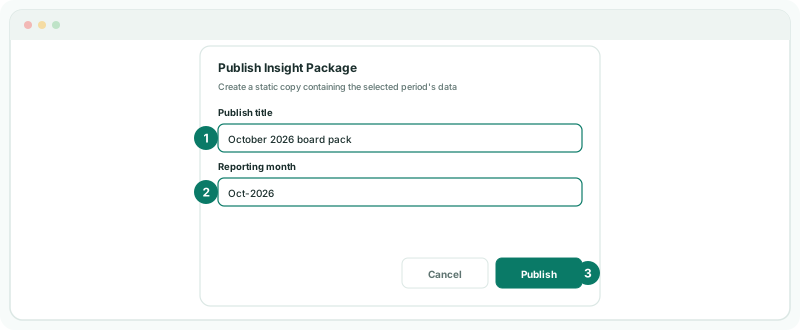
- Click Publish.
- In Publish title, type October 2026 board pack.
- In Reporting month, choose Oct-2026. You can choose the current reporting month or any of the eleven before it.
- Click Publish.
3Find and share the copy
- Open Insight Packages → Custom, and expand the package. Its copies are listed under it, such as Published insight package - Oct 2026.
- Open the copy, and click the PDF icon (Export to PDF) to download it.
Use Show publication in sidebar or Hide publication from sidebar to choose which copies readers see, and Delete publication to remove one.
Check
Change a figure for October: the live package changes, the published copy does not.
Want more detail? See the documentation