
Insight Packages · Track 1 · Tutorial 1 of 11
Plan an Insight Package
An Insight Package puts reports, dashboards, Pulse, Cell Reports, charts, tables, your own text and uploaded files into one document with a cover and a contents page. A few minutes of planning decides most of how it is built.
You will needAn Administrator, Report Admin or Dashboard Admin of Your Group.
By the endA list of the sections the package needs, in the order it will be read.
1Know the two kinds of package
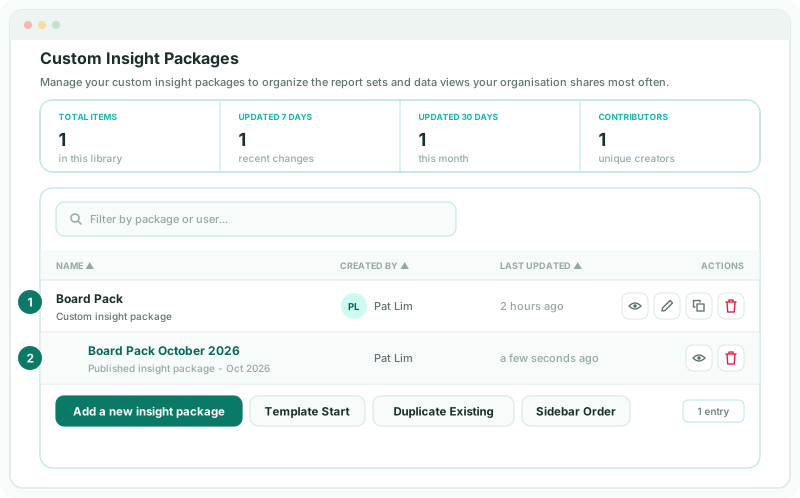
| The live package | The package you build and edit. It always reads the current figures, so it changes as the books change. |
|---|---|
| A published copy | A fixed copy for one reporting month that never changes. It is the record of what you sent. |
You build the live package once. Each month it fills with that month’s figures, and you publish a fixed copy or let a schedule send it.
2Know what a section can be
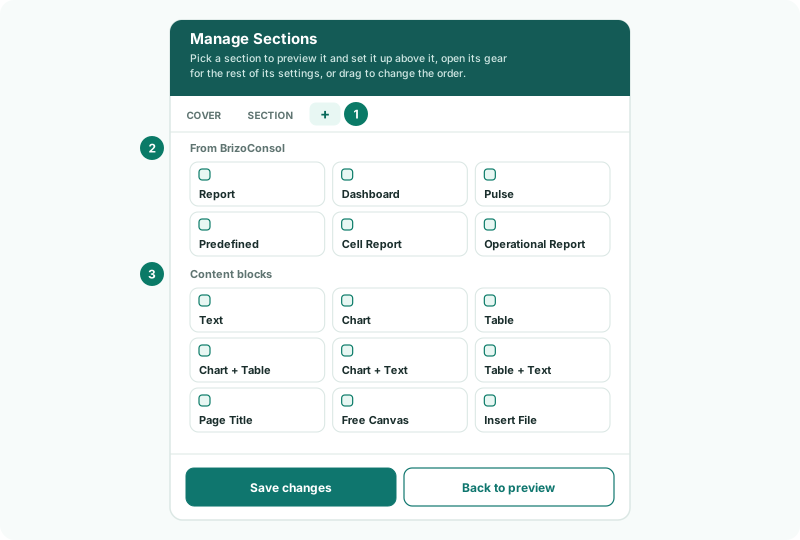
| From BrizoConsol | Something that already exists in the group: a saved report, a dashboard, a Pulse page, a predefined chart, or a Cell Report. |
|---|---|
| Content blocks | A page you build in the package: text, a chart, a table, a chart or table beside text, a page title, a free canvas, or an uploaded Excel, Word or PDF file. |
A section can also be a subsection: a heading nested under the section above it in the contents.
3Write the plan
- Name the readers, such as the board, and what they decide with the pack.
- List the pages they expect, in order. For example: a summary, the profit and loss, the balance sheet, cash, then commentary.
- For each page, note whether a report, dashboard or Cell Report already shows it. Build anything missing as a report first, so it can be used outside the package too.
- Decide the orientation. Wide reports read better in landscape.
The free edition allows one package with up to five sections.
Check
Each planned page names a source that already exists, or a block you will build in the package.
Want more detail? See the documentation