
Insight Packages · Track 1 · Tutorial 10 of 11
Insert Excel, Word and PDF files
Some pages already exist outside BrizoConsol: a budget workbook, a legal update, a signed letter. Insert them as sections so the pack is complete in one PDF.
You will needAn Administrator, Report Admin or Dashboard Admin of Your Group. An XLS, XLSX, DOCX or PDF file.
By the endA worksheet and a PDF letter added to the package as sections.
1Choose the file
- Open Insight Packages → Custom, and click Edit on the package.
- Click Manage sections.
- Click + (Add a section), and choose Insert File.
- Choose one XLS, XLSX, DOCX or PDF file, within the size shown in the dialog.
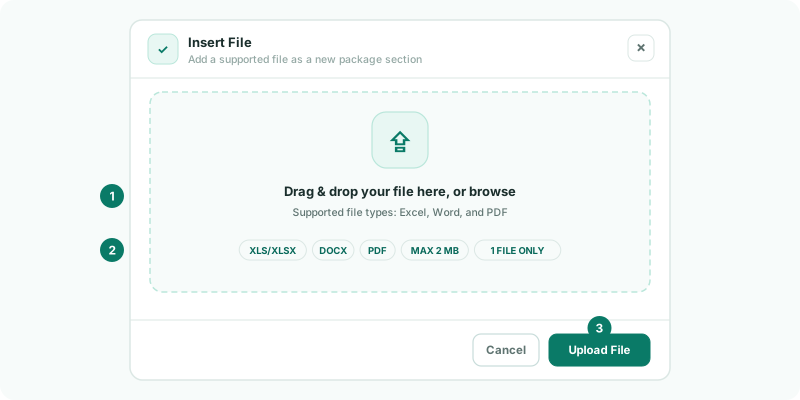
2Add what it holds
| Excel | Choose the Worksheet and click Add Worksheet. The first 200 rows and 30 columns are kept, with their formatting. |
|---|---|
| Click Add PDF Pages. Up to 10 pages are kept as images, with their layout, charts and pictures. | |
| Word | Click Add Document. Up to 10 pages are kept the same way. |
The section is a copy of the file as it was uploaded. To update it, insert the new file and delete the old section.
- Click Save changes.
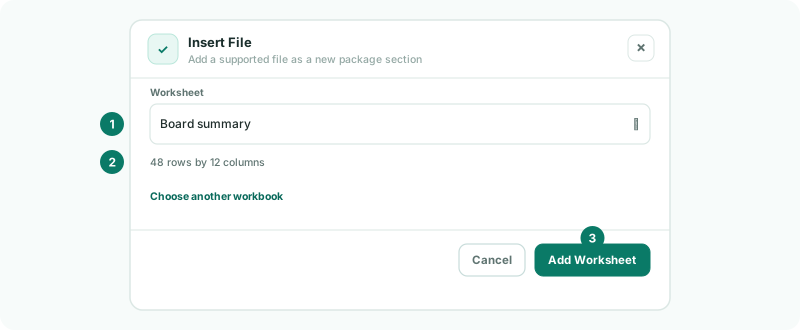
Check
The section shows the worksheet or pages as they look in the file.
3If something goes wrong
| What you see | What to do |
|---|---|
| Only XLS, XLSX, DOCX, and PDF files are supported. | Save the file in one of these formats. |
| The file must be … MB or smaller. | Make the file smaller, such as by removing unused sheets or images. |
| Choose a worksheet. | Choose one under Worksheet. |
| Rows or columns are missing | Only the first 200 rows and 30 columns are kept. Move what matters into that range. |
Want more detail? See the documentation