
Insight Packages · Track 1 · Tutorial 11 of 11
Set orientation, scaling, page numbers and footer
The same package can print cramped or clean. Orientation, scaling, page numbers and the footer set how every page of the PDF looks.
You will needAn Administrator, Report Admin or Dashboard Admin of Your Group.
By the endA landscape package that fits the page width, with page numbers and your own footer.
1Set the package
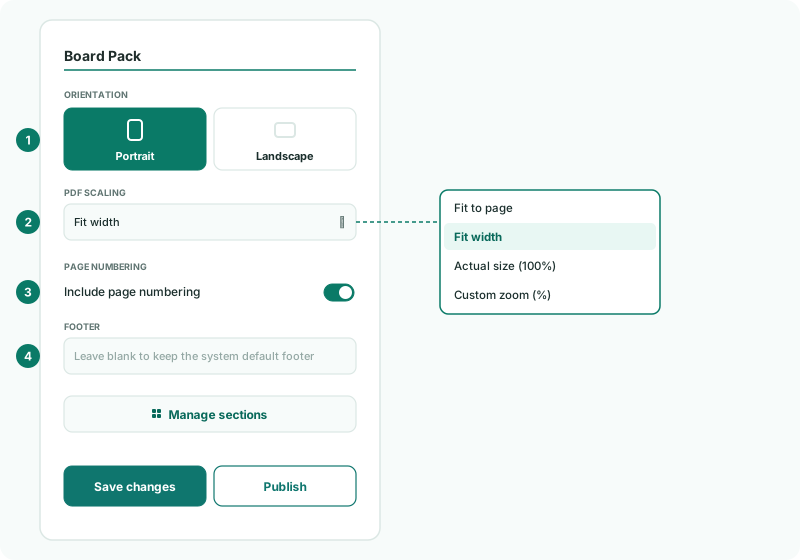
- Open Insight Packages → Custom, and click Edit on the package.
| Orientation | Portrait or Landscape for the whole package. |
|---|---|
| PDF Scaling | Fit to page, Fit width (the default), Actual size (100%), or Custom zoom (%) from 25 to 200. |
| Page numbering | Include page numbering is on by default. |
| Footer | Up to 350 characters. Leave it blank to keep the default footer. |
2Turn one section
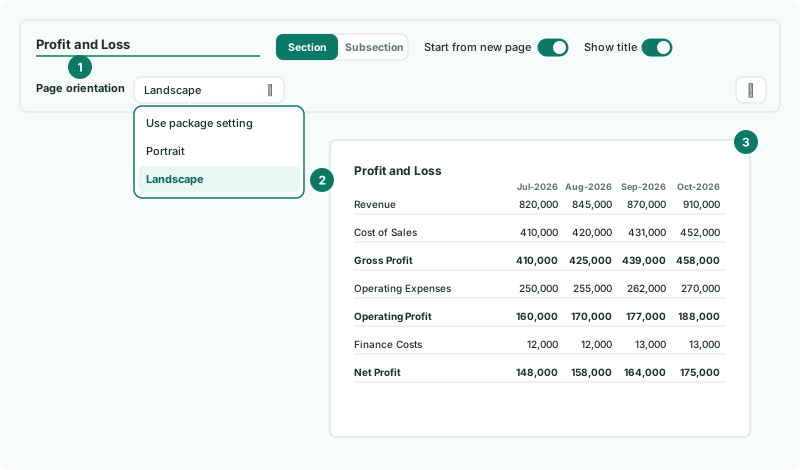
- Click Manage sections.
- Choose the section, and set Page orientation on its bar to Landscape or Portrait. Use package setting follows the package.
- Click Save changes.
3Check the PDF
- Open the package, and click the PDF icon (Export to PDF) at the top of the page.
Check
Wide reports fit across the page, each page shows its number, and the footer reads as you set it.
Want more detail? See the documentation