
Insight Packages · Track 1 · Tutorial 5 of 11
Add Cell Report, dashboard and Pulse sections
Anything you already built in BrizoConsol can go into the pack as it is: a dashboard, a Pulse page, a built-in chart, or a Cell Report laid out cell by cell.
You will needAn Administrator, Report Admin or Dashboard Admin of Your Group.
By the endDashboard, Pulse and Cell Report sections in the package.
1Add the section
- Open Insight Packages → Custom, and click Edit on the package.
- Click Manage sections.
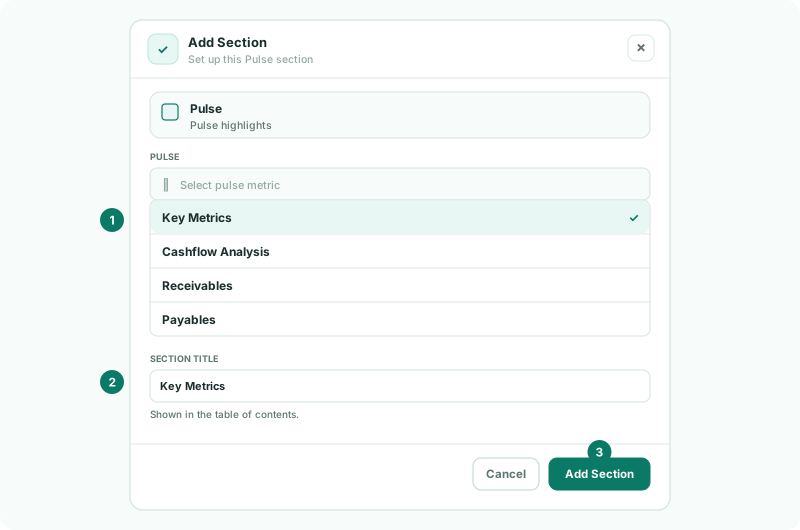
- Click + (Add a section), and choose a tile under From BrizoConsol.
| Dashboard | A snapshot of a dashboard. The list marks each as System or Custom. |
|---|---|
| Pulse | Key Metrics, Cashflow Analysis, Receivables or Payables. |
| Predefined | Net Profit Waterfall, Current vs Non Current Assets or Expenses by Entity. |
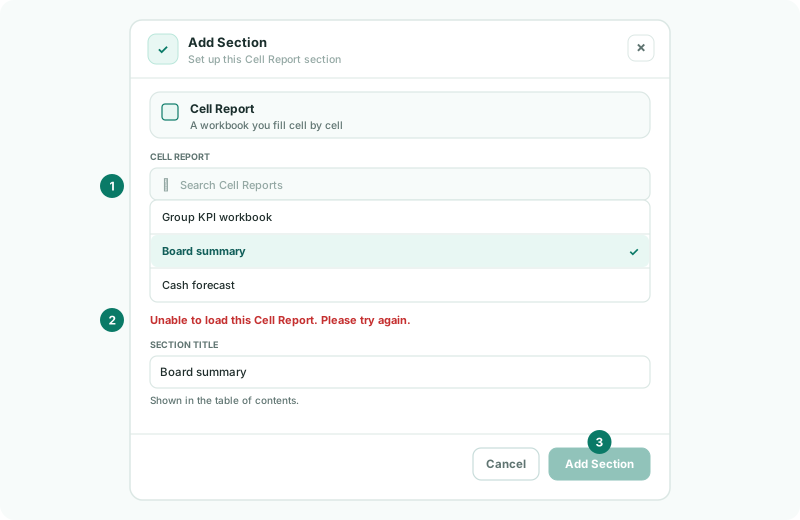
| Cell Report | A Cell Report workbook, chosen with Search Cell Reports. |
2Finish the section
- Choose the dashboard, Pulse page, chart or Cell Report from the list.
- Type the Section title, and click Add Section.
- Set the section bar, as for a report section, and click Save changes.
Check
Each section shows the same figures as the dashboard, Pulse page or Cell Report it comes from, for the package’s month.
3If something goes wrong
| What you see | What to do |
|---|---|
| The Cell Report preview was empty. | The Cell Report has nothing to show for this month. Open the Cell Report and check it fills. |
| Unable to load this Cell Report. | Open the Cell Report on its own to see what fails, then add it again. |
Want more detail? See the documentation