
Dashboards and KPIs · Track 3 · Tutorial 5 of 5
Define your own KPIs with targets
The built-in KPIs cover the common ratios, but every group has a measure of its own. Define it once, and give it a target, so Pulse shows each month whether it is on track.
1Create the KPI
- Open Settings → Global Settings → Custom KPI and click Add a new KPI.
- In KPI Name, type Revenue per Day. Leave Is Percentage unticked: the result is an amount.
- Under Ledger, choose Section: REVENUE, leave Movement, and click Add.
- Under Operators, click /.
- Under Period, click Add days in period.
- Check the Result, and click Add KPI.
Days in period is the days in the month for a monthly figure, and the days in the year to date for a year-to-date one. For a ratio, tick Is Percentage and leave it as a ratio: 0.345 shows as 34.5%.
2Put it on Key Metrics
- Open Pulse → Key Metrics with Your Group selected, and click the Edit icon (the pencil).
- In the section you want, click Add Metric, click Custom, choose Revenue per Day, and click Add.
Your KPI is now also offered on dashboard KPI cards and as a report KPI row.
3Set its target
- On the Revenue per Day row, open the target method list. A new custom KPI starts on Use forecast data.
- Choose Use last year data, and type 10 in the box beside the slider.
- Click Save.
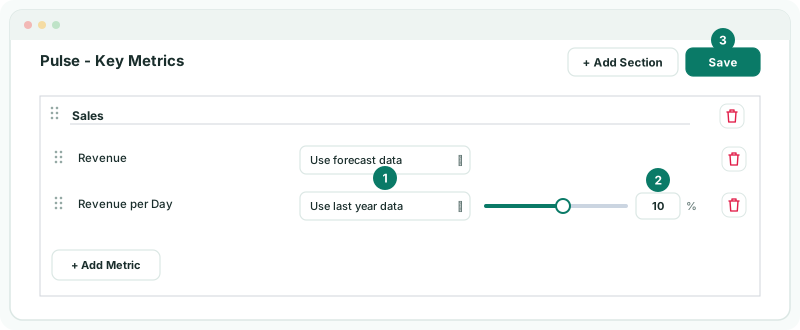
| Use forecast data | The target is the KPI worked out on the forecast for the month. The forecast must be loaded. |
|---|---|
| Use last year data | The target is the KPI for the same month last year, plus the percentage you set: 10 means 10% more, −5 means 5% less. The slider runs from −100 to 100. If last year’s figure is zero or negative, the previous month’s is used instead. |
The target belongs to the KPI, not to the section: wherever Pulse measures this KPI against a target, such as in a Health Score, it uses this one.
4Read it against the target
- On Key Metrics, choose Oct-2026 at the top of the page.
- Click the Target of the Revenue per Day row.
The target page names the basis, here Use last year data and the percentage, and shows Target, Actual (MTD), vs Target, Progress and Spotlight, with a chart of the KPI by month. See Read Key Metrics and the Health Score.
Check
Revenue per Day for Oct-2026 MTD equals October revenue from the Profit & Loss divided by 31. Its target equals Revenue per Day for Oct-2025 × 1.10.
5If something goes wrong
| What you see | What to do |
|---|---|
| The name field is required. | Type a KPI Name. |
| The name is already in use | Another custom KPI has that name. Choose a different one. |
| Formula cannot end with an operator. | Add the last part after the operator, or remove the operator. |
| Formula has two values without an operator between them. | Add an operator, such as /, between the two parts. |
| Formula has unmatched brackets. | Add the missing ( or ). |
| Upgrade to Pro for Custom KPI | Custom KPIs need the Pro or Premium edition. |
| The target shows 0 and Spotlight is Critical | The basis has no figure: no forecast is loaded, or there is no earlier data. Load it, or choose the other method. |
Want more detail? See the documentation