
Foreign Currency · Track 1 · Tutorial 1 of 3
Manage closing and average exchange rates
Every translated figure in the group comes from two rates per currency per month: the Average Rate for profit and loss and the Closing Rate for the balance sheet. Decide where they come from, keep them complete, and the translation takes care of itself.
1Know what each rate does
| Average Rate | Translates each month’s profit and loss — income and expenses happen through the month. |
|---|---|
| Closing Rate | Translates assets and liabilities at the month end, and retranslates goodwill on foreign companies. |
| Historical rates | Share capital and reserves stay at the rate when they arose. They are set on the CTA settings, not here — see Handle foreign currency companies. |
A rate is the number of units of the currency to one unit of the group currency: for Your Group, AUD, GBP and MYR per 1 SGD. A rate entered the other way round makes a company’s figures look many times too big or small.
2Choose where the Actual rates come from
- Select Your Group, and open Settings → Global Settings → Exchange Rates.
- Choose the Year, the rate type under Exchange Rates, and Actual under Scenarios.
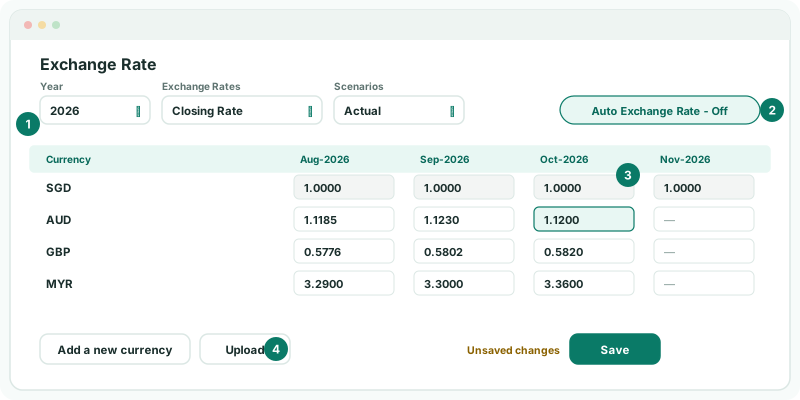
| Your group’s policy | Set up |
|---|---|
| Market rates are fine | Keep Auto Exchange Rate - On. The Actual rates are fetched every night; there is nothing to enter. |
| Mostly market rates, a few of your own | Turn it off, type your rate into the cell, and click Save: while it is on, the rates can’t be edited. If you turn it back on, check those cells after each month’s fetch. |
| The group’s own rates, such as the treasury’s or a central bank’s | Turn it off, and enter or upload every rate yourself. |
Turning Auto Exchange Rate back on overwrites the current month’s Actual rates straight away, and again every night; earlier months that already have Actual rates are kept. If your group relies on its own rates, keep it off.
3Load a year of rates from a file
- Prepare a CSV, Excel or text file with the columns Scenario, Rate Type, Currency, then one column per month, such as Jan-2026, Feb-2026.
- On Exchange Rates, with Auto Exchange Rate off, click Upload, and drop the file into Upload Exchange Rates. Upload needs Pro or Premium.
- Read the message and any warnings, then Close.
| Scenario | Rate Type | Currency | Oct-2026 | Nov-2026 |
|---|---|---|---|---|
| Actual | Closing Rate | AUD | 1.1200 | 1.1150 |
| Actual | Average Rate | AUD | 1.1161 | 1.1175 |
| Budget | Closing Rate | AUD | 1.1300 | 1.1300 |
One file can hold every scenario, rate type and currency. A currency and month that appear twice take the last value. If any month in the file is locked, the whole file is refused, so nothing is half loaded. While Auto Exchange Rate is on, a file with Actual rows is refused too.
4Add a new currency
When the group buys a company in a currency it doesn’t have yet, add the currency before its first month is loaded.
- Click Add a new currency, pick the currency, and click Add.
- Enter its rates for every month from the purchase, for both rate types, and click Save.
Save any other changes first. On Actual, turn Auto Exchange Rate off: the button is disabled while it is on.
5Give budgets and forecasts their own rates
Rates are never fetched for Budget or Forecast. Choose the scenario, and enter or upload both rate types for every currency and month of the plan.
Most groups use one budget rate per currency for the whole year, so that a variance between actual and budget shows trading, not exchange movements. A forecast usually takes the latest actual rate forward.
Check
For each scenario you report, every currency has an Average Rate and a Closing Rate for every month up to the one you are closing. The group Balance Sheet balances for each scenario.
6If something goes wrong
| A company’s figures are far too big or small | A rate is the wrong way round. Rates are units of the currency per 1 unit of the group currency. |
| Your own rates changed overnight | Auto Exchange Rate was turned back on and fetched over them. Turn it off and upload your rates again. |
| The upload is refused | A month in the file is locked, or a column heading isn’t a month. Remove the locked month, or ask an administrator to unlock it. |
| The budget balance sheet doesn’t balance | The Budget scenario has no rates for that month. Enter them. |
| Missing closing exchange rate for the retranslation of goodwill | A foreign company with goodwill has no Closing Rate for the month named. Add it. |
| Presentation currency required | The group has no currency. Set it on the group’s Organisation Details. |
Want more detail? See the documentation