
Budgets and Forecasts · Track 1 · Tutorial 3 of 3
Set rates for budgets and forecasts
Available on ProPremium
A budget or forecast is translated at its own rates, not the actual ones. BrizoConsol never fetches them for you, so set them when the plan is set: usually the rate the plan was built on.
1Choose the rates to plan with
Each scenario — Actual, Budget, Forecast — has its own rates on Exchange Rates, and its figures are translated at them. So the budget for Company B is translated at the Budget rates for AUD, month by month, whatever the actual rate turns out to be.
| One rate for the year | The rate the plan was built on, the same in every month. A variance then shows trading, not currency. |
|---|---|
| The latest actual rate | Common for a forecast: the closing rate at the time it is made. |
| A rate per month | When the plan uses forward rates, or the group’s treasury sets them. |
Your Group budgets 2027 at one rate for the year: 1.1200 AUD, 0.5800 GBP and 3.3600 MYR to 1 SGD.
2Enter the rates
- Select Your Group, and open Settings → Global Settings → Exchange Rates.
- Choose the Year 2027, Closing Rate under Exchange Rates, and Budget under Scenarios.
- Type each currency’s rate into every month, and click Save.
- Choose Average Rate, and do the same.
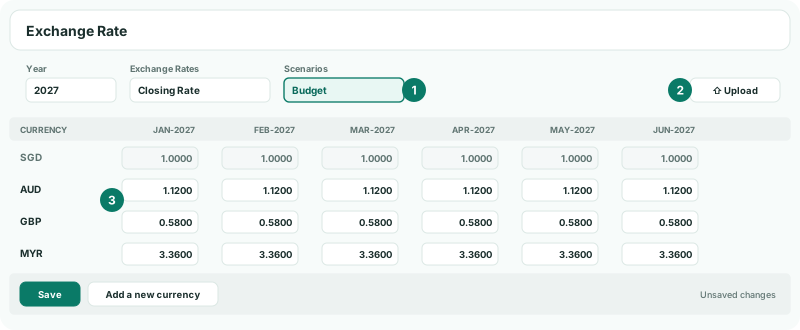
Both rate types are needed: the closing rate for the budget’s balance sheet, the average rate for its profit and loss. Rates are units of each currency per 1 SGD, as for Actual.
3Or load them from a file
- Prepare a file with the columns Scenario, Rate Type, Currency, then one column per month, with Budget or Forecast in the Scenario column.
- On Exchange Rates, with the Budget scenario chosen, click Upload, drop the file into Upload Exchange Rates, and read the message.
One file can hold the budget and the forecast, for both rate types and every currency. The format is the same as for actual rates; see Manage closing and average exchange rates.
Check
Open the group’s Balance Sheet with the Budget scenario for a 2027 month. NET ASSET equals EQUITY, and Company B’s figures with Show Entities on are its AUD budget at 1.1200.
4If something goes wrong
| A foreign company’s budget shows nothing, or zero | The Budget scenario has no rate for that currency and month. Enter it. |
|---|---|
| The budget balance sheet doesn’t balance, but Actual does | One of the two rate types is missing for the Budget month. Check both Closing Rate and Average Rate. |
| The rates can’t be typed in, or there is no Upload button | The Actual scenario is chosen, with Auto Exchange Rate on. Choose Budget under Scenarios. Upload also needs Pro or Premium. |
| The upload is refused | A month in the file is locked, so nothing in the file is loaded: unlock it or take that month out. Or the file has Actual rows while Auto Exchange Rate is on, and the message names the row: take the Actual rows out. |
| The budget changed when actual rates changed | It can’t: Budget is translated only at its own rates. Check that the report’s scenario is Budget. |
Want more detail? See the documentation