
Foundations · Track 4 · Tutorial 2 of 5
See results by division or project
If your bookkeeping tags each invoice and bill with a division, department or project, BrizoConsol can read that split and show profit for each one — not only for each company.
1Understand where the split comes from
In the running example Company A, on Xero, has a tracking category called Division, with the options Retail, Wholesale and Online. Its bookkeeper picks a Division on each invoice and bill.
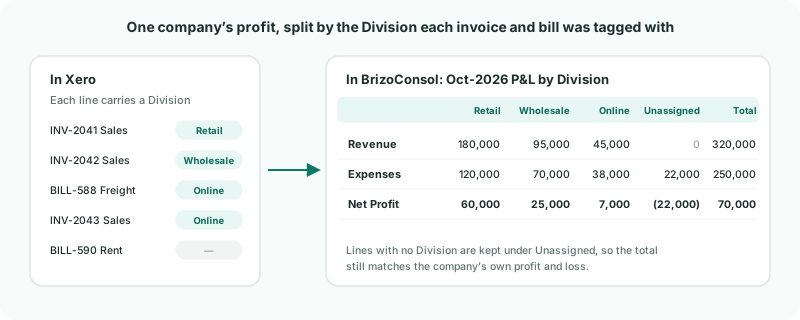
BrizoConsol does not split anything itself. It reads the profit and loss by tracking option from Xero for each month, so the split is only as good as the tagging. Lines without a Division are kept under Unassigned, so the parts always add up to the whole.
| Xero | Tracking categories — the running example. |
|---|---|
| QuickBooks | Classes. The steps are the same, on a Class Setup page; each top-level class is set up once, with its child classes as its options. |
| Zoho Books | Reporting tags, on a Reporting Tag Setup page — see Zoho Books Reporting Tags. |
2Switch on the profit and loss by tracking category
- Select Company A, and open Data Loading.
- On the Xero permissions card at the top, click Enable additional access.
This lets BrizoConsol read Xero’s profit and loss by tracking category for this connection. If Xero asks you to reconnect, approve the permissions it lists. Once it is on, Data Loading shows Review Tracking Category Setup and a P&L tracking column for each month.
3Import and classify the categories
- Click Review Tracking Category Setup, then Import from Xero.
- For each category, check the Suggested Mapping and set the Confirm Mapping. Set Division to Department.
- Click Save Tracking Category Setup.
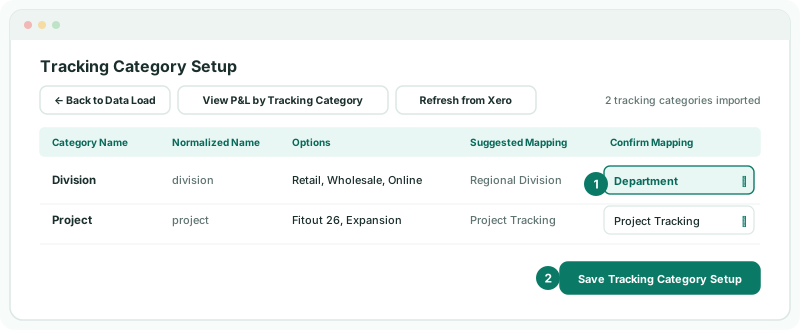
The suggestion is only a guess from the name. The mapping you confirm is what counts: a category mapped to Department unlocks the Department P&L dashboard template, and one mapped to Store unlocks Store Performance. Only active categories and options are imported.
4Load the months
- Back on Data Loading, tick the months you want, and click Load selected.
- Under Data Types, tick P&L by Tracking Category, and click Start Load.
From now on, each month’s split loads with its trial balance. This step brings in the months before. Reloading a month replaces it, so nothing is counted twice.
Check
The P&L tracking column shows each month loaded. To compare with Xero itself, click View P&L by Tracking Category on the setup page, choose Division and a date range, and click Load Xero Report — this reads Xero live.
5See it in a dashboard
- Open Dashboards → Custom, and click Template Start.
- Choose Department P&L, and click Use This Template.
- The dashboard opens ready-built. Click Save.
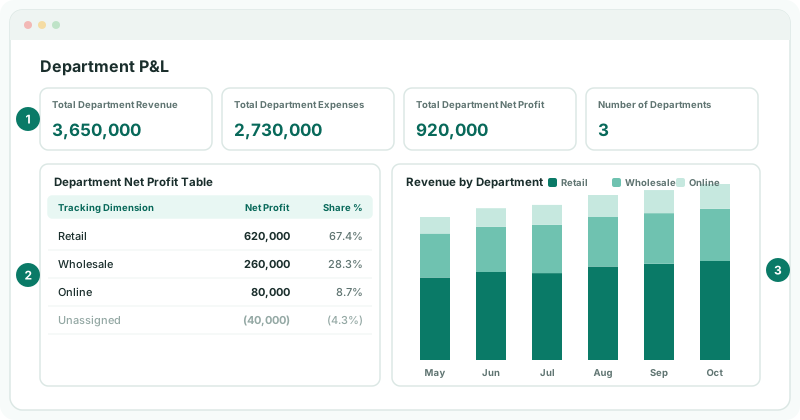
The totals and the table cover the last 12 months; the charts show month by month. To add a single chart to another dashboard instead, choose a source such as Revenue by Division or Net Profit by Division when you add a widget — there is one for each tracking category you imported.
6Combine divisions across companies
On the group, the same sources read every company beneath it, and add up options with the same category name and option name. If Company F also tags its lines Division: Retail, the group’s Retail includes both.
| Spelling | Names must match exactly in every company. “Wholesale” in one and “Wholesales” in another show as two divisions — fix the name in Xero. |
|---|---|
| Currency | These sources add each company’s figures as they are, in its own currency. If the companies use different currencies, use the Xero Tracking: Division operational dataset in a custom report instead: it is translated into the group’s currency. |
7If something does not look right
| What you see | What to do |
|---|---|
| A large Unassigned amount | Those lines have no Division in Xero. Tag them there, then reload the months. |
| Department P&L is not offered as a template | No category is mapped to Department. Change the Confirm Mapping and save. |
| Import stopped, and Data Loading shows why | The suggested mappings could not be produced. Run Import from Xero again. |
| Needs the Xero profit and loss permission | Reconnect Xero and approve the permissions it asks for. |
| A division you added in Xero is missing | Click Refresh from Xero on the setup page, save, and reload the months. |
Want more detail? See the documentation