
Dashboards and KPIs · Track 5 · Tutorial 1 of 2
Schedule dashboards by email
A schedule puts the dashboard in people’s inboxes without anyone remembering to send it. Each time it runs, it builds the PDF for the month you chose and emails it.
You will needAn Administrator or Dashboard Admin of Your Group.
By the endThe Profitability dashboard emailed to the management team at 8:00 on the 5th of each month, for the previous reporting month.
1Create the schedule
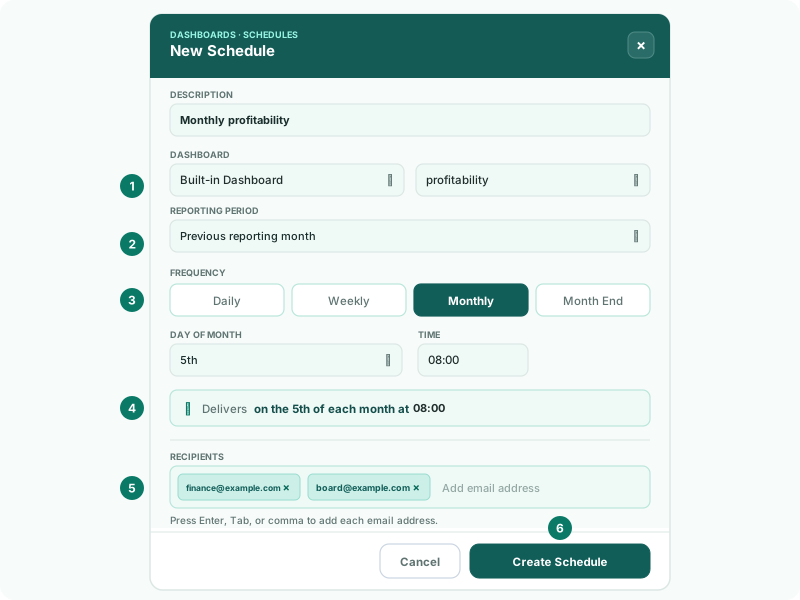
- Open Dashboards → Schedule, and click Add schedule.
- In Description, type Monthly profitability.
- Under Dashboard, choose Built-in Dashboard, then profitability. For one of your own, choose Custom Dashboard and its name.
- In Reporting period, choose Previous reporting month.
The built-in dashboards are listed by their short names: main, profitability, asset and debts. With no schedules yet, the page also offers Monthly Report and Weekly Digest to start from.
2Set when it sends
| Daily | Every day at the Time. |
|---|---|
| Weekly | On the Day of the week, at the time. |
| Monthly | On the Day of Month, at the time. A day a month doesn’t have, such as the 31st, is skipped that month — use Month End instead. |
| Month End | On the last day, or the 2nd to 5th last day, at the time. |
- Choose Monthly, the 5th, and 08:00.
- Read the line under the settings, such as Delivers on the 5th of each month at 08:00, to confirm when it sends.
3Add the recipients
- Under Recipients, type each email address and press Enter, Tab or a comma.
- Click Create Schedule.
Each recipient gets an email headed Your … is ready, with the dashboard attached as a PDF for the month. They don’t need a BrizoConsol account.
Check
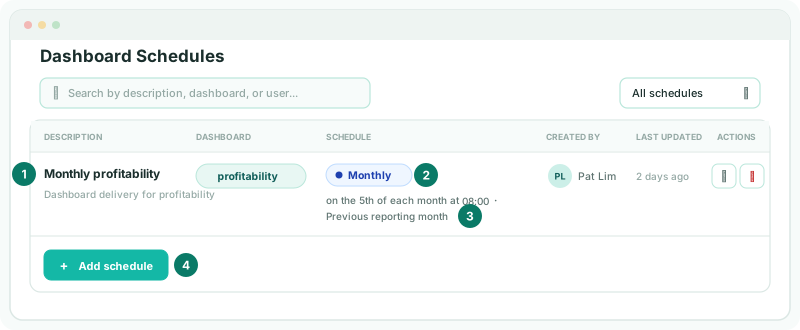
The schedule is listed with its frequency and Previous reporting month, the dashboard under Target, and you under Created by.
4Change or stop it
| Edit | Change the dashboard, timing or recipients, then Update Schedule. |
|---|---|
| Delete | Stops the schedule. The dashboard itself is not affected. |
| Search | Find a schedule by description, dashboard or user. |
5If something goes wrong
| What you see | What to do |
|---|---|
| Enter a valid email address. | Check the address you typed in Recipients. |
| Contains invalid email | Correct or remove the address shown. |
| There is no Schedule under Dashboards | Scheduling needs Administrator or Dashboard Admin access. |
Want more detail? See the documentation