
Dashboards and KPIs · Track 2 · Tutorial 3 of 3
Add AI commentary with BrizoWriter
Numbers need a sentence or two of explanation before a board reads them. BrizoWriter drafts that commentary from the group’s figures; you check and edit it before it is saved.
1Find the text card
- Open Dashboards → Profitability, and set the month to Oct-2026.
The Executive Summary card shows October’s text, or No text available yet. Any dashboard can have a text card: Comment, Executive Summary, Note, Overview or Summary.
A text card’s words belong to its type, the company and the month: every Executive Summary card for Your Group shows the same text for October, and each month has its own.
2Ask BrizoWriter
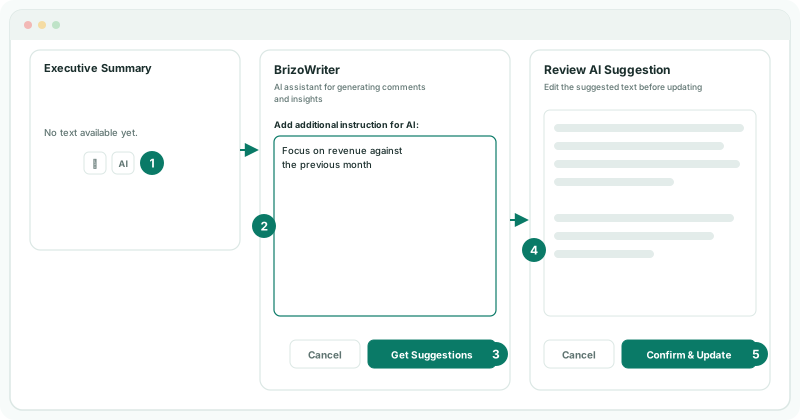
- On the card, click the BrizoWriter icon beside the pencil.
- In Add additional instruction for AI, say what to focus on, such as Focus on revenue against the previous month. The instruction is optional.
- Click Get Suggestions, and wait while it loads.
BrizoWriter writes for the card’s type and the month on screen, reading the company’s own figures for it.
3Review and save
- In Review AI Suggestion, read the text against the dashboard, and correct anything that is wrong.
- Click Confirm & Update.
AI-generated text may not be accurate, so always check the figures it quotes. To change the text later, click the pencil, edit it in Edit Text, and click Update.
Check
The card shows your text with your name and when it was saved. Move the month to Sep-2026: the card shows September’s text, or No text available yet., and October’s returns when you move back.
4If something goes wrong
| What you see | What to do |
|---|---|
| BrizoWriter writes the whole text, which would remove the figures and placeholders in it. Remove them first, or edit the text without BrizoWriter. | The saved text holds a live figure or a placeholder. Remove them in Edit Text, or edit the text yourself. |
| There is no pencil or BrizoWriter icon | Editing text cards needs Administrator access. |
| Unable to load text. | Reload the page. |
Want more detail? See the documentation