
Cell Reports · Track 2 · Tutorial 4 of 6
Insert, move and delete rows without breaking references
Available on ProPremium
Inserting and deleting rows in a Cell Report moves the formulas, references and formatting on the sheet with them. A few things don’t move, and copying a figure is not the same as moving it. Know which is which before you rework a layout.
1Know what moves
| When you insert or delete rows or columns | What happens |
|---|---|
| Formulas on the sheet | Move with the cells they read. A range grows when you insert inside it. |
| Figures’ Cell reference and Link to a cell | Move with the cells they read. |
| Conditional formatting, merged cells, hidden rows and columns, row heights, column widths, charts | Move with the sheet. |
| A cell that is deleted | Anything that read it shows #REF!. |
Formulas on other sheets that read this one, such as ='Data'!B4 | Don’t move. They keep reading the same address. |
Insert or delete from the row or column header: right-click it and choose Insert Rows Above, Insert Columns Left, Delete Selected Rows or Delete Selected Columns. Select several headers first to insert or delete several at once.
2Insert a line
- Open the monthly summary in the editor. Right-click the row 6 header, Net profit, and choose Insert Rows Above.
- In A6 type Other income.
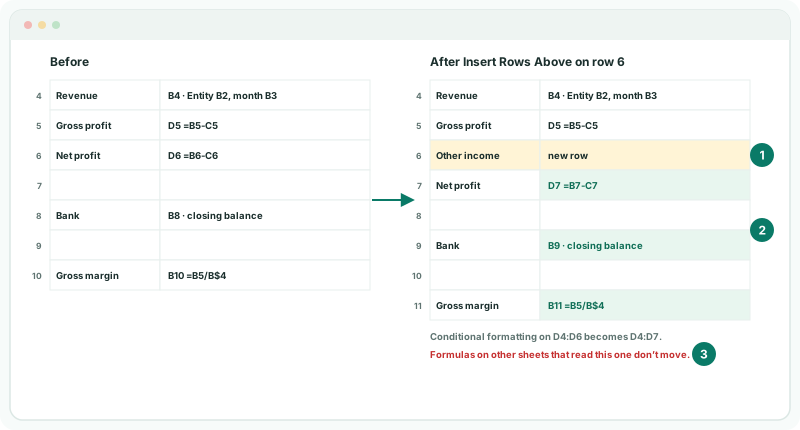
Net profit is now row 7, and everything that read it followed: D7 reads =B7-C7. The gross margin moved to B11 and still reads =B5/B$4, because gross profit didn’t move. The variance colours on D4:D6 now cover D4:D7, because the row went in inside the range. A row inserted just below a range is outside it; extend the range yourself.
3Fill the new line without copying references
- Click B6 and bind it as a new figure: Financial data, System account type, OTHER INCOME.
- Tick Cell reference beside Entity with B2, link Reporting month to B3, and tick Cell reference beside Presentation currency with E2. Do the same for C6 with Version Budget.
- Fill D5’s variance and E5’s variance % down to row 6, and click Save.
Copying or filling a bound figure moves its cell references by the same number of rows. Copy B4 to B6 and its Entity reads B4, its month B5 and its currency E4 — the wrong cells. A reference can’t be fixed with $, so after you copy or fill a bound figure, set its references again. Formulas are different: use $, as in B$4, to keep a reference where it is.
4Move a line
There is no cut. To move a line, put a copy where it is going and delete the original:
- Insert an empty row where the line is going.
- Select the old row’s cells, copy them with Ctrl+C, click the first cell of the new row, and paste with Ctrl+V.
- Set the references of any bound figure in the new row again, as in step 3.
- Point every formula that read the old row at the new one.
- Right-click the old row’s header and choose Delete Selected Rows, then click Save.
Do step 4 before step 5. A formula still reading the old row when it is deleted shows #REF!.
5Delete a line
- Before you delete, find what reads the row: formulas on the sheet that name its cells, figures with a Cell reference to it, and formulas on other sheets.
- Right-click the row header and choose Delete Selected Rows.
- Look across the sheet for #REF!. Fix each one, or press Ctrl+Z to undo the delete.
Check
Click View. No cell shows #REF!, the variances and margin match the figures beside them, and B4 to B7 match Reports → Profit & Loss.
6Change a sheet other sheets read
A report split into Summary, Settings and Data, as in Separate parameters, data and presentation across sheets, needs care. Insert a row in the middle of Data and the Summary’s ='Data'!B7 still reads B7, which now holds a different line.
| New lines | Add them at the bottom of Data, below the last one in use. Nothing moves, so nothing on the Summary breaks. |
|---|---|
| An insert in the middle | Update every Summary formula that reads a cell below the new row. |
| Settings | Data’s row 1 reads it, so don’t insert rows above the choices on Settings. |
7If something goes wrong
| What you see | What to do |
|---|---|
| #REF! in a formula or a reference box | The cell it read was deleted. Point it at the right cell, or press Ctrl+Z. |
| A copied figure shows another entity or month | Its references moved with the copy. Set them again. |
| The Summary shows the wrong line after a change to Data | Rows were inserted or deleted in Data. Update the Summary formulas, or add lines at the bottom of Data. |
| The new row isn’t coloured like the rows around it | It went in below the conditional formatting range. Extend the range. |
| A total doesn’t include the new row | The row went in below the SUM range. Extend the range. |
Want more detail? See the documentation