
Cell Reports · Track 1 · Tutorial 2 of 12
Lay out a Cell Report: sheets, cells and formats
Available on ProPremium
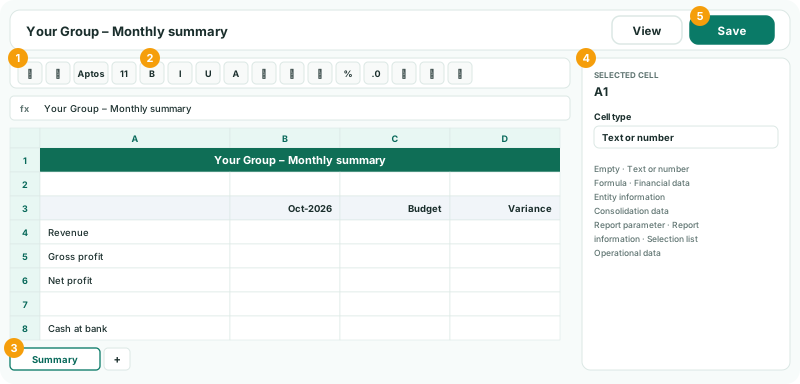
Lay out the page before you bring in any figures. A Cell Report’s editor works like a spreadsheet: a toolbar, a formula bar, the grid, sheet tabs, and an inspector for the cell you are on.
1Create the report
- Select Your Group, and open Reports → Custom Reports.
- Click Add a new report. In Choose report type, choose Cell-based report.
- In Report name, enter Your Group – Monthly summary. Choose a Category, and in Available to choose who can open it.
2Type the labels
- Click A1 and type the title, Your Group – Monthly summary. The inspector shows Selected cell A1, with Cell type Text or number.
- In B3, C3 and D3 type Oct-2026, Budget and Variance.
- In A4 to A6 type Revenue, Gross profit and Net profit; in A8, Cash at bank.
Move with the arrow keys; Enter confirms a cell and Escape cancels the edit. Whatever you type into a cell also shows, and can be edited, in the formula bar. B3’s month is typed for now: in Let readers choose the entity, period and currency it becomes live.
3Format the page
- Select A1 to D1, and choose Merge & Center from Merge selected cells. Make it Bold, a larger Font size, white text on a dark Fill color.
- Select A3 to D3: Bold, a light fill, and Horizontal alignment Right for B3 to D3.
- Select B4 to D8, set Number format to Number and Decimal places to 0.
- Add a bottom border under row 3 with Borders.
- Drag the edge of column A’s heading to widen it; double-click it to fit the longest label.
- Choose Freeze Top Row from Freeze rows and columns, so the headings stay in view.
| Number format | Automatic, Number, Percentage or Date. The format changes how a value is shown, never the value. |
|---|---|
| Merge | Merge & Center, Merge Across, Merge Cells, or Unmerge Cells. Merge titles and headings, not figures. |
| Undo and Redo | Ctrl+Z and Ctrl+Y undo and redo any change, formatting included. |
4Add and name sheets
- Click the sheet tab, and change Sheet name to Summary.
- Click Add sheet (+) to add another, for example for notes or workings.
Formulas can read cells on other sheets, so one sheet can hold the parameters and workings and another the page readers see. See Separate parameters, data and presentation across sheets.
5Save and view
- Click Save.
- Click View to see the report as readers will.
Check
The report is listed under Reports → Custom Reports, and in View it shows the title across A1 to D1, the headings and the four labels, with the top row frozen.
6If something goes wrong
| A change went wrong | Undo it with Ctrl+Z, as many steps back as you need. |
|---|---|
| Others can’t find the report | Check Available to, and that it was saved. |
Want more detail? See the documentation