
Cell Reports · Track 1 · Tutorial 1 of 12
Know when to use a Cell Report
Available on ProPremium
A Cell Report is a spreadsheet that reads your consolidation. You decide what goes in every cell, and each figure stays live: open the report next month and it shows next month. That freedom is its strength, and the reason it needs more care than a row/column report.
1Know the three kinds of report
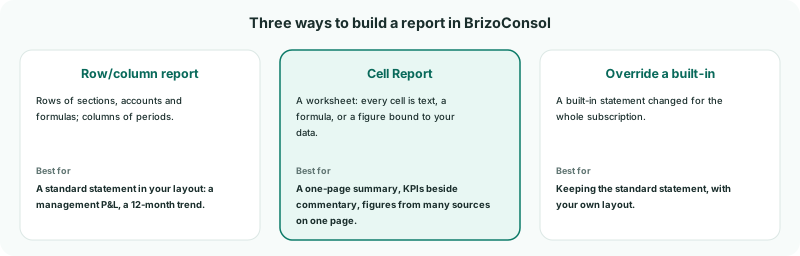
| Row/column report | Cell Report | |
|---|---|---|
| Layout | Rows down, periods across | Any cell, any sheet |
| Sources on one page | The statements, KPIs and operational data, row by row | Statements, KPIs, NCI, CTA, associates, eliminations, journals, exchange rates and operational data, cell by cell |
| Calculations | Formula rows and columns | Spreadsheet formulas: SUM, IF, VLOOKUP, INDEX and MATCH, SUMIF and more |
| Readers choose | Period and filters on the toolbar | Any parameter you put on the page: entity, period, currency |
| Upkeep | Low: rows follow sections and accounts | Depends on how it is built — see the Keep Cell Reports maintainable track |
2Know how a Cell Report is built
| Workbook | The report. It has a name, a category and who it is available to. |
|---|---|
| Sheets | Tabs at the bottom, like a spreadsheet. A report can have several. |
| Cells | Each cell has a Cell type, which decides what it holds. |
| Cell type | Holds |
|---|---|
| Text or number | What you type: titles, labels, a fixed figure. |
| Formula | A calculation on other cells, starting with =. |
| Financial data | A figure from the consolidation: a section, an account, a total, a tag, a KPI, an exchange rate, or a line of the NCI, CTA or JV / Associate report. |
| Consolidation data | The CTA, NCI, elimination and consolidation journal entries. |
| Entity information | An entity’s name, currency, fiscal year or reporting month. |
| Report parameter, Selection list | A value the reader can change — an entity, a period, a currency — that other cells read. |
| Report information | The report’s name, or when it was generated. |
| Operational data | Non-financial figures you have loaded, such as headcount. |
Bound cells are read when the report is opened, for its entity and reporting month. Formulas then calculate on them, as in a spreadsheet.
3Choose the type for each report
| You need | Choose |
|---|---|
| A profit and loss in your own layout, by month or quarter | A row/column report |
| The built-in balance sheet, with a few lines changed, for everyone | Override the built-in report |
| A one-page summary: headline figures, budget and variance, cash and NCI, with room for commentary | A Cell Report |
| A reconciliation that mixes the statements with the NCI or CTA report | A Cell Report |
| One layout that each company’s manager reads for their own company | A Cell Report with an entity parameter |
A Cell Report does what you tell it, cell by cell. A row/column report picks up a new account in a section by itself; a Cell Report only does if it is built to. Build every Cell Report as the Keep Cell Reports maintainable track describes, from the start.
4Plan Your Group’s monthly summary
The next tutorials build one Cell Report, step by step:
| The page | A title, then Revenue, Gross profit and Net profit for the month, against budget, with the variance; then cash at bank. |
|---|---|
| Then | A parameter so readers can choose the entity, NCI and CTA figures, charts, and highlighting of large variances. |
| Finally | In a dashboard and the monthly pack, sent every month. |
Check
For each report your group sends, you can say which of the three kinds it should be, and why.
Want more detail? See the documentation